
Sponsors are companies, organizations, or individuals displayed for recognition on your Tournament Website.
A Sponsor can be added manually or created automatically after someone purchases a sponsorship through the Online Store and uploads a logo during checkout.
Sponsors are managed under Event Website > Sponsors.
How Sponsors work
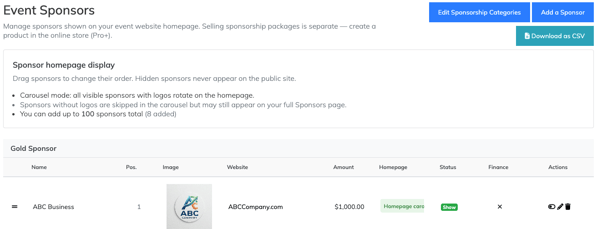
| Element | Purpose | Managed under |
|---|---|---|
| Sponsor | Stores the name, logo, website, category, and visibility information used for recognition | Event Website > Sponsors |
| Sponsor Category | Organizes Sponsors into groups for website display | Event Website > Sponsors |
| Online Store product set up as a sponsorship | Sells the sponsorship and collects sponsor information during checkout | Finances & Commerce > Online Store |
| Tournament Website | Displays visible Sponsors to players, supporters, and visitors | Public tournament site |
Selling a sponsorship and displaying a Sponsor are related, but they are separate actions.
For a complete explanation, see Selling Sponsorships vs. Displaying Sponsors.
Ways a Sponsor can be added
There are two ways a Sponsor can appear under Event Website > Sponsors.
| Method | When to use it |
|---|---|
| Add the Sponsor manually | The Sponsor paid outside EventCaddy, provided goods or services, did not upload a logo during checkout, or should be recognized without making an Online Store purchase |
| Collect a logo during checkout | The sponsorship is sold through the Online Store and the purchaser uploads a logo |
Manually added Sponsors
You can add a Sponsor manually regardless of how the Sponsor paid or contributed.
This may be useful when:
- payment was collected by cash, check, invoice, or another method;
- the Sponsor contributed goods or services;
- the Sponsor was arranged outside the Online Store;
- the purchaser did not upload a logo; or
- you are using EventCaddy Free and do not have access to the Online Store.
Sponsors created through checkout
When someone purchases an Online Store product set up as a sponsorship and uploads a logo, EventCaddy automatically creates a Sponsor under Event Website > Sponsors.
The Sponsor is added as hidden so you can review the submitted information before displaying it publicly.
Important: Purchasing a sponsorship does not automatically create a Sponsor when no logo is uploaded. Add the Sponsor manually when recognition is still required.
Information stored with a Sponsor
A Sponsor can include:
- sponsor or company name;
- logo;
- website address;
- Sponsor Category; and
- visibility status.
Review this information before making a Sponsor visible on the Tournament Website.
A clear logo and accurate website address help ensure the Sponsor is represented correctly.
Sponsor Categories
Sponsor Categories organize Sponsors for display on your Tournament Website.
Common Sponsor Categories include:
- Gold Sponsor
- Silver Sponsor
- Bronze Sponsor
- Hole Sponsor
- Cart Sponsor
- Dinner Sponsor
You can create, rename, and rearrange Sponsor Categories under Event Website > Sponsors.
Sponsor Categories are separate from Product Categories.
| Category type | What it organizes |
|---|---|
| Product Category | Products being sold through the Online Store |
| Sponsor Category | Sponsors being displayed on the Tournament Website |
For example, a Product Category called Sponsorships might contain Online Store products named Gold Sponsor, Silver Sponsor, and Hole Sponsor.
When a purchaser uploads a logo, EventCaddy uses the Online Store product name as the Sponsor Category name.
Important: When creating Sponsor Categories manually, use the exact same name as the corresponding Online Store product. Matching the names helps prevent duplicate categories from being created for the same sponsorship package.
For example, an Online Store product named Gold Sponsor should use a Sponsor Category named Gold Sponsor, not Gold Sponsors or Gold Level.
You can rename or rearrange the categories later.
Hidden and visible Sponsors
Visibility determines whether a Sponsor appears publicly.
| Status | What it means |
|---|---|
| Hidden | The Sponsor is saved in EventCaddy but is not displayed publicly |
| Visible | The Sponsor appears in the Sponsor areas of the Tournament Website |
Sponsors created after a purchaser uploads a logo are hidden by default.
This gives you an opportunity to:
- review the logo;
- confirm the Sponsor name;
- check the website address;
- confirm the Sponsor Category; and
- correct any submitted information.
After reviewing the Sponsor, change it to visible when it is ready to be displayed.
Where Sponsors appear
Visible Sponsors can appear in the Sponsor section of your Tournament Website.
Sponsors with logos may also appear in the rotating Sponsor display on the homepage. When several Sponsors are available, the homepage display rotates through the logos rather than showing every logo at the same time.
The Sponsor must have an appropriate logo and be set to visible before it can appear in logo-based display areas.
Sponsors and the Online Store
The Sponsors area controls recognition and display. The Online Store controls the sale.
| Customer goal | EventCaddy area |
|---|---|
| Create and sell a sponsorship package | Finances & Commerce > Online Store |
| Collect sponsor information during checkout | Online Store product set up as a sponsorship |
| Review a submitted logo | Event Website > Sponsors |
| Organize Sponsors | Event Website > Sponsors |
| Display a Sponsor publicly | Event Website > Sponsors |
You do not need to sell a sponsorship through the Online Store to display a Sponsor.
You also do not need to display every company that makes an Online Store purchase as a Sponsor.
Sponsors with EventCaddy Free and PRO
| Subscription | Sponsor options |
|---|---|
| EventCaddy Free | Manually add, organize, and display Sponsors |
| EventCaddy PRO | Manually manage Sponsors and sell sponsorships through the Online Store |
The Online Store is available with EventCaddy PRO, but the Sponsors area can still be used to recognize Sponsors that were added manually.
Recommended Sponsor workflow
- Decide which Sponsor Categories you need.
- Create the categories manually, or allow EventCaddy to create them from Online Store product names.
- Add Sponsors manually or collect their information during Online Store checkout.
- Review each Sponsor’s name, logo, website, and category.
- Make the Sponsor visible.
- Preview the Tournament Website to confirm the display.
Sponsor information is managed separately for each tournament. Sponsors and sponsorship details should be reviewed and set up for every new tournament.
Frequently Asked Questions
Do Sponsors have to purchase through the Online Store?
No.
You can manually add a Sponsor under Event Website > Sponsors, regardless of how the Sponsor paid or contributed.
Why did a sponsorship purchaser not appear under Sponsors?
A Sponsor is created automatically only when the purchaser uploads a logo during checkout.
When no logo is uploaded, add the Sponsor manually.
Why is a Sponsor hidden?
Sponsors created through logo upload are hidden by default so you can review their information before displaying them publicly.
Can I rename or rearrange Sponsor Categories?
Yes.
You can edit Sponsor Category names and change their display order under Event Website > Sponsors.
Why was a duplicate Sponsor Category created?
The manually created Sponsor Category may not exactly match the Online Store product name.
For example, Gold Sponsor and Gold Sponsors are treated as different names.
Are Product Categories and Sponsor Categories connected?
They serve different purposes.
Product Categories group products for sale. Sponsor Categories group Sponsors for recognition and website display.
The automated Sponsor Category is based on the purchased Online Store product name, not its Product Category.
Do Sponsors carry over to a new tournament?
No.
Sponsor information and sponsorship details must be reviewed and set up for each tournament.