
Sponsors are managed under Event Website > Sponsors.
From the Event Sponsors page, you can:
- create and organize Sponsor Categories;
- add Sponsors manually;
- review Sponsors added through Online Store checkout;
- upload or replace Sponsor logos;
- edit Sponsor information;
- show or hide Sponsors;
- change their display order; and
- export the Sponsor list to a CSV file.
Understanding the Event Sponsors page
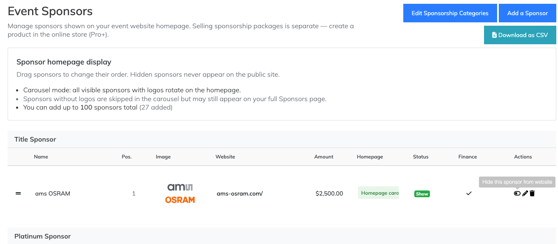
| Area | What it controls |
|---|---|
| Edit Sponsorship Categories | Creates, renames, and rearranges Sponsor Categories |
| Add a Sponsor | Adds a Sponsor manually |
| Download as CSV | Exports the tournament’s Sponsor information |
| Homepage | Shows whether the Sponsor is eligible for the homepage carousel |
| Status | Shows whether the Sponsor is displayed publicly |
| Actions | Provides controls for viewing, editing, showing, hiding, or deleting the Sponsor |
Sponsors are grouped by Sponsor Category on the Event Sponsors page.
You can drag Sponsors using the handle on the far left of each row to change their order.
Important: Hidden Sponsors never appear on the public Tournament Website.
Create and manage Sponsor Categories
Sponsor Categories organize Sponsors into recognition levels or groups.
Examples include:
- Title Sponsor
- Platinum Sponsor
- Gold Sponsor
- Silver Sponsor
- Hole Sponsor
To manage Sponsor Categories:
- Go to Event Website > Sponsors.
- Select Edit Sponsorship Categories.
- Add any categories you need.
- Edit existing category names when necessary.
- Rearrange the categories into the order in which you want them displayed.
- Save your changes.
Sponsor Categories are separate from the Product Categories used in the Online Store.
| Category type | What it organizes |
|---|---|
| Product Category | Products being sold through the Online Store |
| Sponsor Category | Sponsors displayed on the Tournament Website |
When sponsorships are sold through the Online Store, the automatic Sponsor Category is based on the Online Store product name.
If you create Sponsor Categories manually, use the exact same names as the corresponding Online Store products. Matching the names helps prevent duplicate categories.
For example, an Online Store product named Gold Sponsor should use a Sponsor Category named Gold Sponsor.
Add a Sponsor manually
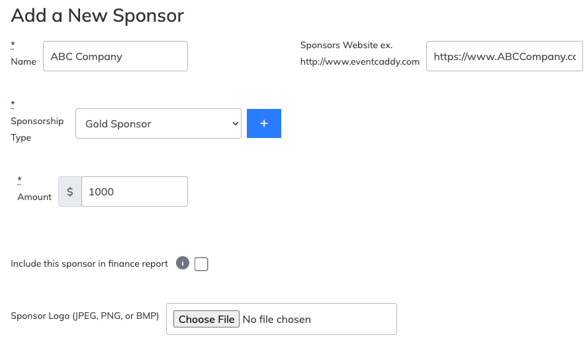 Sponsors can be added manually regardless of how they paid or contributed.
To add a Sponsor:
- Go to Event Website > Sponsors.
- Select Add a Sponsor.
- Enter the Sponsor’s information.
- Choose the appropriate category in the Sponsorship Type field.
- If the sponsorship was purchased outside of Event Caddy, select 'Include this sponsor in finance report', otherwise skip it if a transaction already exists to avoid duplicate counts.
- Add the Sponsor’s logo, when available.
- Enter the Sponsor’s website address and any other relevant information.
- Save the Sponsor.
Manually adding a Sponsor is useful when:
- the Sponsor paid outside Event Caddy;
- the Sponsor contributed goods or services;
- the Sponsor did not upload a logo during checkout;
- the sponsorship was arranged outside the Online Store; or
- you want to recognize a partner without an Online Store purchase.
Review a Sponsor added through checkout
When someone purchases an Online Store product set up as a sponsorship and uploads a logo, Event Caddy adds the Sponsor under Event Website > Sponsors.
The Sponsor is hidden by default.
Before displaying it publicly:
- Locate the Sponsor on the Event Sponsors page.
- Review the Sponsor’s name.
- Confirm that the logo is clear and appropriate.
- Check the website address.
- Confirm the Sponsor Category.
- Edit any incorrect or incomplete information.
- Make the Sponsor visible.
A Sponsor is not created automatically when the purchaser does not upload a logo.
For the complete checkout workflow, see Selling Sponsorships Through the Online Store.
Edit a Sponsor
To update an existing Sponsor:
- Go to Event Website > Sponsors.
- Locate the Sponsor.
- Select the Edit icon in the Actions column.
- Update the Sponsor’s information.
- Save your changes.
You may need to edit a Sponsor to:
- replace or correct its logo;
- update its name;
- change its website address;
- move it to another Sponsor Category; or
- update its recognition information.
Show or hide a Sponsor
A Sponsor must be visible before it can appear publicly.
| Status | What it means |
|---|---|
| Show | The Sponsor is displayed on the Tournament Website |
| Hidden | The Sponsor remains saved but is not displayed publicly |
To change visibility:
- Locate the Sponsor under Event Website > Sponsors.
- Use the visibility icon in the Actions column.
- Confirm the updated status in the Status column.
- Preview the Tournament Website.
Use the tooltip over the visibility icon to confirm whether the action will show or hide the Sponsor.
Sponsors added through checkout are initially hidden so you can review them before publication.
Rearrange Sponsors
The order of Sponsors can be changed directly from the Event Sponsors page.
To rearrange a Sponsor:
- Locate the drag handle on the far left of the Sponsor row.
- Select and drag the Sponsor to its new position.
- Release it in the desired location.
- Preview the Tournament Website to confirm the display order.
Use Edit Sponsorship Categories when you need to rearrange the categories themselves.
How the homepage Sponsor carousel works
 The homepage uses a carousel to rotate through eligible Sponsor logos.
A Sponsor appears in the homepage carousel when it:
- is set to visible; and
- has a logo.
| Sponsor state | Homepage carousel | Full Sponsors page |
|---|---|---|
| Visible with a logo | Included | May appear |
| Visible without a logo | Skipped | May still appear |
| Hidden | Never appears | Never appears |
All visible Sponsors with logos rotate through the homepage carousel.
The carousel does not permanently display every logo at the same time. Visitors will see additional Sponsor logos as the carousel rotates.
Sponsor limits
You can add up to 100 Sponsors to a tournament.
The Event Sponsors page shows the current number of Sponsors beside the total limit.
When approaching the limit, review outdated or duplicate Sponsor records before adding more.
Export Sponsors to CSV
To export the Sponsor list:
- Go to Event Website > Sponsors.
- Select Download as CSV.
- Save the downloaded file.
- Open it in spreadsheet software when you need to sort, filter, or review the Sponsor data.
The export is useful for internal records, sponsor follow-up, and post-tournament reporting.
Sponsors must be managed for each tournament
Sponsor details do not automatically carry over between tournaments.
Review and set up Sponsor Categories, Sponsor records, logos, and visibility for each new tournament.
Frequently Asked Questions
Why is a Sponsor not appearing publicly?
Check that:
-
the Sponsor is set to Show;
-
the Sponsor is assigned to the correct category;
-
the Sponsor information has been saved; and
-
you are viewing the correct tournament’s website.
Hidden Sponsors never appear publicly.
Why is a Sponsor missing from the homepage carousel?
Confirm that the Sponsor:
-
is visible; and
-
has a logo.
Visible Sponsors without logos may appear on the full Sponsors page but are skipped in the homepage carousel.
Why can I see only some Sponsor logos at one time?
The homepage uses a rotating carousel.
Additional visible Sponsor logos appear as the carousel rotates.
Can I display a Sponsor without selling a sponsorship online?
Yes.
Select Add a Sponsor and enter the Sponsor manually.
Can I change the order of Sponsors?
Yes.
Drag Sponsors into the preferred order using the handle on the left side of each Sponsor row.
Sponsor Categories can be rearranged through Edit Sponsorship Categories.
Can I rename a Sponsor Category?
Yes.
Select Edit Sponsorship Categories and update the category name.
When the category relates to an Online Store sponsorship, remember that automatically assigned categories are based on the Online Store product name.
Why was a duplicate Sponsor Category created?
The manually created Sponsor Category may not exactly match the Online Store product name.
For example, Gold Sponsor and Gold Sponsors are treated as different names.
Can I download a list of Sponsors?
Yes.
Select Download as CSV from the Event Sponsors page.
Related Articles
- Sponsors Overview
- Selling Sponsorships vs. Displaying Sponsors
- Selling Sponsorships Through the Online Store
- Collecting Sponsor Logos During Checkout