
The Inline Website Editor (Beta) lets you customize the appearance and layout of your Tournament Website homepage while previewing your changes as you work.
You can update your logo and banner, customize homepage action buttons, add formatted content, control how Sponsors appear, rearrange or hide homepage sections, and configure footer sharing options.
Important: Changes shown in the editor preview are not necessarily published yet. Use the Save button inside the setting panel when one is provided, or select Save Changes at the top of the editor to publish outstanding changes.
Table of Contents:
- Customize Your Logo and Banner
- Customize Homepage Action Buttons
- Add Homepage Content
- Control How Sponsors Appear
- Rearrange and Hide Homepage Sections
- Customize the Footer
- Frequently Asked Questions
Customize Your Logo and Banner
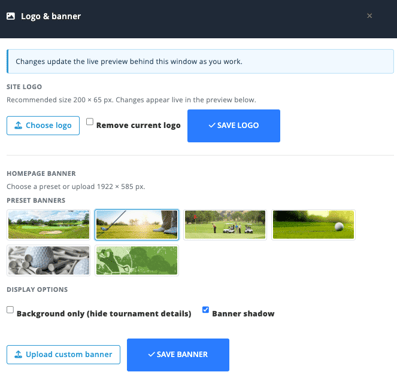
From the Inline Website Editor, select Edit > Logo & banner. You can also select Edit directly beside the corresponding section in the homepage preview.
Site Logo
Under Site Logo, you can upload or remove the logo shown in the website header.
Event Caddy recommends a logo size of 200 × 65 px.
- Select Choose logo.
- Select the image you want to use.
- Review the logo in the live preview.
- Select Save Logo to publish the change.
To remove the existing logo, select Remove current logo, then save the logo settings.
Homepage Banner
The homepage banner appears near the top of the Tournament Website.
You can select one of Event Caddy’s preset banners or upload your own custom banner. The recommended custom banner size is 1922 × 585 px.
Under Display Options, you can also configure:
| Setting | What it does |
|---|---|
| Background only (hide tournament details) | Uses the banner as a background without displaying the tournament details over the banner image. |
| Banner shadow | Adds a shadow effect to help the tournament information stand out against the banner. |
Select Save Banner when you are ready to publish the banner changes.
Customize Homepage Action Buttons
Select Edit > Action buttons to open the Homepage buttons settings.
The homepage can include three primary action buttons:
|
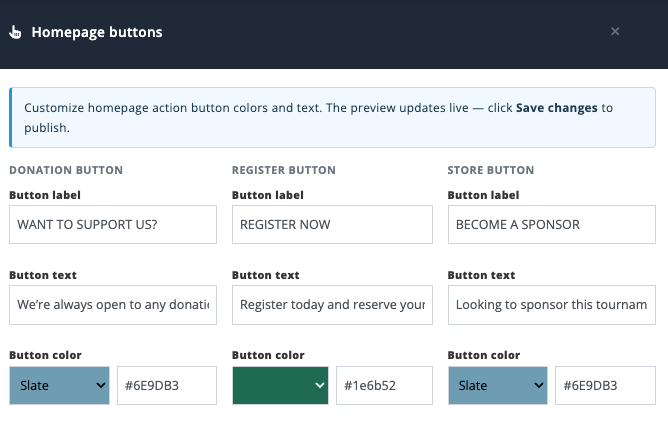 |
For each button, you can customize:
| Setting | What it changes |
|---|---|
| Button label | The main button heading. Maximum 20 characters. |
| Button text | Supporting text displayed with the button. Maximum 200 characters. |
| Button color | The button’s display color. Select a color or enter a HEX value. |
The preview updates while you edit. When finished, select Save Changes at the top of the editor to publish the changes.
Important: Changing a button’s label or text does not change where the button leads. The Donation button still opens the donation experience, the Register button still opens Player Registration, and the Store button still opens the Online Store.
For example, you could rename the Store button to Become a Sponsor, but selecting it would still take the visitor to the Online Store.
Add Homepage Content
Select Edit > Main content or Edit > Secondary content. Both options open the Homepage content editor, where you can switch between the Main content and Secondary content tabs.
The rich-text editor supports formatted text and other website content such as:
- headings and text formatting
- numbered and bulleted lists
- links
- images
- tables
- emoji
- embedded media
The homepage preview updates as you edit.
Select Save Changes at the top of the editor when you are ready to publish your content.
Main Content and Secondary Content are separate homepage sections. You can control their order and visibility independently from Section order & visibility.
Control How Sponsors Appear
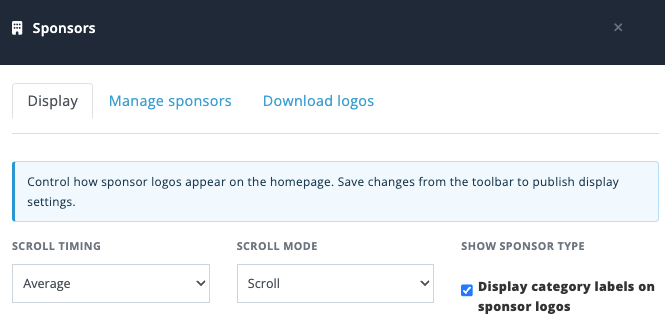
Select Edit > Sponsors, then use the Display tab to control how visible Sponsor logos are presented on the homepage.
Sponsor records, logos, categories, and individual Sponsor visibility remain managed by the Sponsors feature. For those workflows, see Displaying Sponsors on Your Tournament Website.
Sponsor Display Settings
| Setting | Options | What it does |
|---|---|---|
| Scroll Timing | Slow, Average, Fast | Controls how quickly Sponsor logos move when Scroll mode is used. |
| Scroll Mode | Scroll, Static | Scroll moves visible Sponsor logos across the homepage. Static displays all visible Sponsor logos grouped by Sponsor Category. |
| Display category labels on sponsor logos | On or off | Controls whether Sponsor Category labels appear while using Scroll mode. In Static mode, Sponsors are always grouped by category, so this setting has no effect. |
The current UI uses Sponsorship type in parts of the Sponsor-management interface. This corresponds to the Sponsor Category used to organize Sponsor records.
Select Save Changes at the top of the editor to publish Sponsor display changes.
Managing Sponsor Records
The Sponsors panel also contains Manage sponsors and Download logos tabs.
These provide shortcuts into Sponsor-management tools, but the Sponsor records themselves remain owned by the Sponsors feature. Use the Sponsor documentation for adding, editing, hiding, reordering, or otherwise maintaining Sponsor records.
Rearrange and Hide Homepage Sections
Select Edit > Section order & visibility to control which homepage sections visitors see and the order in which they appear.
Drag a section using its handle to move it to a new position. Select its Showing control to hide or show it.
Current homepage sections include:
- Main Content
- Secondary Content
- Our Sponsors
- Fundraising Goal
- Schedule
- Tournament Details
- Photo Gallery
- Golf Club
Select Save Changes when you are ready to publish the new layout.
Important: Hiding a section here only hides that section from the homepage. It does not disable the underlying Event Caddy feature or remove information from other parts of the Tournament Website.
For example, hiding Our Sponsors does not hide individual Sponsor records through Sponsor management, and hiding Schedule does not delete your Event Schedule.
Schedule and Tournament Details
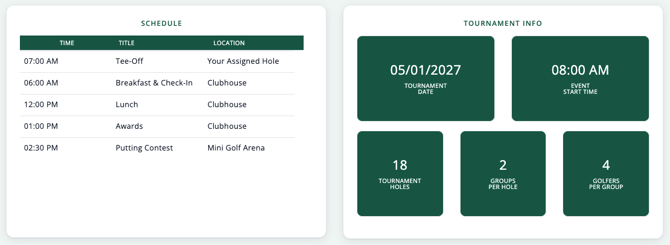
Schedule and Tournament Details have separate visibility controls but can appear together within the same homepage area when both are enabled.
The Schedule portion displays Event Schedule items such as their time, title, and location.
The underlying Event Schedule is managed separately. See Creating and Managing Your Day-of-Event Schedule.
The Tournament Details portion displays tournament information from your existing Event Caddy settings, including:
- Tournament Date
- Event Time / Start Time
- Tournament Holes
- Groups Per Hole
- Golfers Per Group
You can show Schedule only, Tournament Details only, both, or neither.
Golf Club
The Golf Club homepage section is populated automatically from the golf course selected for the tournament.
Showing or hiding the Golf Club section changes only whether that information appears on the homepage.
Customize the Footer
Select Edit > Footer to configure social sharing and footer branding.
Social Share Buttons
You can choose whether the footer includes sharing buttons for:
These buttons let visitors share the Tournament Website through the selected social network. They do not link to the organizer’s own social-media profile.
Select Save Footer to publish the change.
Remove Event Caddy Footer Branding
ELITE tournaments can remove the Created with Event Caddy credit from the website footer.
Enable Hide "Created with Event Caddy" in footer, then select Save Footer.
This white-label footer option is available with ELITE and is currently available only through the Inline Website Editor.
Frequently Asked Questions
Can I change where a homepage action button links?
No. The Donation, Register, and Store buttons have fixed destinations.
You can change each button’s label, supporting text, and color, but changing the wording does not change the feature the button opens.
Can I hide a homepage section without disabling the feature?
Yes. Section order & visibility controls only the homepage presentation.
For example, hiding Sponsors from the homepage does not delete Sponsor records, and hiding the Schedule does not delete your Event Schedule.
Can I show the Schedule without showing Tournament Details?
Yes. Schedule and Tournament Details have separate visibility controls.
You can display either one individually, display both together, or hide both.
Can I remove Event Caddy branding from the website footer?
Yes, with ELITE. The Inline Website Editor includes an ELITE white-label option that removes the Created with Event Caddy footer credit.