
Sponsorships sold through the Online Store and Sponsors displayed on your Tournament Website are related, but they are not the same thing.
An Online Store product is something a customer purchases. A Sponsor is a company, organization, or person displayed for recognition on your Tournament Website.
Selling a sponsorship and displaying a Sponsor are managed in different areas of Event Caddy.
Quick comparison
| What you want to do | Managed under | What it controls |
|---|---|---|
| Sell a sponsorship | Finances & Commerce > Online Store | The package, price, availability, purchase, and payment |
| Display a Sponsor | Event Website > Sponsors | The Sponsor’s name, logo, website, category, and visibility |
| Organize products for sale | Online Store > Product Categories | How products are grouped in the Online Store |
| Organize displayed Sponsors | Event Website > Sponsors | How Sponsors are grouped on the Tournament Website |
Selling sponsorships through the Online Store
Event Caddy PRO allows you to sell sponsorship packages through your Online Store.
Examples include:
- Hole Sponsor
- Gold, Silver, or Bronze Sponsor
- Cart Sponsor
- Dinner Sponsor
- Putting Contest Sponsor
For easier inventory management, payment tracking, and reporting, sponsorship packages should normally be created in the Online Store rather than under Registration Options.
To create a sponsorship for sale:
- Go to Finances & Commerce > Online Store.
- Create a Product Category such as Sponsorships, if needed.
- Create an Online Store product for each sponsorship package you want to sell.
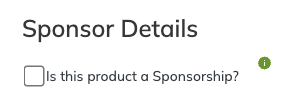
- Select Is this product a Sponsorship? when creating or editing the product.
Selecting Is this product a Sponsorship? allows the purchaser to provide sponsor information during checkout, including their company name, website address, and logo.
An Online Store product sold as a sponsorship can also include player registrations when the package includes golfers.
Important: Purchasing a sponsorship does not always add the purchaser under Event Website > Sponsors. A Sponsor is added automatically only when the purchaser uploads a logo during checkout.
How a purchased sponsorship becomes a displayed Sponsor
When someone purchases a sponsorship through the Online Store:
- The purchase and payment are recorded with your tournament transactions.
- The purchaser is asked for sponsor information during checkout.
- If the purchaser uploads a logo, Event Caddy adds the Sponsor under Event Website > Sponsors.
- The Sponsor is added as Hidden so you can review the submitted information.
- You make the Sponsor visible when you are ready for it to appear on your Tournament Website.
If the purchaser does not upload a logo, they will not automatically appear in the Sponsors area. They also have the option of skipping the logo upload form altogether. You can add them manually later.
Reviewing and displaying a Sponsor
To review a Sponsor added through checkout:
- Go to Event Website > Sponsors.
- Locate the Sponsor and review the submitted information.
- Confirm the Sponsor’s name, website address, logo, and category.
- Make any required changes.
- Use the visibility toggle to change the Sponsor from hidden to visible.
The Sponsor will appear on your Tournament Website after it is made visible.

Product Categories and Sponsor Categories
Product Categories and Sponsor Categories serve different purposes.
| Category type | Purpose |
|---|---|
| Product Category | Organizes products for sale in the Online Store |
| Sponsor Category | Organizes Sponsors displayed on the Tournament Website |
For example, you might create a Product Category called Sponsorships to group all sponsorship packages in the Online Store.
Each sponsorship package would then have its own Online Store product name, such as:
- Gold Sponsor
- Silver Sponsor
- Bronze Sponsor
When a purchaser uploads a logo during checkout, the Sponsor is placed under a Sponsor Category based on the Online Store product name.
If you create Sponsor Categories manually before any sponsorships are purchased, use the exact same names as the corresponding Online Store products. For example, an Online Store product named Gold Sponsor should have a Sponsor Category named Gold Sponsor.
Important: Matching the Sponsor Category name to the Online Store product name helps prevent duplicate categories, such as one category created manually and another created automatically for the same sponsorship package.
You can edit Sponsor Category names and rearrange their display order later under Event Website > Sponsors.
Adding Sponsors manually
Sponsors do not have to purchase through the Online Store.
You can manually add a Sponsor under Event Website > Sponsors when:
- the sponsor paid outside Event Caddy;
- the sponsor contributed goods or services;
- you want to recognize a partner or supporter;
- the sponsor purchased through the Online Store but did not upload a logo; or
- you are not selling sponsorships through the Online Store.
Using Sponsors with Event Caddy Free
Event Caddy Free does not include the Online Store, so sponsorships cannot be sold through the Online Store.
You can still create Sponsor Categories, manually add Sponsors under Event Website > Sponsors, and display their logos on your Tournament Website.
Frequently Asked Questions
Why did a purchaser not appear under Sponsors?
A Sponsor is added automatically only when the purchaser uploads a logo during checkout.
If no logo was uploaded, add the Sponsor manually under Event Website > Sponsors.
Are Sponsors added through checkout visible immediately?
No. Sponsors added through checkout are hidden by default so you can review their information before displaying them publicly.
How can I see who purchased a sponsorship?
Go to Finances & Commerce > Online Store.
If the product has been purchased, select Consumer Reports beside it to view the transactions and download a CSV.
Why is the Become a Sponsor button not showing?
Go to My Event > Event Setup & Settings > Event Settings and confirm that the Become a Sponsor button has not been hidden.
Should sponsorships be created under Registration Options?
Usually, no. Sponsorships should normally be sold as Online Store products so purchases, inventory, reporting, and sponsor information can be managed through the Online Store.
If a sponsorship includes golfers, the Online Store product can include player registrations.
Can I display a Sponsor who did not purchase online?
Yes. Add the Sponsor manually under Event Website > Sponsors, regardless of how they paid or contributed.