
Player Registration becomes available when your tournament has the required Registration Package, payment, and player-capacity settings in place.
If golfers see that registration is unavailable—or if you are ready to stop accepting additional players—use the checks below to control registration without changing existing registrations.
Before you open Player Registration
Before inviting golfers to register, confirm the following:
- at least one Registration Package has been created;
- at least one Payment Option is enabled;
- any required Payment Gateway is connected;
- Max Players is higher than the number of players currently registered; and
- the Registration Packages you want golfers to see are available publicly.
At least one Payment Option must be enabled even if your tournament only offers $0 Registration Packages and no funds will actually be collected.
1. Create your Registration Packages
Registration Packages define the registration choices available to golfers.
They are managed under:
Player Management > Registration Options
Before opening registration, confirm that the packages you intend to offer have the correct:
- number of players;
- Package Name;
- Package Cost;
- description; and
- public or private visibility.
For complete package setup instructions, see Creating and Managing Registration Packages.
2. Enable at least one Payment Option
Your tournament must have at least one Payment Option enabled before registration can be available.
Go to:
My Event > Event Setup & Settings
Locate Payment Options and enable at least one method that your tournament will accept.
A Payment Option is required even when all available Registration Packages cost $0.
Depending on the Payment Option you select, a connected Payment Gateway may also be required.
For example, online credit card payments require the appropriate connected payment processor.
See Choosing and Configuring Payment Options and Connecting Stripe and PayPal for further details.
3. Confirm available player capacity
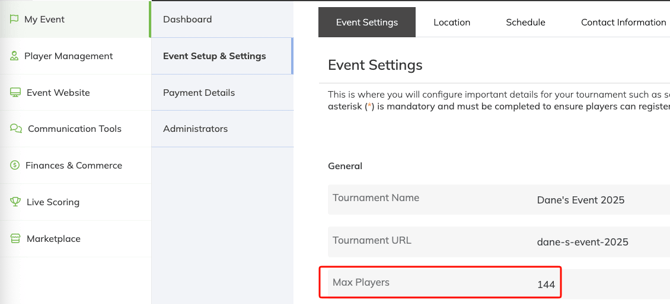
Event Caddy uses Max Players to control the total number of golfers your tournament can accept.
Go to:
My Event > Event Setup & Settings
Review Max Players and confirm that it is greater than the number of players currently registered.
When the tournament reaches Max Players, Event Caddy prevents additional players from being registered.
This player limit applies across the tournament. Online Store products that include player registrations can also become unavailable when there is not enough player capacity remaining.
4. Confirm your Registration Packages are visible
Go to:
Player Management > Registration Options
Confirm that the Registration Packages you want to offer publicly are not configured as private packages.
A private Registration Package is hidden from the public Tournament Website and is instead accessed through its unique registration link.
Also remember that $0 items are hidden from the public Tournament Website by default. If you want a $0 Registration Package displayed publicly, contact Event Caddy Support using the chat icon in the bottom-right corner or email support@eventcaddy.com.
Preview registration before promoting your tournament
Before sending invitations or promoting your Tournament Website:
- Preview or open your Tournament Website.
- Navigate to Player Registration.
- Confirm that the correct Registration Packages appear.
- Select a package and confirm that the registration process can begin.
- Verify that the expected Payment Options are available.
Testing registration before promoting the tournament can help identify a missing Payment Option, player-capacity issue, or package-visibility setting before golfers encounter it.
Why does my website say registration is unavailable?
If Player Registration is unavailable, check these settings first.
| Check | What to verify |
|---|---|
| Registration Packages | At least one appropriate Registration Package has been created |
| Payment Options | At least one Payment Option is enabled |
| Payment Gateway | Any gateway required for your selected Payment Option is connected |
| Max Players | The tournament has player capacity remaining |
| Package visibility | The package is public unless you intentionally want it accessed through a private link |
| $0 visibility | $0 items require Event Caddy Support to enable public display |
In most cases, an unavailable registration message is caused by either payment configuration or the tournament reaching its Max Players limit.
Close Player Registration
There are two different ways to stop accepting public player registrations, depending on what you still want to sell or allow.
Option 1: Stop all additional players by using Max Players
Use this method when your tournament has reached capacity or you do not want any additional players added.
- Go to My Event > Event Setup & Settings.
- Locate Max Players.
- Set Max Players to the number of players currently registered.
- Save your changes.
Once the registered player count reaches Max Players, Event Caddy prevents additional player registrations.
Important: This affects player capacity across the tournament. Online Store products that include players can also become unavailable because those products would add additional golfers.
This is the best option when the tournament is genuinely sold out.
Option 2: Hide public Registration Packages
Use this method when you want to stop normal public registration but still need player capacity available for other workflows, such as Sponsorship Products that include complimentary players.
- Go to Player Management > Registration Options.
- Edit each Registration Package that should no longer appear publicly.
- Enable Do not show this package on website. Will use custom link to send privately to prospective players.
- Save your changes.
The packages will no longer appear as public registration choices on the Tournament Website.
Important: Hiding a Registration Package from the public website does not make its private registration link unusable. Anyone who has been given that direct link can still access the package.
Use Max Players instead if you need to prevent all additional players from being registered.
Reopen Player Registration
If registration was closed and you later want to accept additional golfers, review how it was closed.
If you used Max Players:
- Go to My Event > Event Setup & Settings.
- Increase Max Players to the new tournament capacity.
- Save your changes.
If you hid your Registration Packages:
- Go to Player Management > Registration Options.
- Edit the packages you want to offer again.
- Make the packages publicly visible.
- Save your changes.
Before announcing that registration has reopened, preview the Tournament Website and confirm that the expected Registration Packages are available.
Registration deadlines
Event Caddy automatically closes Player Registration after the tournament.
If you want registration to close earlier, use either Max Players or Registration Package visibility based on the type of closure you need.
Event Caddy does not require you to change the price or modify existing registrations in order to close registration.
Frequently Asked Questions
Do I need a Payment Option if registration is free?
Yes.
At least one Payment Option must be enabled even if your tournament only offers $0 Registration Packages and no payment will actually be collected.
Why is my Registration Package not showing on the Tournament Website?
Check whether the package is configured as private.
Private Registration Packages do not appear publicly and are accessed through their unique registration links.
If the Registration Package costs $0, remember that $0 items are also hidden from the public Tournament Website by default and require Event Caddy Support to enable public display.
What happens when Max Players is reached?
Event Caddy prevents additional players from being registered once the tournament reaches its configured player capacity.
Online Store products that include players can also become unavailable because purchasing them would add more golfers.
How should I close registration when my tournament sells out?
Set Max Players to the number of players currently registered.
This prevents additional players from being added through Player Registration or through Online Store products that include players.
How can I stop public registration but still sell sponsorships that include players?
Hide your public Registration Packages instead of reducing Max Players to the current player count.
This removes the packages from the public Tournament Website while leaving remaining player capacity available for Sponsorship Products or other Online Store products that include players.
Remember that previously shared private Registration Package links can still be used.
When does registration close automatically?
By default, Event Caddy closes Player Registration after the tournament.
If you need registration to close sooner, either set Max Players to the current registered-player count or hide the Registration Packages you no longer want offered publicly.
Related Articles
- Player Registration Overview
- Creating and Managing Registration Packages
- Inviting Players with Private, Free, or Discounted Registration Links
- Choosing and Configuring Payment Options
- Creating Online Store Products
- Selling Sponsorships Through the Online Store