
Payment Options determine how purchasers can pay when completing a registration, Store purchase, sponsorship purchase, or donation through your Tournament Website.
Organizers choose which Payment Options are available. The purchaser then selects from those available methods during checkout.
A Payment Option is the method the purchaser chooses, such as credit card, PayPal, cash, or cheque. A Payment Gateway is the connected processor—Stripe or PayPal—that handles an online payment.
Important: Stripe and PayPal must be connected to the tournament before their corresponding online Payment Options can be used. Stripe and PayPal can both be connected and offered at the same time.
Table of Contents
- Payment Options by Event Caddy Plan
- Enable Payment Options
- How Cash and Cheque Payments Work
- Use a Custom Name for a Manual Payment Method
- Add Payment Instructions to Invoices and Receipts
- Payment Options in Different Event Caddy Workflows
- Frequently Asked Questions
Payment Options by Event Caddy Plan
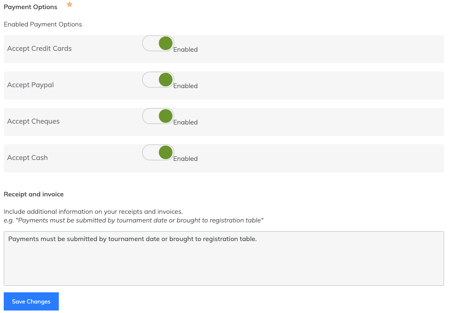
- FREE — Pay by Credit Card through Stripe and Pay by PayPal.
- PRO and ELITE — Both online options plus Cash and Cheque. You can rename the manual options for methods such as e-Transfer or ACH.
Cash and cheque are manual payment methods. Event Caddy does not collect those funds for the organizer.
Enable Payment Options
- From the Admin Dashboard, go to My Event > Event Setup & Settings.
- Scroll to Payment Options.
- Enable each method you want to make available:
- Accept Credit Cards
- Accept Paypal
- Accept Cheques
- Accept Cash
- Select Save Changes.
Only enable methods that you are prepared to accept from purchasers.
To open Player Registration, enable at least one Payment Option even if every Registration Package costs $0. See Opening and Closing Player Registration.
To make an online option available, connect its Payment Gateway as well as enabling Accept Credit Cards or Accept Paypal.
How Cash and Cheque Payments Work
Cash and cheque are available with PRO and ELITE.
Cash and Cheque orders start as Unpaid. Once you receive the funds outside Event Caddy, mark the transaction Paid in Transaction History.
You can also use the cash and cheque options to offer another manual payment method, such as e-Transfer or ACH.
Use a Custom Name for a Manual Payment Method
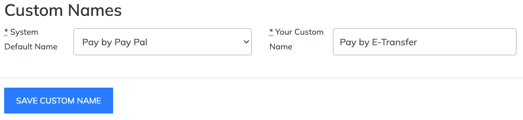
This screenshot shows the Custom Names form. To offer a manual payment method, select Pay by Cash or Pay by Check under System Default Name.
Event Caddy does not directly integrate with services such as e-Transfer, Venmo, Square, or ACH as separate Payment Gateways.
On PRO and ELITE, offer a custom manual payment method by enabling Accept Cash or Accept Cheques and renaming that option on the Tournament Website.
For example:
- Pay by Cash could be renamed Pay by E-Transfer.
- Pay by Check could be renamed Pay by ACH.
- One option could be renamed Pay by Cash/Check, leaving the other available for another manual method.
To change the displayed name:
- Go to Event Website > Website Editor.
- Select the Custom Names tab.
- Select Add New Custom Name.
- Under System Default Name, select the payment button you want to rename, such as Pay by Cash or Pay by Check.
- Enter the wording you want purchasers to see under Your Custom Name.
- Select Save Custom Name.
Renaming a payment option changes the wording displayed to the purchaser. It does not create an integration with the named payment service. The organizer remains responsible for collecting and confirming the payment outside Event Caddy.
If you use the Inline Website Editor, the equivalent settings are under Labels & navigation. See Managing Pages and Website Content with the Inline Website Editor (Beta).
Add Payment Instructions to Invoices and Receipts
For manual payment methods, you can add instructions explaining where or how the purchaser should send payment.
- Go to My Event > Event Setup & Settings.
- Scroll to Receipt and invoice.
- Enter the additional information you want displayed on purchaser invoices and receipts.
- Select Save Changes.
For example, you could include an e-Transfer address, cheque instructions, payment deadline, or other information the purchaser needs to complete an offline payment.
This text appears on both the online and PDF versions of the invoice or receipt. For viewing, downloading, or emailing the document, see Managing Transaction History and Receipts.
Payment Options in Different Event Caddy Workflows
Most normal Tournament Website checkout transactions can use whichever eligible Payment Options the organizer has enabled.
For paid winning bids and offline collection, see Managing Auction Winners, Payments, and Reporting.
There are two important exceptions:
- Manage Order: Purchasers can pay eligible unpaid orders by credit card when Stripe is connected and Accept Credit Cards is enabled.
- Auctions: Credit-card payment for Auction winning bids requires Stripe. PayPal is not supported for Auction payments.
Frequently Asked Questions
Can I enable both Stripe and PayPal?
Yes. Stripe and PayPal can both be connected to the same tournament, allowing purchasers to choose between Pay by Credit Card and Pay by PayPal during normal checkout.
Can FREE tournaments accept cash or cheque?
No. Cash and cheque Payment Options require PRO or ELITE. FREE tournaments can accept online payments through Stripe and/or PayPal.
Can I accept e-Transfer, ACH, Venmo, Square, or another payment method?
You can offer these as manual payment methods with PRO or ELITE by enabling Cash or Cheque and changing the displayed payment name through Event Website > Website Editor > Custom Names. Event Caddy does not process the payment through the renamed service. The organizer collects the funds separately and later marks the transaction Paid.
Can I rename both manual payment options?
Yes. Because Cash and Cheque can be renamed independently, you can use them for two different manual payment choices. For example, you could rename one Pay by E-Transfer and the other Pay by ACH.
Does a cash, cheque, or custom manual payment automatically become Paid?
No. These transactions are created as Unpaid. After you receive the funds, update the transaction to Paid from Finances & Commerce > Transaction History.
Do I need a Payment Gateway for cash or cheque?
No. Stripe and PayPal are Payment Gateways for online payments. Cash, cheque, and renamed manual payment methods are collected outside Event Caddy and do not require a Payment Gateway.