
Choose the parts of a previous tournament you want to reuse. This reference explains what the cloning form covers and what to check before opening registration. For the steps to start a clone, see The basics of tournament cloning.
Table of Contents
Administration Options

Select Clone Administrative Options to reuse foundational settings. Review them in My Event > Event Setup & Settings > Event Settings after cloning.
- Registration limit. Max Players.
- Group Pairings settings. Course Holes, Groups/Hole, Golfers Per Group, and Schedule Format.
- Other event settings. Event Currency, fee and fee rate if applicable, and Fundraising Goal.
Setting Options
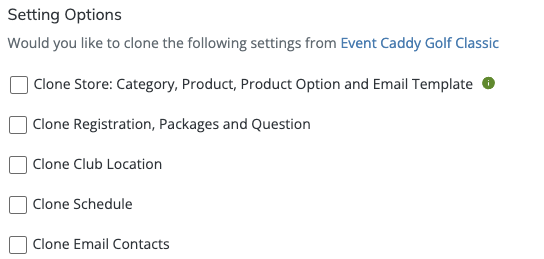
- Clone Store: Category, Product, Product Option and Email Template. Copies Product Categories, Store Products, Product Options, and Product Email Templates. Check the copied products and templates before enabling sales.
- Clone Registration, Packages and Question. Copies Registration Packages, Custom Questions, and the Registration Confirmation Email. Review these under Player Management > Registration Options before opening registration.
- Clone Club Location. Review My Event > Event Setup & Settings > Location.
- Clone Schedule. Review dates, times, and agenda details under My Event > Event Setup & Settings > Schedule.
- Clone Email Contacts. Copies Email Contacts and Email Contact Categories. Review the recipient lists before sending. To bring over selected contacts separately, see How can I use contacts from past tournaments in my new tournament?.
Event Website Options
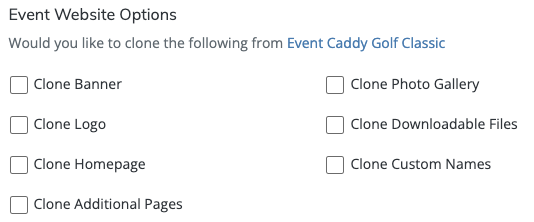
- Banner and logo. Review both in Logo Editor.
- Homepage and additional pages. Check the text, images, links, dates, and registration calls to action.
- Photo Gallery and Downloadable Files. Check that photos and downloads are relevant to the new tournament.
- Custom Names. Check labels such as navigation and payment button names.
Use Using the Website Editor to find these areas in the Classic Website Editor. Sponsor logos and Sponsor Categories stay with the original tournament. Review the Sponsors section in the new tournament and add the logos and categories you need. See Displaying Sponsors on Your Tournament Website.
Checks before sharing the new website
- Confirm your event date and time, club, Event Schedule, capacity, contact information, and any references to last year.
- Review Choosing and Configuring Payment Options. The Stripe connection carries over when cloning. Reconnect PayPal in the new tournament if you want to offer it. Confirm the payment options you intend to offer and enable at least one before accepting online orders.
- The cloned tournament starts on FREE. Copied Store Products stay inactive until the new tournament has a plan that includes the Online Store. Review product prices, quantities, visibility, checkout upsells, and email templates before taking orders. See Online Store Overview.
- Check the public website and registration link. If you want to reuse a previous Custom Domain, follow the transfer steps in Using a Custom Domain for Your Tournament Website.