
Product Email Templates allow you to send a customized email after someone purchases a specific product from your Online Store.
You can use a Product Email Template to provide:
- a thank-you message;
- sponsorship next steps;
- merchandise pickup instructions;
- ticket or redemption details;
- information about an included activity; or
- other instructions that apply only to that product.
Product Email Templates are available with Event Caddy PRO.
Table of Contents
- How Product Email Templates work
- Create a Product Email Template
- Name the template clearly
- Add the email subject and content
- Personalize the email with placeholders
- Preview the email
- Assign the template to a product
- Choose the right email for each product
- Product Email Templates vs. Donation Email Templates
- Frequently Asked Questions
How Product Email Templates work
Creating the template and assigning it to a product are separate steps.
- Create the template — Write the subject and email content, add personalized placeholders to the email body, and preview the message
- Assign the template — Choose which Online Store product should send the email
- Product is purchased — Event Caddy sends the assigned email to the purchaser
A template is not used until it has been assigned to an Online Store product.
The Product Email Template goes to the purchaser. If the product includes golfers, each included player with a valid email address separately receives the tournament-wide Registration Confirmation Email after registration when that template has content. Configure player instructions under Player Management > Registration Options > Registration Email. See Customizing the Registration Confirmation Email.
Create a Product Email Template
- Go to Finances & Commerce > Online Store.
- Select the Product Email Template tab.
- Select Add new email template.
- Enter a unique template name.
- Enter the email subject.
- Add the email content, including at least one character of text. An image-only email will not send.
- Copy any placeholder codes you need from the displayed list and paste them into the email body. Keep the subject line in plain text.
- Review the message in the Sample email preview.
- Select Create product email template.
Repeat these steps for each customized product email you need.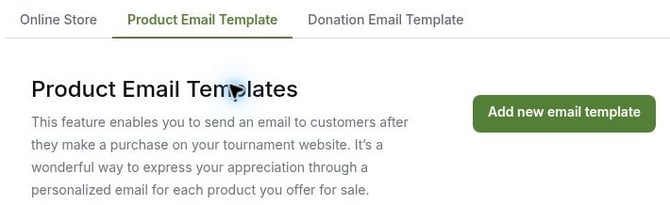
Name the template clearly
The template name is used internally to help you identify it when assigning it to a product.
Use a name that clearly describes its purpose.
- Gold Sponsor — Suggested template: Gold Sponsor Follow-Up
- Event T-Shirt — Suggested template: T-Shirt Pickup Instructions
- Dinner Ticket — Suggested template: Dinner Ticket Details
- Mulligan Package — Suggested template: Mulligan Redemption Instructions
The purchaser sees the email subject and content, not the internal template name.
Add the email subject and content
Use the subject line to tell the purchaser what the email is about.
Examples include:
- Thank you for becoming a Gold Sponsor
- Your dinner ticket information
- Event T-shirt pickup instructions
- Your mulligan package details
Use the content editor to write and format the email. HTML knowledge is not required.
Include the information the purchaser needs after completing the purchase, such as:
- what they purchased;
- what happens next;
- important dates or deadlines;
- pickup or redemption instructions;
- contact information; and
- any actions the purchaser must complete.
Keep the message focused on that specific product.
Personalize the email with placeholders
Placeholders automatically insert information into the email body when it is sent. Placeholders do not work in the subject line.
The template editor groups available placeholders under headings such as:
- Tournament placeholders
- Admin placeholders
- Customer placeholders
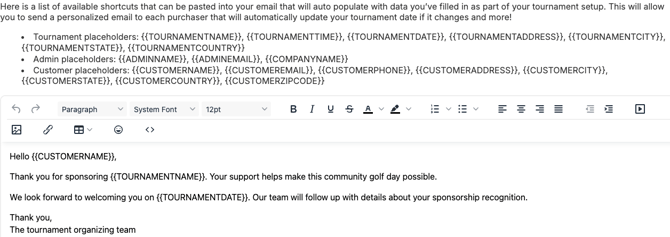
Available placeholders may include information such as:
- purchaser or customer name;
- tournament name;
- tournament date; and
- organizer information.
Use placeholders instead of manually entering information that may be different for each purchaser or tournament.
Important: Copy the complete code from the displayed placeholder list and paste it into the email body exactly as shown. Do not change its characters. Placeholders do not work in the subject line.
Preview the email
As you add content, the Sample email section updates to show how the message will appear.
Before creating the template, review:
- the subject line;
- paragraph spacing;
- links;
- images;
- placeholder placement;
- spelling and grammar; and
- the order of the instructions.
The preview may show example information in place of the final customer or tournament details.
Assign the template to a product
After creating the template, assign it to the appropriate Online Store product.
- Go to Finances & Commerce > Online Store.
- Create a new product or edit an existing product.
- Locate the Email Template section.
- Select Send an email after this product gets purchased?
- Choose the appropriate Product Email Template.
- Create the product or save your changes.
The customized email will then be associated with that product.
For complete product setup instructions, see Creating Online Store Products.
Choose the right email for each product
Different products may require different follow-up information.
- Sponsorship — Recognition details, logo instructions, benefits, deadlines, and organizer contact information
- Merchandise — Size confirmation, pickup location, pickup date, or delivery information
- Dinner or admission ticket — Date, time, location, guest instructions, or ticket redemption details
- Tournament extra — Instructions for using mulligans, raffle tickets, contests, or other purchases
- Volunteer registration — Arrival time, responsibilities, meeting location, and organizer contact information
Do not include unrelated tournament information when the purchaser only needs instructions for one product.
Product Email Templates vs. Donation Email Templates
Product Email Templates and Donation Email Templates are separate.
- Product Email Template — A specific product purchased through the Online Store
- Donation Email Template — A donation made through the Tournament Website’s Donate workflow
Use a Product Email Template for sponsorships, merchandise, tickets, tournament extras, and other Online Store products.
Use the Donation Email Template for donation-specific messages.
Frequently Asked Questions
Does every Online Store product need an email template?
No.
Product Email Templates are optional. Assign one only when the purchaser needs a customized message after buying that product.
When is the Product Email Template sent?
The email is sent after the product it is assigned to is purchased.
Can I personalize the email?
Yes.
Use the available Tournament, Admin, and Customer placeholders to insert information into the email body automatically. Placeholders do not work in the subject line.
Do I need to know HTML?
No.
The built-in content editor allows you to create and format the email without writing HTML.
Why is my customized email not being sent?
Edit the Online Store product and confirm that:
-
Send an email after this product gets purchased? is selected;
-
the correct Product Email Template is assigned;
-
the product changes were saved; and
-
the email body contains at least one character of text. An image-only email will not send.
Can I use a Product Email Template for a sponsorship?
Yes.
A sponsorship email can include benefit details, logo instructions, recognition deadlines, contact information, or other next steps.
For the current logo-upload workflow, see Collecting Sponsor Logos During Checkout.
Is the Donation Email Template the same thing?
No.
The Donation Email Template applies to the donation workflow and is managed separately from Product Email Templates.