
After creating your Online Store products, you can manage their details, inventory, visibility, display order, and purchase reports from the Online Store Products page.
Go to Finances & Commerce > Online Store to view and manage your products.
Understanding the product list
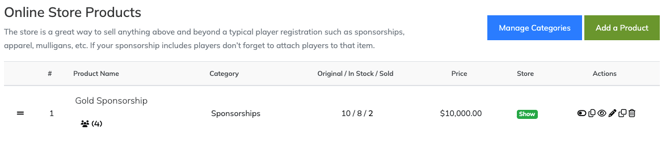
The Online Store Products page provides a summary of each product.
| Column | What it shows |
|---|---|
| Product Name | The name of the product and any product-related indicators |
| Category | The Product Category assigned to the product |
| Original / In Stock / Sold | The original quantity, remaining inventory, and number sold |
| Price | The current product price |
| Store | Whether the product is set to show or hide in the Online Store |
| Actions | Controls for managing the product and viewing reports |
Use the handle on the far left of each product row to rearrange the order of products.
Edit an Online Store product
To change an existing product:
- Go to Finances & Commerce > Online Store.
- Locate the product you want to update.
- Select the Edit icon in the Actions column.
- Update the product details or settings.
- Save your changes.
You can update settings such as:
- product name;
- price;
- image;
- Product Category;
- description;
- quantity;
- maximum purchase quantity;
- fees;
- upsell status;
- sponsorship information;
- included player registrations;
- Product Email Template; and
- Product Options.
For an explanation of these settings, see Creating Online Store Products.
Replace a product image
To replace an existing product image:
- Edit the product.
- Locate the Product Image setting.
- Select Choose File.
- Select the new image.
- Save your changes.
The new image replaces the previous product image in the Online Store.
Rearrange your products
The order shown on the Online Store Products page controls how products are organized.
To change the order:
- Locate the handle on the far left of the product row.
- Select and drag the product to its new position.
- Release the product when it is in the correct location.
- Preview your Tournament Website to confirm the new order.
Show or hide a product
Hiding a product removes it from the public Online Store without deleting its setup or purchase history.
To hide or show a product:
- Go to Finances & Commerce > Online Store.
- Locate the product.
- Use the visibility control in the Actions column to switch between showing and hiding the product.
- Confirm the product’s status in the Store column.
Use Hide when a product should temporarily be unavailable but may be offered again later.
Use Show when the product is ready to appear in the public Online Store.
Note: Store Products priced at $0 are hidden from the public Tournament Website by default. If you want a $0 Store Product to appear publicly, contact EventCaddy Support using the chat icon in the bottom-right corner or email support@eventcaddy.com.
Hide a product vs. mark it sold out
Hiding a product and marking it sold out produce different customer experiences.
| Status | What happens |
|---|---|
| Hidden | The product does not appear in the public Online Store |
| Sold Out | The product can remain visible, but customers cannot purchase it |
| Available | The product is visible and has inventory remaining |
Hide a product when you do not want customers to see it.
Mark it sold out when you want customers to see that the product was offered but is no longer available.
Mark a product sold out
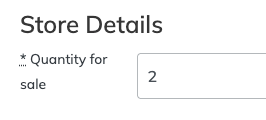
A product becomes sold out when its remaining inventory reaches zero.
To mark a product sold out:
- Go to Finances & Commerce > Online Store.
- Edit the product.
- Change the Quantity so that the remaining In Stock amount becomes zero.
- Save your changes.
If none have been sold, set the Quantity to 0.
If some have already been sold, set the Quantity to the number already sold.
For example, if two Gold Sponsorships have been sold, changing the Quantity to 2 leaves zero in stock and marks the product sold out.
Important: Use the Original / In Stock / Sold values on the product list to confirm how many have already been purchased before changing the Quantity.
To make the product available again, increase the Quantity so that the product has inventory remaining.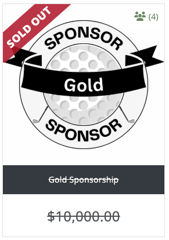
View purchases for a specific product
Use Consumer Reports when you need to see who purchased one particular Online Store product.
To open a Consumer Report:
- Go to Finances & Commerce > Online Store.
- Locate the product.
- In the Actions column, select the Consumer Reports icon.
- Review the transactions associated with the product.
The Consumer Reports icon resembles two overlapping sheets of paper. Hover over the icon to confirm its label.
From the report, you can:
- review product transactions;
- view purchaser and transaction details;
- download a read-only PDF;
- export the transactions to a CSV file; and
- select the eye icon to view the receipt for an individual transaction.
A CSV export can be opened in spreadsheet software for additional sorting, filtering, charts, or pivot tables.
View all tournament transactions
Consumer Reports show purchases for one specific product.
To review transactions from across the tournament, go to Finances & Commerce > Transaction History.
| Report | Best used for |
|---|---|
| Consumer Report | Purchases of one Online Store product |
| Transaction History | Transactions from across the tournament |
Why is a product not showing in the Online Store?
Check the following settings when a product is not available on your Tournament Website.
| Possible cause | What to check |
|---|---|
| The product is hidden | Use the visibility control to set the product to Show |
| The product is sold out | Review the Original, In Stock, and Sold quantities |
| No payment option is enabled | Confirm that at least one tournament payment option is active |
| The product includes players | Confirm that the tournament has not reached its maximum player capacity |
Products that include player registrations may be removed automatically when the maximum player capacity has been reached. This prevents the tournament from accepting more players than its configured limit.
The maximum player setting is managed under My Event > Event Setup & Settings.
Frequently Asked Questions
Can I use a coupon code for an Online Store product?
EventCaddy does not currently provide coupon or discount codes for Online Store products.
As a workaround, you can create a separate product with the discounted price, hide it from the public Online Store, and share its direct link only with eligible purchasers.
Does hiding a product delete it?
No. Hiding a product removes it from the public Online Store but preserves its setup and purchase information.
You can show it again later.
Can I change a product after someone has purchased it?
Yes. You can edit the product after purchases have been made.
Review the sold quantity before changing inventory, and avoid changing the product in a way that would make previous purchases difficult to understand.
For a significantly different offer, creating a new product may provide clearer reporting.
Why did a product that includes players disappear?
The tournament may have reached its maximum player capacity.
Online Store products that include players can be removed automatically when additional purchases would cause the tournament to exceed that limit.
How do I make a sold-out product available again?
Edit the product and increase its Quantity above the number already sold.
After saving, confirm that the In Stock value is greater than zero and that the product is set to show.
Where can I see who purchased a product?
Open the product’s Consumer Report under Finances & Commerce > Online Store.
Can I share a hidden Store Product with someone directly?
Yes. Hiding a Store Product removes it from the public Online Store, but you can still share that product directly.
Go to Finances & Commerce > Online Store, find the Store Product, then select Hide from Store under the Actions column, followed by Copy Link. You can send that link directly to the intended purchaser.
This is useful for private or discounted Store Products, specific Sponsorship Products, or other items that you do not want displayed publicly.