
The Enhancements menu in the Inline Website Editor (Beta) provides additional tools for customizing and promoting your Tournament Website.
You can apply a website-wide Color Theme, add an Announcement Bar, display a countdown to your tournament, and configure search-preview and Google Analytics settings. Some enhancements require PRO or ELITE.
Note: Custom domain and Donations & fundraising also appear under Enhancements, but they have their own dedicated setup guides.
Table of Contents
- Apply a Website Color Theme
- Add an Announcement Bar
- Add an Event Countdown
- Configure SEO and Google Analytics
- Frequently Asked Questions
Apply a Website Color Theme
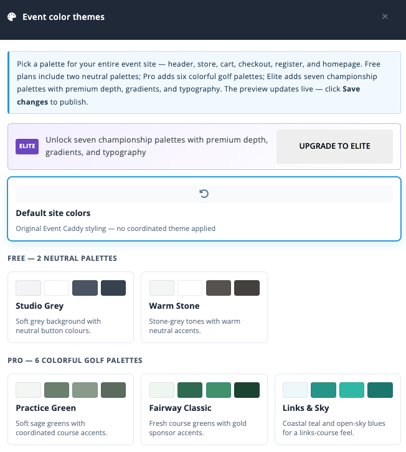
Select Enhancements > Color themes to apply a coordinated color palette across your Tournament Website.
A Color Theme affects the broader public website experience, including areas such as the:
- header
- homepage
- Online Store
- cart
- checkout
- Player Registration experience
The preview updates as you select a theme. Use Save Changes at the top of the Inline Website Editor to publish the selected theme.
Choose a Color Theme
The available palettes depend on your Event Caddy plan.
| Plan | Available themes |
|---|---|
| FREE | Default site colors plus 2 neutral palettes |
| PRO | FREE options plus 6 colorful golf palettes |
| ELITE | PRO options plus 7 championship palettes |
Default site colors keeps the original Event Caddy styling without applying a coordinated theme.
FREE palettes include options such as Studio Grey and Warm Stone. PRO and ELITE provide additional coordinated palettes with different colors, gradients, and typography.
Important: Color Themes apply across the Tournament Website experience. They are not the same as changing an individual homepage button, fundraising progress bar, or Announcement Bar color.
For homepage-specific appearance settings, see Customizing Your Homepage with the Inline Website Editor (Beta).
Add an Announcement Bar
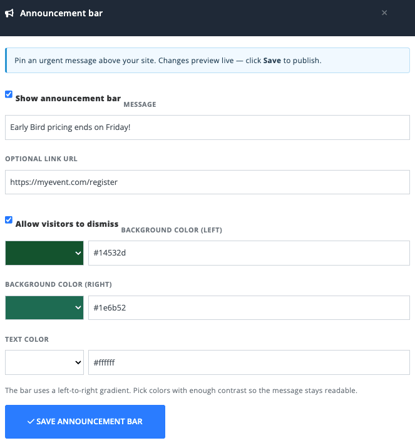
The Announcement bar places a prominent message across the top of the Tournament Website.
It can be useful for time-sensitive information such as registration deadlines, weather notices, last-minute reminders, or important event updates.
Announcement Bar requires PRO or ELITE.
Select Enhancements > Announcement bar.
Configure the Announcement Bar
| Setting | What it does |
|---|---|
| Show announcement bar | Displays or hides the Announcement Bar. |
| Message | Sets the message visitors see. |
| Optional link URL | Makes the announcement link to another webpage when a destination is provided. |
| Allow visitors to dismiss | Lets visitors close the Announcement Bar. |
| Background color (left) | Sets the starting color for the left-to-right background gradient. |
| Background color (right) | Sets the ending color for the gradient. |
| Text color | Sets the Announcement Bar text color. |
Choose colors with enough contrast to keep the message easy to read.
Select Save Announcement Bar to save and publish the Announcement Bar settings immediately.
Note: The Announcement Bar does not currently support scheduled start or end dates. Show or hide it manually when needed.
Add an Event Countdown
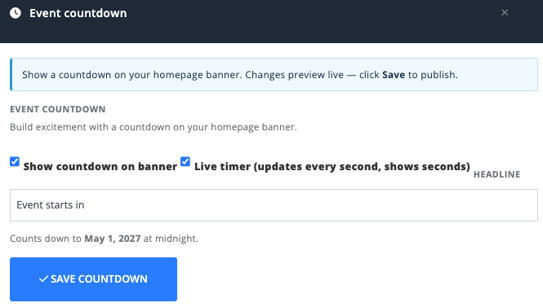
The Event countdown adds a countdown to your homepage banner.
It uses your tournament’s existing Event Date/Event Time as the countdown target, so you do not enter a separate target date in this panel.
Event Countdown requires PRO or ELITE.
Select Enhancements > Event countdown.
Configure the Countdown
| Setting | What it does |
|---|---|
| Show countdown on banner | Displays the countdown on the homepage banner. |
| Live timer (updates every second, shows seconds) | Shows a live second-by-second countdown, including seconds. |
| Headline | Customizes the text displayed with the countdown, such as Event starts in. |
The panel displays the date and time the countdown is currently targeting so you can confirm it before publishing.
Select Save Countdown to save and publish the countdown settings immediately.
Note: The countdown target comes from the tournament’s Event Date/Event Time. Update those tournament settings if the underlying event date or time needs to change.
Configure SEO and Google Analytics
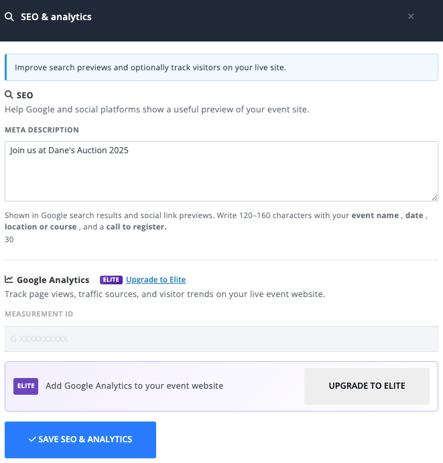
Select Enhancements > SEO & analytics to configure information used by search engines, social link previews, and Google Analytics.
SEO & Analytics requires PRO or ELITE.
Add a Meta Description
Enter a description in Meta Description.
The Meta Description helps search engines and social platforms create a useful preview of your Tournament Website.
Event Caddy recommends approximately 120–160 characters and suggests including useful details such as your:
- tournament name
- date
- location or golf course
- call to register
The Meta Description applies to the Tournament Website rather than being configured independently for each Additional Page.
Connect Google Analytics 4
If you use Google Analytics, enter your Google Analytics 4 Measurement ID.
A Measurement ID normally begins with G-.
Adding the Measurement ID lets Google Analytics track page views, traffic sources, and visitor activity on the live Tournament Website.
The setting is optional. Leave it blank if you do not use Google Analytics.
Note: The Google Analytics integration applies to the live Tournament Website, not your editing session inside the Inline Website Editor.
Select Save SEO & Analytics to save and publish these settings immediately.
What SEO & Analytics Does Not Currently Control
The Inline Website Editor does not currently provide separate controls here for:
- page-specific Meta Descriptions
- custom search-result titles
- social sharing images
- search-engine indexing controls
The current SEO setting is the Tournament Website Meta Description plus the optional Google Analytics 4 Measurement ID.
Frequently Asked Questions
Are Website Enhancements available on the FREE plan?
Color themes are available on FREE, although FREE has fewer palette choices.
Announcement bar, Event countdown, SEO & analytics, Donations & fundraising, and Custom domain require PRO or ELITE.
Does a Color Theme affect only the homepage?
No.
Color Themes are website-wide and can affect the header, homepage, Online Store, cart, checkout, and Player Registration experience.
Can I still customize individual colors after selecting a Color Theme?
Yes. Some website elements have their own separate appearance settings.
For example, homepage Action Buttons, fundraising displays, and the Announcement Bar have controls separate from the overall Color Theme.
Can I schedule the Announcement Bar to appear automatically?
No.
The Announcement Bar does not currently have start or end scheduling. Show or hide it manually.
Can visitors close the Announcement Bar?
Yes, if Allow visitors to dismiss is enabled.
Can I choose a different date for the Event Countdown?
Not from the Event Countdown panel.
The countdown uses the tournament’s Event Date/Event Time. Change the underlying tournament setting if the countdown target needs to change.
What does “Live timer” do?
Live timer (updates every second, shows seconds) makes the Event Countdown update every second and display seconds as part of the countdown.
Can I use Google Analytics with my Tournament Website?
Yes, with PRO or ELITE.
Enter your Google Analytics 4 Measurement ID under Enhancements > SEO & analytics.
Does Event Caddy provide Google Analytics reports inside the Admin Dashboard?
No.
Event Caddy sends the website measurement data using your configured GA4 Measurement ID. Review the resulting analytics in your Google Analytics account.
Can I set different Meta Descriptions for each Additional Page?
No.
The current Meta Description setting applies at the Tournament Website level rather than providing a separate value for each Additional Page.
Related Articles
- Using the Inline Website Editor (Beta)
- Customizing Your Homepage with the Inline Website Editor (Beta)
- Customizing Donations and Fundraising on Your Tournament Website
- Using a Custom Domain for Your Tournament Website