
The Inline Website Editor (Beta) lets you customize your Tournament Website while viewing the website itself. Instead of moving between separate settings screens, you can open a section from the website preview, make changes, preview the result, and publish your updates.
The Inline Website Editor is available on all Event Caddy plans. Some individual website enhancements require PRO or ELITE.
Note: The Inline Website Editor is currently in beta. The available controls and layout may continue to change as the editor is improved.
Table of Contents
- Open the Inline Website Editor
- Edit Your Tournament Website
- Preview Your Changes
- Save and Publish Changes
- Use Website Enhancements
- The Inline Website Editor and Website Editor
- Frequently Asked Questions
Open the Inline Website Editor
- From the Admin Dashboard, select Event Website.
- Select Inline Website Editor.
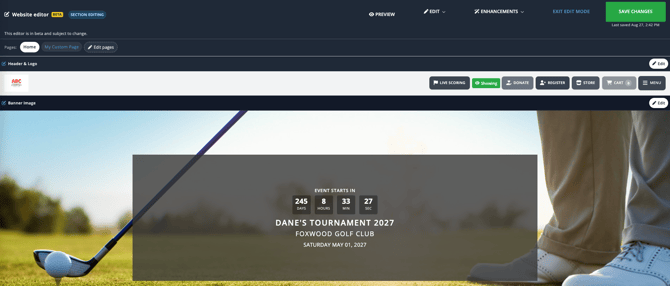
- The editor opens with your Tournament Website preview on screen.
At the top of the editor, you can use:
- Preview to view your current changes without publishing them.
- Edit to open the editing controls for the current page.
- Enhancements to configure additional website features.
- Exit Edit Mode to leave the editor and open your regular Tournament Website.
- Save Changes to publish any outstanding changes you have made.
Edit Your Tournament Website
The editor lets you open website settings in two ways.
You can select Edit at the top of the page and choose the section you want to change, or select an Edit button directly beside a section in the website preview.
Both methods open the same settings for that section.
Homepage editing options
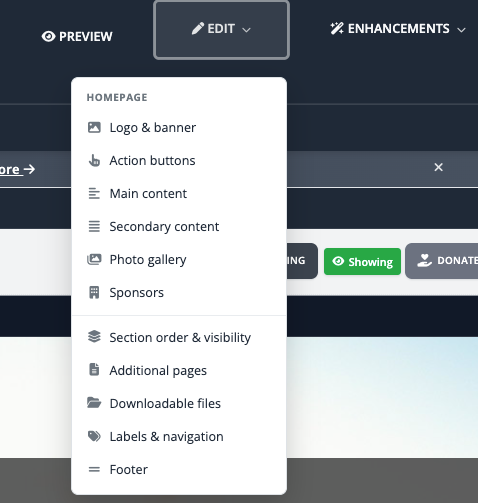
When you are editing Home, the Edit menu includes:
- Logo & banner
- Action buttons
- Main content
- Secondary content
- Photo gallery
- Sponsors
- Section order & visibility
- Additional pages
- Downloadable files
- Labels & navigation
- Footer
These controls let you change the presentation and content of your Tournament Website without changing the underlying setup of features such as Player Registration, Sponsors, Live Scoring, or the Online Store.
For example, website controls may determine where Sponsors appear or how a Registration button is labelled, while the Sponsor records and Registration Packages themselves remain managed in their respective areas of Event Caddy.
Editing Additional Pages
Additional Pages appear beside Home at the top of the editor.
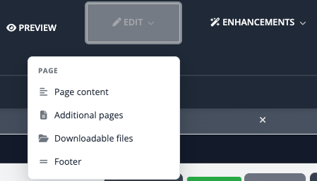
Select an Additional Page to edit that page directly. Additional Pages use a smaller set of editing controls than the homepage:
- Page content
- Additional pages
- Downloadable files
- Footer
Use Edit pages to open the Additional Pages settings, where you can manage pages including their names, order, and visibility.
For Additional Page and navigation instructions, see Managing Pages and Website Content with the Inline Website Editor (Beta).
Preview Your Changes
The website preview updates while you edit, including changes that have not been published yet.
This lets you review the result before making it visible on the live Tournament Website.
Important: Seeing a change in Preview does not necessarily mean it has been published. Use the appropriate Save button or Save Changes when you are ready to publish.
Save and Publish Changes
Changes made in the Inline Website Editor are published to the Tournament Website when they are saved.
There are two ways changes may be saved.
Save an individual setting
Some editing panels include their own Save button, such as Save Footer, Save Announcement Bar, or Save SEO & Analytics.
Selecting the panel's Save button saves and publishes the changes from that panel immediately.
Save all outstanding changes
If you continue editing without using an individual panel's Save button, select Save Changes at the top of the editor when you are finished.
Save Changes publishes the outstanding changes you have made during the editing session.
Important — Save changes you want to keep before selecting Exit Edit Mode or leaving the editor. Exit Edit Mode opens the public Tournament Website immediately, without an unsaved-changes warning.
Use Website Enhancements
Select Enhancements to access additional Tournament Website features.
Current enhancement areas include:
- Color themes
- Donations & fundraising
- Announcement bar
- Event countdown
- SEO & analytics
- Custom domain
Color themes are available on all plans, although additional theme choices are available with upgraded plans.
The other enhancement areas are available with PRO or ELITE, with some individual features requiring ELITE.
See Using Website Enhancements in the Inline Website Editor (Beta) for design, announcements, countdowns, and analytics, and Customizing Donations and Fundraising on Your Tournament Website for donation and fundraising presentation.
The Custom Domain settings are shared across both entry points. See Using a Custom Domain for Your Tournament Website.
The Inline Website Editor and Website Editor
Event Caddy currently provides both the Inline Website Editor (Beta) and the existing Website Editor.
Both editors update the same Tournament Website. A change made through one editor is reflected in the other where the same setting is available.
Use the Inline Website Editor (Beta) for most changes, including visual editing and website Enhancements.
Open Event Website > Website Editor for the tab-based workflow or to set an Additional Page’s URL Path. See Using the Website Editor.
Frequently Asked Questions
Is the Inline Website Editor available on the FREE plan?
Yes. The Inline Website Editor itself is available on FREE, PRO, and ELITE tournaments.
Some individual enhancements and design options require PRO or ELITE.
Do I need to make the same change in both website editors?
No. Both editors modify the same underlying Tournament Website.
If you change a shared setting in the Inline Website Editor, the corresponding setting in the existing Website Editor reflects that change, and vice versa.
Does Preview publish my changes?
No. Preview lets you review changes before publishing them.
Use an individual panel's Save button or the main Save Changes button when you are ready to publish.
Why don't Additional Pages have all of the same editing options as Home?
The homepage contains website-wide and homepage-specific sections such as the banner, Action Buttons, Sponsors, and section ordering.
Additional Pages use a smaller editor focused on the page's content and shared website features.
Is the Inline Website Editor replacing the Website Editor?
Event Caddy supports both editors. Use the Inline Website Editor (Beta) for most website changes. The tab-based Website Editor still provides the Additional Page URL Path field.
Related Articles
- Customizing Your Homepage with the Inline Website Editor (Beta)
- Managing Pages and Website Content with the Inline Website Editor (Beta)
- Customizing Donations and Fundraising on Your Tournament Website
- Using Website Enhancements in the Inline Website Editor (Beta)
- Using the Website Editor
- Using a Custom Domain for Your Tournament Website