
Event Caddy Mobile is Event Caddy’s browser-based mobile workspace at play.eventcaddy.com.
Tournament organizers can use it from a phone, tablet, or computer for useful tournament-day tasks such as checking in players, making last-minute player contact updates, reviewing player starting assignments, updating the Event Schedule, and accessing Auction information.
Important: Event Caddy Mobile and Live Scoring are separate experiences. The current Live Scoring system uses Live Scoring Access Codes and the Live Scoring link on the Tournament Website. Players do not need to log in to Event Caddy Mobile to enter scores.
Accessing Event Caddy Mobile
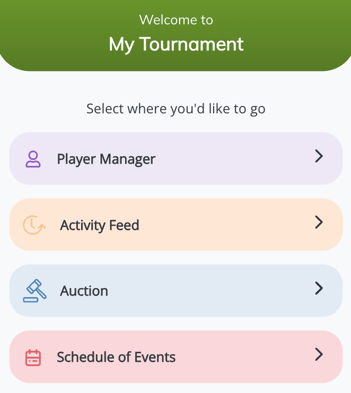
To access Event Caddy Mobile as a tournament organizer:
- Open
play.eventcaddy.comin a web browser. - Sign in using the same email address and password you use for your regular Event Caddy organizer account.
- Open the tournament you want to manage.
Because Event Caddy Mobile runs in the browser, there is no app download required.
What Organizers Can Do in Event Caddy Mobile
The most useful tournament-day feature in Event Caddy Mobile is Player Manager.
Organizers can also access the Event Schedule, Activity Feed, and Auctions from the mobile experience.
| Feature | Current use |
| Player Manager | Check players in, undo check-in, review starting information, update basic player contact information, and view group members. |
| Event Schedule | Add or edit day-of-event Schedule information when plans change. |
| Activity Feed | Post tournament-day messages or images and manage player posts when the feature is being used. |
| Auctions | Access Auction information and management tools. Detailed Auction configuration remains under the Auctions workflow. |
Checking In and Managing Players
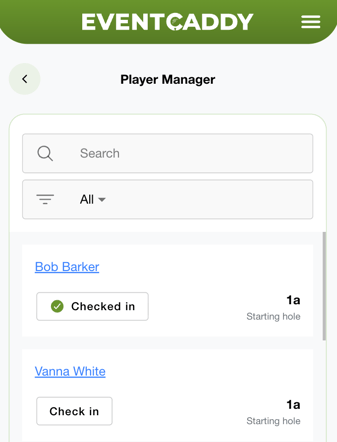
Use Player Manager when you need to work with golfers from your phone during tournament check-in.
From Player Manager, organizers can:
- check a player in as they arrive;
- undo a player's check-in if needed;
- see the player's starting hole for a Shotgun tournament;
- see the player's start time for Timed Starts;
- edit the player's first name;
- edit the player's last name;
- edit the player's email address;
- edit the player's phone number; and
- select a player to review the other members of their group.
Important: Player check-in status is managed in Event Caddy Mobile. It does not currently appear as a check-in status elsewhere in the Event Caddy Admin Dashboard.
Editing a Player on Tournament Day
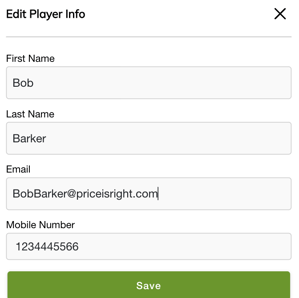
Event Caddy Mobile is useful for quick corrections when a golfer arrives and their basic contact information is wrong or incomplete.
To update a player:
- Open Player Manager.
- Find and select the player.
- Open the player-edit option.
- Update the applicable information:
- First Name
- Last Name
- Phone Number
- Save the changes.
Event Caddy Mobile provides a limited tournament-day editing workflow. It does not replace the full Player Registration management tools.
For Guest Players, Custom Question answers, registration details, manual registration, purchaser updates, and other player-record management, see Managing Players and Registrations.
Viewing Starting Information
Player Manager shows the player's current starting assignment from Group Pairings.
For a Shotgun tournament, this means the player's starting hole.
For Timed Starts, Player Manager shows the player's assigned start time.
Event Caddy Mobile displays this information for tournament-day use, but the starting assignment itself is managed through Group Pairings.
For information about arranging golfers and changing starting assignments, see Setting Up Group Pairings.
Updating the Event Schedule
Organizers can use Event Caddy Mobile to make changes to the same Event Schedule configured in the Admin Dashboard.
This is useful when tournament-day plans change and you need to update an activity without returning to a desktop computer.
For example, you might update the Schedule when:
- registration or check-in is delayed;
- lunch or dinner time changes;
- an activity moves to a different location; or
- the awards presentation is rescheduled.
The Event Schedule itself is owned by Scheduling. For complete instructions on creating, arranging, and displaying Schedule items, see Creating and Managing Your Day-of-Event Schedule.
Players should use the Tournament Website for the current public Event Schedule.
Activity Feed
Activity Feed remains available in Event Caddy Mobile for tournaments that use it.
Organizers can use the feed to post messages or images, and can remove player posts when necessary.
Keep important tournament information in the appropriate Event Caddy owner feature whenever possible. For example, changes to activity times or locations should be reflected in the Event Schedule rather than relying only on an Activity Feed post.
Auctions
Event Caddy Mobile can still provide access to a tournament's Auction. After signing in, select Auction to view the Auction Items.
For bidders, the recommended entry point is the Auction link on the Tournament Website or an Auction link or QR code shared by the organizer. Bidders can browse before signing in and authenticate when they are ready to place a bid or use My Bids.
For complete Auction instructions, see Auctions Overview. For the bidder login and bidding workflow, see Accessing and Bidding in an Auction.
Event Caddy Mobile vs. Live Scoring
Event Caddy Mobile is no longer the recommended way for players or organizers to use Live Scoring.
| Experience | Use it for |
| Event Caddy Mobile | Organizer Player Manager/check-in, limited player edits, Event Schedule changes, Activity Feed, and Auction access. |
| Live Scoring | Entering tournament scores, viewing the Live Scoring Leaderboard, and managing scoring results. |
Players enter Live Scoring from the tournament's Live Scoring button or from the personalized scoring link sent to them.
Tournament organizers manage scores and the Live Scoring Leaderboard from Live Scoring > Leaderboard in the Admin Dashboard.
For scoring setup, see Setting Up and Managing Live Scoring.
Plan Availability
Event Caddy Mobile includes tournament-day tools available across Event Caddy plans, while certain features require an upgraded tournament.
- Player Manager is available on Event Caddy FREE, PRO, and ELITE.
- Event Schedule access is available on FREE, PRO, and ELITE.
- Activity Feed is available on FREE, PRO, and ELITE.
- Auctions require PRO or ELITE.
- Live Scoring requires PRO or ELITE, but Live Scoring is now a separate experience rather than a feature players use through Event Caddy Mobile.
Frequently Asked Questions
Do I need to download an Event Caddy app?
No. Event Caddy Mobile is browser-based. Open play.eventcaddy.com from your phone, tablet, or computer.
How do organizers log in to Event Caddy Mobile?
Use the same email address and password you use for your normal Event Caddy organizer account.
Can I check players in from my phone?
Yes. Use Player Manager in Event Caddy Mobile to check players in as they arrive. You can also undo a check-in if needed.
Where else can I see whether a player is checked in?
Player check-in status is currently managed only through Event Caddy Mobile. It does not appear as a separate check-in status in the normal Admin Dashboard.
What player information can I change from Event Caddy Mobile?
Organizers can update a player's first name, last name, email address, and phone number.
For full player-record management, use the Player Registration tools in the Admin Dashboard.
Can I see where a player starts?
Yes. Player Manager shows the starting hole for Shotgun tournaments or the start time for Timed Starts.
The actual starting assignments are managed through Group Pairings.
Do players use Event Caddy Mobile for Live Scoring?
No. Current Live Scoring uses the tournament's Live Scoring website experience and a Live Scoring Access Code. Players do not need to log in to Event Caddy Mobile to score.
Can players still use Event Caddy Mobile for Auctions?
Yes. Auction bidders can still access the mobile experience directly using their phone number. However, the recommended route is the Auction access provided through the Tournament Website menu.