
Your Event Schedule is the day-of-event agenda for your tournament. Use it to list activities such as check-in, breakfast, tee-off, contests, meals, auctions, and awards so players, volunteers, and staff know what is happening throughout the day.
The Event Schedule is separate from the settings that control when and where golfers actually start playing.
Important: Adding a Tee-Off item to your Event Schedule does not set your golfers' starting time or Group Pairings. Golf starting assignments are controlled by Schedule Start Time, Schedule Format, and Group Pairings.
Understanding the Event Schedule
Each Schedule item can include information such as:
| Field | What it is used for |
|---|---|
| Time | When the activity is scheduled to occur. |
| Item | The activity or event name, such as Breakfast & Check-In, Tee-Off, Lunch, or Awards. |
| Location | Where participants should go for the activity. |
| Notes | Additional information about the activity. |
The order of your Event Schedule is controlled by the organizer. Event Caddy does not automatically sort Schedule items by time.
This means you should review the item order after adding or editing your Schedule.
Event Schedule vs. Event Time and Schedule Start Time
Event Caddy uses several time-related settings that serve different purposes.
| Setting or feature | Purpose |
|---|---|
| Event Time | The general arrival or check-in time for the tournament. |
| Schedule Start Time | The actual golf starting time used by Group Pairings. |
| Event Schedule | The manually entered agenda of activities throughout the day. |
For example, you could have:
- Event Time: 7:00 AM for player arrival and check-in;
- Schedule Start Time: 8:00 AM for golf; and
- an Event Schedule containing Breakfast & Check-In, Tee-Off, Lunch, and Awards.
Those settings do not automatically update one another.
For more about golfer starting assignments, see Scheduling Overview and Setting Up Group Pairings.
Add an Event Schedule Item
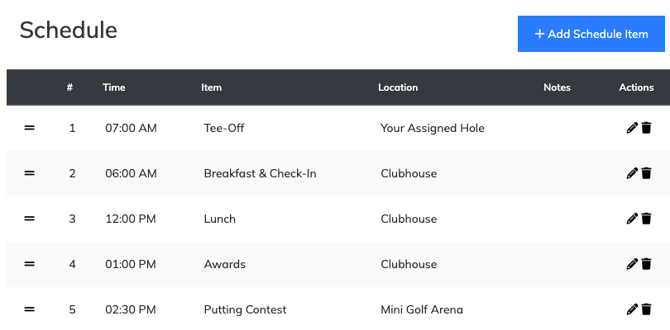
- Go to My Event > Event Setup & Settings > Schedule.
- Select + Add Schedule Item.
- Enter the activity information, including the time, item name, location, and any notes you want associated with the activity.
- Save the Schedule item.
- Repeat these steps for each activity you want to include.
Common Event Schedule items might include:
- Registration & Check-In
- Breakfast
- Opening Remarks
- Tee-Off
- Putting Contest
- Lunch
- Auction
- Dinner
- Awards
Your Schedule can contain whatever activities make sense for your tournament.
Edit or Delete Schedule Items
Existing Schedule items appear on the Schedule page.
To update an item:
- Locate the Schedule item you want to change.
- Select the Edit icon.
- Update the activity information.
- Save your changes.
To remove an item, select the Delete icon beside that Schedule item.
Changes to the Event Schedule are reflected in the experiences that use the Schedule information.
Arrange the Schedule in the Correct Order
Event Caddy does not automatically reorder Schedule items based on their times.
Use the drag handle beside a Schedule item to place activities in the order you want participants to see them.
Review the full Schedule after adding or changing activities. An activity scheduled for an earlier time will not automatically move above an item with a later time.
Display the Schedule on Your Tournament Website
Event Schedule items can populate the Schedule section of your Tournament Website.
When the Schedule section is visible, participants can see the current activity information from the Event Schedule.
Changes made to the Event Schedule automatically flow through to the Tournament Website Schedule section.
Show or Hide the Schedule Section
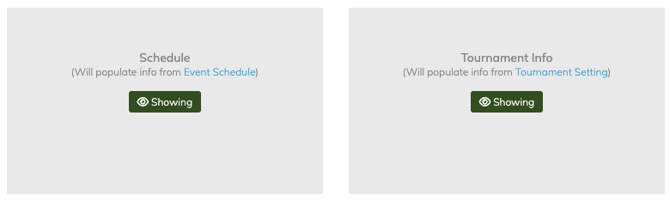
Website display is controlled separately from the Schedule itself.
To change its visibility:
- Go to Event Website > Website Editor.
- Locate the Schedule section.
- Use the section's visibility control to show or hide it on the Tournament Website.
Hiding the Schedule section from the Tournament Website does not delete your Event Schedule. It only controls whether that section is displayed publicly.
The current Tournament Website Schedule block displays the activity's Time, Title, and Location.
Event Schedule Notes
The Notes field lets you add additional information to a Schedule item.
Schedule Notes can currently be viewed by logged-in users through Event Caddy Mobile at play.eventcaddy.com.
Schedule Notes are currently available through Event Caddy Mobile, but they are not displayed in the public Tournament Website Schedule block. Put information that all participants need to see in the Schedule title or location when appropriate.
Use the Event Schedule in Event Caddy Mobile
The Event Schedule is also available through Event Caddy Mobile.
Players should use the Tournament Website to view the current public Event Schedule. Organizers can also use Event Caddy Mobile to add or edit Schedule items during tournament day.
For example, if lunch or dinner is delayed, an organizer can update the Schedule from Event Caddy Mobile rather than returning to a desktop computer.
The Schedule shown there uses the same Event Schedule configured through the Admin Dashboard.
Frequently Asked Questions
Does adding a Tee-Off item set my tournament's golf start time?
No.
A Tee-Off item in the Event Schedule is only an agenda entry. The actual golf start is controlled by Schedule Start Time, Schedule Format, and Group Pairings.
Does Event Caddy automatically sort my Schedule by time?
No. Schedule item order is controlled by the organizer.
Review the Schedule and arrange the items in the order you want them displayed.
Will Schedule changes update my Tournament Website?
Yes. Changes to the Event Schedule flow through to the Tournament Website Schedule section when that section is being shown.
Can I hide the Event Schedule from my Tournament Website?
Yes. Go to Event Website > Website Editor and hide the Schedule section.
Your Event Schedule remains saved in Event Caddy.
Where are Schedule Notes displayed?
Schedule Notes are currently available to logged-in users through Event Caddy Mobile at play.eventcaddy.com.
The public Tournament Website Schedule block currently displays Time, Title, and Location rather than the Notes field.
Can I edit the Schedule from Event Caddy Mobile?
Yes. Organizers can add or edit day-of-event Schedule information through Event Caddy Mobile.
Related Articles
- Scheduling Overview
- Setting Up Group Pairings
- Using the Start List, Bag Drop Report, and Cart Signage
- Event Caddy Mobile