
Event Caddy Live Scoring lets players enter a team score from a mobile device and follow tournament results as they play. Organizers activate and configure Live Scoring from the tournament Admin Dashboard, while Group Pairings provide the starting assignments used to create player access.
Live Scoring is available with Event Caddy PRO and ELITE.
Important: Live Scoring is separate from Event Caddy Mobile. Players use a Live Scoring Access Code or the link sent to them for scoring; they do not need to log in to Event Caddy Mobile with their phone number.
Before You Begin
Live Scoring can be activated before your Group Pairings are finished, but your pairings and player contact information should be ready before Access Codes are distributed.
Before tournament day:
- Review your Schedule Format and Group Pairings.
- Make sure each starting assignment has the intended players.
- Whenever possible, make sure players have an email address on their player record. A phone number can be used when an email address is not available.
- Review your Group Pairings before the automatic Access Code distribution runs 3 days before the tournament.
For help arranging players and starting assignments, see Setting Up Group Pairings.
Important: Player Registration does not need to be closed before you activate or use Live Scoring.
How Live Scoring Access Codes Work
A Live Scoring Access Code gives players access to the scorecard for a specific starting assignment.
When Live Scoring is enabled, Event Caddy generates Access Codes for the tournament's starting assignments. The code belongs to the starting assignment — such as a starting hole or Timed Start position — not to the group of players currently occupying it.
This distinction becomes important if you rearrange Group Pairings after Access Codes have already been distributed.
For example, if a group receives a link for one starting assignment and is later moved elsewhere, the previously sent link may still take them to the original assignment. In that situation, regenerate the affected Access Code from the Start List and resend the updated information.
Important: Finalize and review your Group Pairings before the 3 day automatic distribution whenever possible. If you make significant pairing changes afterward, review the affected Access Codes and resend them as needed.
The organizer-facing Group Name in Group Pairings is also different from the Team Name players use in Live Scoring. Renaming a Group in Group Pairings does not rename the team shown on the Live Scoring Leaderboard.
Activating Live Scoring
- Open the tournament in your Event Caddy Admin Dashboard.
- Select Live Scoring from the main navigation.
- On the Dashboard, select Activate under Enable Live Scoring.
- If the tournament's course is supported, Live Scoring will be enabled and the Dashboard will show the remaining preparation steps.
- Open Settings to review the course, Tee Colour, and Live Scoring Banner.
Once Live Scoring is enabled:
- Settings and Leaderboard are available within the Live Scoring area.
- Live Scoring Access Codes are generated for starting assignments.
- A Live Scoring button is automatically added to the Tournament Website.
- The Dashboard tracks the remaining preparation steps before players begin scoring.
Players who use the Live Scoring button on the Tournament Website will need their Live Scoring Access Code. Players who use the personalized link sent by Event Caddy can open Live Scoring with their Access Code already loaded.
If Your Golf Course Is Not Supported
Live Scoring requires Event Caddy to have the course scorecard information available.
If your course is not currently supported, Live Scoring will not activate and you will be directed to contact support@eventcaddy.com.
Contact Event Caddy Support if:
- your golf course is not available;
- Live Scoring reports that the course is unsupported; or
- the course or scorecard information shown in Live Scoring is incorrect.
Event Caddy Support will add or correct the course information as required.
Live Scoring supports tournaments configured for 9, 18, 27, or 36 holes.
Using the Live Scoring Dashboard
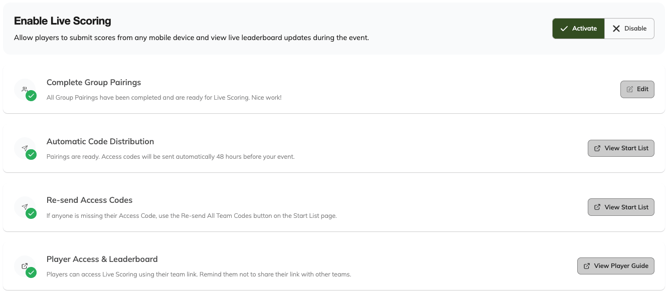
After activation, the Live Scoring Dashboard shows whether the main tournament-day preparation steps are complete.
| Dashboard item | What it means |
| Complete Group Pairings | Confirms whether players have been arranged into their tournament starting assignments. |
| Automatic Code Distribution | Shows whether the pairings are ready for Access Codes to be distributed automatically. |
| Re-send Access Codes | Directs you to the Start List when Access Codes need to be sent again. |
| Player Access & Leaderboard | Provides access to the player-facing Live Scoring guide and scoring experience. |
The Dashboard updates as your tournament becomes ready for Live Scoring, so you can activate the feature first and then complete any remaining setup.
Configuring Your Course, Tee, and Banner
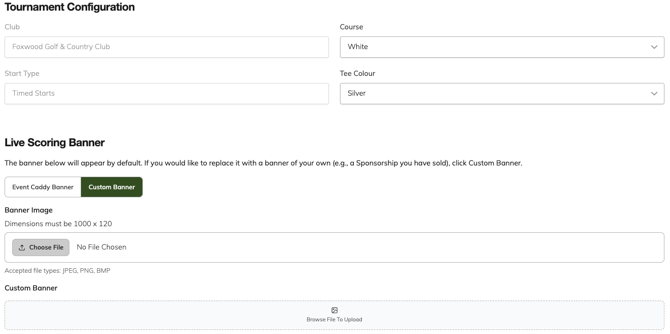
Open Live Scoring > Settings to review the tournament configuration.
| Setting | What it does |
| Club | Shows the tournament's configured golf club. This is inherited from the tournament and is not edited from Live Scoring Settings. |
| Start Type | Shows the tournament's Schedule Format, such as Shotgun or Timed Starts. This is inherited from the tournament and is not edited here. |
| Course | Selects the course being used for Live Scoring. |
| Tee Colour | Selects the tee used for the Live Scoring scorecard. Live Scoring currently supports one selected Tee Colour for the tournament. Players using other tees can still enter scores. |
After making changes to Course or Tee Colour, select Save.
Current scoring format
Live Scoring currently records one team score per hole for Scramble tournaments.
If you want to use Live Scoring for individual scores, set up one player in each Group Pairings starting assignment so that each player has their own scorecard.
Customizing the Live Scoring Banner
Live Scoring displays an Event Caddy banner by default. Organizers can replace it with a custom banner, including a banner used to recognize a tournament sponsor.
Under Live Scoring > Settings:
- Find Live Scoring Banner.
- Select Custom Banner.
- Upload your banner image.
- Select Save.
Custom banner requirements:
- Dimensions: 1000 × 120 pixels
- Accepted file types: JPEG, PNG, BMP
- The banner is an image only and cannot currently link to another website.
Sending Live Scoring Access Codes
Event Caddy automatically distributes Live Scoring access information 3 days before the tournament to eligible players who are already assigned through Group Pairings.
For each paired player:
- If the player has an email address, Event Caddy sends the Live Scoring instructions by email.
- If the player does not have an email address but has a phone number, Event Caddy can send the Live Scoring link by text.
- If no email address or phone number is available, Live Scoring can still be used if the organizer provides the Access Code to the group another way.
The automated email includes:
- basic Live Scoring instructions;
- the group's current Live Scoring Access Code; and
- an Open Live Scoring link that opens the scoring site with the Access Code already loaded.
Event Caddy does not automatically send a catch-up message if Live Scoring, contact information, or Group Pairings are completed after the 3 day automatic distribution has already passed. In that case, send the Access Codes manually from the Start List.
Re-sending or Regenerating an Access Code

The Start List is the organizer's control point for reviewing and redistributing Live Scoring Access Codes.
For more information about the Start List itself, see Using the Start List, Bag Drop Report, and Cart Signage.
Re-send Access Codes
- Open the Start List from the Live Scoring Dashboard or through Player Management.
- To send the current Access Codes again to all eligible players, select Re-send All Team Codes.
- To resend information for one starting assignment, open its Actions menu and choose the resend option.
Access Codes can be resent whenever needed. There is no once-per-24-hours restriction.
Regenerate an Access Code
If an Access Code should be replaced:
- Open the affected starting assignment on the Start List.
- Open the Actions menu.
- Select Regenerate Code.
- Resend the updated Live Scoring information to the affected players.
Regenerating a code is especially useful when Group Pairings have changed after the previous code or personalized link was distributed.
Disabling Live Scoring
Organizers can disable Live Scoring directly without contacting Event Caddy Support.
- Open Live Scoring > Dashboard.
- Under Enable Live Scoring, select Disable.
Disabling Live Scoring:
- prevents players from continuing to use Live Scoring;
- hides the Live Scoring Leaderboard;
- stops future automatic Access Code distribution; and
- retains existing scores and Access Codes.
If Live Scoring is activated again later, the existing scoring data and Access Codes are retained.
Frequently Asked Questions
Can I activate Live Scoring before my Group Pairings are complete?
Yes. Live Scoring can be activated first, and the Dashboard will show which preparation steps are still incomplete. Complete and review Group Pairings before the 3 day Access Code distribution whenever possible.
Does Player Registration need to be closed before I use Live Scoring?
No. Player Registration does not need to be closed. What matters for Live Scoring is that the players who need access are assigned through Group Pairings and have the appropriate contact information before automatic distribution.
What happens if I change Group Pairings after Access Codes have already been sent?
A Live Scoring Access Code belongs to the starting assignment, not the players occupying it. If players are moved after their code or personalized link has been distributed, review the affected starting assignment. Regenerate the code and resend the updated information when necessary.
Can a group use Live Scoring if none of its players has an email address?
Yes. An email address or phone number is needed for Event Caddy to distribute the access information automatically, but it is not required for the scorecard itself. The organizer can provide the group's Live Scoring Access Code manually.
Can players on different tees still use Live Scoring?
Yes. Live Scoring currently has one tournament-wide Tee Colour selection, but players using another tee can still enter their scores.
What should I do if my course or scorecard information is wrong?
Contact support@eventcaddy.com. Course and scorecard information is maintained by Event Caddy Support and cannot currently be corrected by the tournament organizer.