
The Live Scoring Leaderboard displays tournament results as scores are entered through Event Caddy Live Scoring.
Players can follow the standings from the Leaderboard tab in their Live Scoring scorecard, while tournament organizers have a separate Leaderboard in the Event Caddy Admin Dashboard for reviewing results, correcting scores, updating Team Names, and exporting data.
Live Scoring and its Leaderboards are available with Event Caddy PRO and ELITE.
Important: The organizer Leaderboard and player Leaderboard use the same Live Scoring results, but they serve different purposes. Players follow the standings; organizers can manage and correct the scoring data.
How the Live Scoring Leaderboard Works
Live Scoring records one score per hole for each starting assignment. As scores are saved and synchronized, Event Caddy updates the tournament standings.
The Leaderboard uses the Live Scoring Team Name for each scorecard.
A Live Scoring Team Name is different from the organizer-facing Group Name used in Group Pairings. Changing a Group Name in Group Pairings does not change the Team Name displayed on the Leaderboard.
For more information about preparing groups and Live Scoring access, see Setting Up and Managing Live Scoring.
Managing the Leaderboard as an Organizer
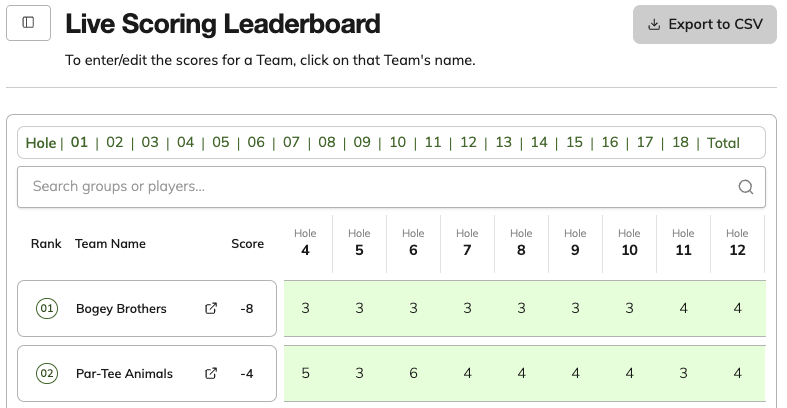
The organizer Leaderboard is the primary place to review and correct Live Scoring results during the tournament.
- Open your tournament in the Event Caddy Admin Dashboard.
- Select Live Scoring.
- Select Leaderboard.
The Leaderboard displays the current teams and their scoring progress, including hole-by-hole results.
From this page, organizers can:
- review team rankings and scores;
- search for a group or player;
- open a team to review or edit its scorecard;
- correct a Live Scoring Team Name; and
- export Leaderboard data to CSV.
Editing a Team's Scores
If a score needs to be corrected:
- Open Live Scoring > Leaderboard.
- Find the appropriate team.
- Select the Team Name.
- Review the team's scorecard.
- Edit the incorrect score.
- Save the changes.
The updated result is reflected in Live Scoring and the Leaderboard.
Tip: Organizers can use the admin Leaderboard to correct an incorrectly entered score without needing to access the player's device or Live Scoring Access Code.
Editing a Live Scoring Team Name
Organizers can also correct the Team Name displayed in Live Scoring from the organizer Leaderboard.
The Live Scoring Team Name affects the scoring and Leaderboard experience only. It does not rename the organizer-facing Group in Group Pairings or change player registration information.
For more information about the distinction between Group Pairings and Live Scoring Team Names, see Setting Up Group Pairings.
Searching the Organizer Leaderboard
Use the search field above the Leaderboard to locate a specific group or player.
This can be useful when:
- a player reports an incorrect score;
- you need to find the appropriate team quickly;
- you want to confirm whether a team has begun entering scores; or
- you need to correct the displayed Team Name.
Exporting the Leaderboard to CSV
Organizers can export the current Live Scoring Leaderboard data for use outside Event Caddy.
- Open Live Scoring > Leaderboard.
- Select Export to CSV.
- Save or open the downloaded CSV file as needed.
The export provides a convenient record of the current Live Scoring results.
Viewing the Leaderboard as a Player
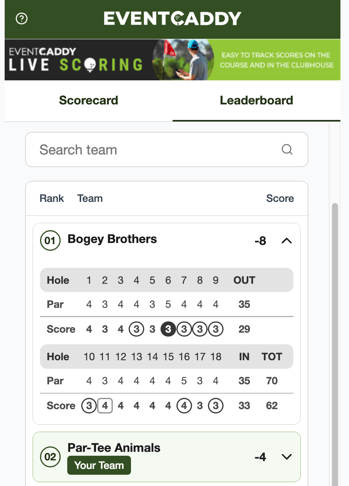
Players using Live Scoring can switch between Scorecard and Leaderboard at any time while Live Scoring is enabled.
From the Leaderboard tab, players can:
- view the current rankings;
- see each team's Live Scoring Team Name;
- see the team's current score;
- search for a team; and
- expand a team to review its hole-by-hole scorecard.
The player's own team is identified within the Leaderboard.
For complete player scoring instructions, see Using Live Scoring as a Player.
Leaderboard Updates and Connectivity
Leaderboard results depend on scoring data reaching Event Caddy.
When a player has an internet connection, saved scores can update the Leaderboard as the tournament progresses.
If a player loses connectivity, Live Scoring allows them to continue entering scores offline. Those scores do not update the live standings until the device reconnects and the stored data synchronizes.
For this reason, a team shown on the Leaderboard may temporarily appear behind its actual progress if its scorekeeper is currently offline.
Important: An organizer should not assume that a missing Leaderboard score means the group has not played the hole. The scorekeeper may be entering scores while offline.
When the Leaderboard Is Available
The player Leaderboard is available whenever Live Scoring is enabled.
If Live Scoring is disabled, players can no longer use the Live Scoring scorecard or Leaderboard.
Existing scoring data is retained if the organizer later activates Live Scoring again.
For activation and disabling instructions, see Setting Up and Managing Live Scoring.
Frequently Asked Questions
Can organizers correct a player's Live Scoring score?
Yes. Open Live Scoring > Leaderboard, select the appropriate Team Name, and edit the team's scorecard.
Can an organizer change the Team Name shown on the Leaderboard?
Yes. Organizers can correct the Live Scoring Team Name from the organizer Leaderboard.
Changing the Live Scoring Team Name does not change the Group Name in Group Pairings.
Can players see other teams' hole-by-hole scores?
Yes. Players can select a team from the Live Scoring Leaderboard to expand its scorecard and review its hole-by-hole results.
Why is a team's Leaderboard score not updating?
The team's scorekeeper may be offline. Live Scoring can continue storing scores on the device while connectivity is unavailable, but the Leaderboard cannot receive those updates until the device reconnects and synchronizes.
Can I export the Live Scoring results?
Yes. Organizers can select Export to CSV from Live Scoring > Leaderboard.
Is the old standalone Event Caddy Leaderboard website still used?
No. The previous standalone Leaderboard website and tournament-code workflow are no longer the current Leaderboard experience. Organizers should use Live Scoring > Leaderboard, and players should use the Leaderboard tab within Live Scoring.