
Event Finances gives you a tournament-wide financial summary of revenue, expenses, and fees.
Revenue generated through Event Caddy is organized into financial categories automatically where applicable. You can also add revenue or expenses that occurred outside Event Caddy so the report reflects a more complete financial picture of your tournament.
Important: Event Finances is a reporting and summary tool. It is different from Transaction History, which contains individual purchaser orders, payment status, invoices, receipts, and transaction actions.
View Event Finances
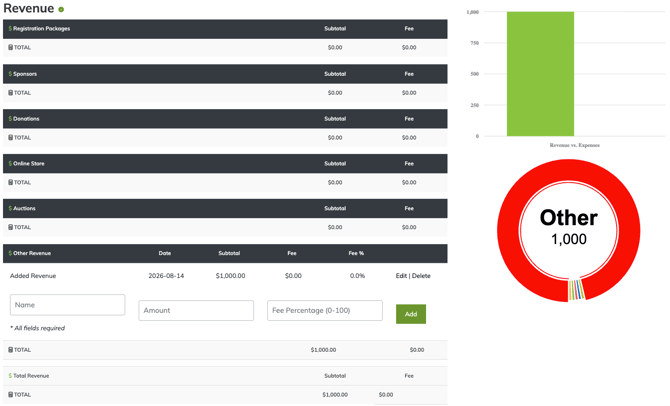
- From the Admin Dashboard, go to Finances & Commerce > Event Finances.
- Review the Revenue section for tournament income.
- Review the Expenses section for estimated processing fees and expenses you have entered manually.
- Use the totals and charts to view the overall financial picture of the tournament.
Revenue in Event Finances
Event Finances separates revenue by where it originated.
| Revenue section | What appears there |
|---|---|
| Registration Packages | Player Registration purchases |
| Sponsors | Sponsor records specifically configured to be included in the finance report |
| Donations | Donations completed through the dedicated Tournament Website Donate workflow |
| Online Store | Store Product purchases, including Sponsorship Products sold through the Online Store |
| Auctions | Auction Items currently marked Paid |
| Other Revenue | Revenue the organizer enters manually |
These categories are important because similar-looking revenue can come from different Event Caddy workflows.
Sponsorship Revenue
A Sponsorship Product purchased through the Online Store is counted under Online Store revenue.
It should not normally be counted again under Sponsors.
The Sponsors section is intended for Sponsor records that have Include this sponsor in finance report enabled under Event Website > Sponsors. This is most useful when sponsorship revenue was received outside Event Caddy and there is no corresponding Online Store transaction.
Avoid double counting: When a Sponsorship Product purchase creates a Sponsor record, the Sponsor is not automatically included in the finance report because the purchase is already counted under Online Store.
If a sponsorship was sold through Event Caddy, use the Online Store transaction as the financial record whenever possible.
Donation Revenue
The Donations section contains donations completed through the dedicated Donate workflow on the Tournament Website.
A Store Product that happens to be used for a donation is still an Online Store purchase and appears under Online Store rather than Donations.
Auction Revenue
Paid Auction Items appear individually in the Auctions section of Event Finances.
Auction Items that are Unpaid do not appear there. If a Paid Auction Item is changed back to Unpaid, it is removed from Event Finances.
Auction payments themselves do not appear in Transaction History. Auction-specific winners, payment status, and reporting remain managed through the Auction workflow.
Paid and Unpaid Transaction Status
For normal Registration Package, Online Store, and Donate transactions, Paid or Unpaid status does not determine whether the revenue is included in Event Finances.
For example, a Cash or Cheque order can still contribute to the appropriate Event Finances revenue section while the transaction is marked Unpaid.
If an order is cancelled and voided, the underlying purchase is reversed and its financial contribution is removed.
Auctions are different: only Auction Items marked Paid are included in Event Finances.
Add Revenue Collected Outside Event Caddy
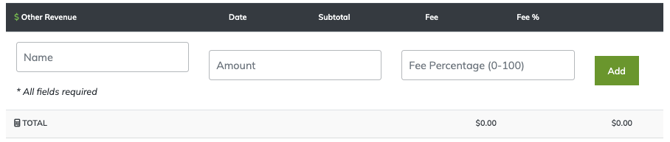
Use Other Revenue when money should be represented in your tournament financial report but there is no Event Caddy transaction for it.
Examples could include revenue collected directly by the organizer or other income that did not go through Player Registration, the Online Store, Donate, or Auctions.
To add Other Revenue:
- Go to Finances & Commerce > Event Finances.
- Scroll to Other Revenue.
- Enter the Name.
- Enter the Amount.
- Enter a Fee Percentage (0-100) if you want Event Finances to calculate an additional fee amount for reporting.
- Select Add.
The Fee Percentage is a reporting calculation only. Adding it does not charge a purchaser or process any money.
Manual Other Revenue entries can be edited or deleted later.
Add Tournament Expenses
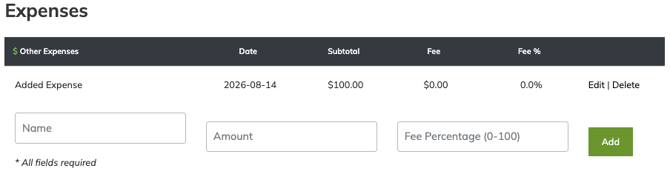
Event Finances can also be used to record expenses that were incurred outside Event Caddy.
Examples may include:
- green fees;
- food and beverage;
- marketing costs;
- venue or course costs; and
- other tournament expenses.
To add an expense:
- Go to Finances & Commerce > Event Finances.
- Scroll to Other Expenses.
- Enter the expense Name.
- Enter the Amount.
- Enter a Fee Percentage (0-100) if an additional calculated fee should be represented in the report.
- Select Add.
Manual Other Expense entries can be edited or deleted later.
Credit Card Processing Fee Estimate
When Stripe is used for credit-card transactions, Event Caddy displays an estimated Credit Card Processing Fee under the Expenses section of Event Finances.
The estimate uses the common Stripe rate of approximately 2.9% + $0.30 per transaction. It is a reporting estimate rather than a direct feed of the actual fee charged by Stripe.
PayPal processing fees are not currently included in this Event Finances estimate.
Auction-related credit-card fee reporting appears separately as Credit Card Processing Fee for Auctions.
For a complete explanation of Event Caddy fees, processor fees, and Custom Fees, see the Understanding Fees & Rates in Event Caddy guide.
Event Finances vs. Transaction History
Event Finances and Transaction History answer different questions.
| Tool | Best used for |
|---|---|
| Event Finances | Overall tournament revenue, expenses, fees, financial categories, and manual financial entries |
| Transaction History | Individual purchaser orders, Paid/Unpaid status, invoices, receipts, exports, notes, and transaction actions |
Use Transaction History when you need to investigate or manage a particular order.
Use Event Finances when you want the broader financial picture of the tournament.
Frequently Asked Questions
Can I add revenue that was collected outside Event Caddy?
Yes.
Add it under Other Revenue in Event Finances when no Registration, Online Store, Donate, Auction, or other Event Caddy transaction represents that revenue.
Can I track expenses such as green fees or catering?
Yes.
Add them under Other Expenses so they are included in the tournament's financial summary.
Can I edit revenue or expenses I entered manually?
Yes. Manual Other Revenue and Other Expense entries can be edited or deleted.
Why is a sponsorship showing under Online Store instead of Sponsors?
A Sponsorship Product is a Store Product, so a sponsorship purchased through the Tournament Website is counted under Online Store.
The Sponsors finance section is for Sponsor records that have Include this sponsor in finance report enabled.
Should I enable Include this sponsor in finance report for a sponsor who purchased online?
Usually no.
If the sponsorship purchase already appears under Online Store, including the Sponsor record again would count the same revenue twice.
The Sponsor finance option is mainly intended for sponsorship revenue collected outside Event Caddy.
What appears under Donations?
Only donations completed through the dedicated Tournament Website Donate workflow appear under Donations.
A donation-style Store Product remains Online Store revenue.
Why is an Unpaid Cash or Cheque order still included in Event Finances?
For normal Registration, Online Store, and Donate transactions, Paid/Unpaid status tracks whether payment has been received; it does not control the underlying revenue entry in Event Finances.
If the order itself should be cancelled, void the transaction.
Why isn't an Unpaid Auction Item in Event Finances?
Auctions use a different financial model.
Only Auction Items marked Paid are included in the Auctions section of Event Finances.
Is the Credit Card Processing Fee the exact amount Stripe charged me?
Not necessarily.
Event Caddy currently estimates the fee using approximately 2.9% + $0.30 per Stripe transaction. Actual processor rates may differ.