
When an Auction Item reaches its Bidding Ends time, Event Caddy automatically identifies the highest valid bidder as the winner.
From there, organizers can review winners, collect credit-card or offline payments, send invoices or receipts, correct Paid/Unpaid status, and track paid Auction revenue.
How Auction Winners Are Determined
Each Auction Item has one winner.
When the item's Bidding Ends time is reached:
- Event Caddy identifies the highest valid bid.
- That bidder becomes the Auction winner automatically.
- The winner receives an automatic text message.
- The item appears in the Auction Winners Report.
- The winner can review the item through My Bids.
No organizer action is required to select or confirm the winner.
If the organizer changes the Bidding End time and reopens the item, the existing winner is reset. Event Caddy determines the winner again when the revised bidding period ends.
Review the Auction Winners Report
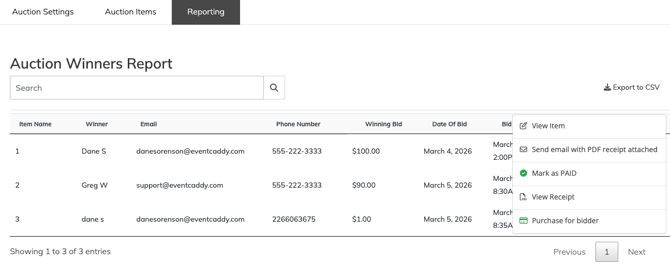
- From the Admin Dashboard, go to Finances & Commerce > Online Auction.
- Select Reporting.
- Review the Auction Winners Report.
The report includes information such as:
- Item Name;
- Winner;
- Email;
- Phone Number;
- Winning Bid;
- Date Of Bid;
- Bid Closed At;
- payment Status; and
- Actions.
Use the Search field to find a specific winner or Auction Item.
Select Export to CSV when you need a downloadable copy of the report.
Understand Paid and Unpaid Status
Each winning Auction Item is tracked separately as PAID or UNPAID.
A winner may be marked Paid in two ways:
- the winning bid is successfully paid by credit card through Event Caddy; or
- the organizer manually selects Mark as PAID after collecting payment another way.
If an item is marked Paid, it is included in the Auctions section of Event Finances.
If the item is changed back to Unpaid, it is removed from Event Finances.
Important: Auction payments do not appear in Transaction History. Auction winners and their individual payment status are managed through Online Auction > Reporting.
Allow Winners to Pay by Credit Card
Auction credit-card payments require:
- a working Stripe connection; and
- Enable payments for auction items. turned on under Auction Settings.
PayPal is not currently supported for Auction winning-bid payments.
Important: The Auction payment setting does not currently warn you when Stripe is not properly connected. Before relying on bidder payments, confirm that your tournament's Stripe connection is active and working.
When Auction payments are enabled, the winner's automatic text message directs them back to the Auction to complete payment.
The winner can then:
- Sign in to the Auction.
- Open My Bids.
- Find the winning Auction Item.
- Select Pay Now.
- Enter their credit-card information.
- Submit the payment.
Each winning Auction Item must be paid separately. A bidder who wins multiple items cannot currently combine them into one payment.
What Happens After a Successful Credit-Card Payment
When a winner successfully pays through Event Caddy:
- the Auction Item is automatically changed to PAID;
- a paid receipt is generated;
- the bidder receives the receipt by email;
- the Auction Winners Report updates immediately; and
- the paid Auction Item is added to the Auctions section of Event Finances.
No organizer action is required to mark the item Paid afterward.
Collect Payment on Behalf of a Winner
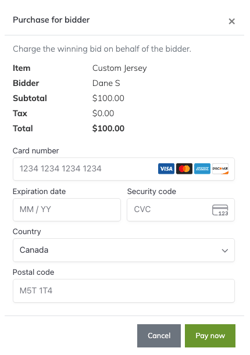
When Auction credit-card payments are enabled and Stripe is working, organizers can process a winning bid on the bidder's behalf.
- Go to Finances & Commerce > Online Auction > Auction Items.
- Open the Actions menu for the winning Auction Item.
- Select Bid History.
- Locate the winning bid.
- Open the bid's Actions menu.
- Select Purchase for bidder.
- Review the Item, Bidder, Subtotal, Tax (the tournament's applicable Custom Fee), and Total.
- Enter the bidder's credit-card information.
- Select Pay now.
A successful Purchase for bidder behaves the same as a payment submitted by the bidder: the item becomes Paid, a receipt is generated and emailed, the Auction Winners Report updates, and the paid item is added to the Auctions section of Event Finances.
Note: Only use Purchase for bidder when the bidder has authorized the organizer to process their card information.
Collect Payment Outside Event Caddy
You do not have to accept winning-bid payments through Event Caddy.
If Enable payments for auction items. is turned off:
- the winner does not see Pay Now;
- the winner's notification directs them to contact the tournament organizer about payment; and
- the organizer collects the payment separately.
After receiving payment:
- Go to Finances & Commerce > Online Auction > Reporting.
- Locate the winning item.
- Open the Actions menu.
- Select Mark as PAID.
Event Caddy does not require you to identify whether the offline payment was made by cash, cheque, e-transfer, or another method.
A manually marked Paid Auction Item is also added to the Auctions section of Event Finances.
Mark a Winner as Unpaid
If an item was marked Paid incorrectly or its status needs to be reversed:
- Open the winning item's Actions menu.
- Select Mark as UNPAID.
Changing the item back to Unpaid removes that Auction Item from Event Finances.
Send an Invoice or Receipt
The document Event Caddy provides depends on the item's payment status.
- For an UNPAID winning item, Event Caddy provides an unpaid invoice.
- For a PAID winning item, Event Caddy provides a paid receipt.
From the winner's Actions menu, organizers can use the available receipt/email controls to send the document to the bidder.
The current interface includes actions such as:
- Send email with PDF receipt attached
- View Receipt
Although the current UI uses the word receipt, an unpaid winner receives an unpaid invoice rather than a paid receipt.
Custom Fees on Auction Payments
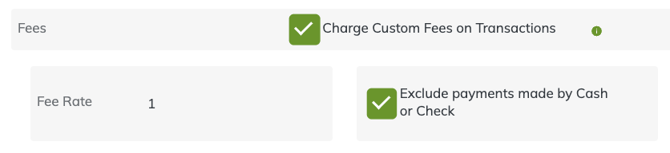
If the tournament has a Custom Fee configured under My Event > Event Setup & Settings, it can be added to an Auction credit-card payment. The Auction payment screen currently displays this amount as Tax.
The payment screen can therefore show:
- Subtotal;
- Custom Fee; and
- Total.
General Custom Fee setup belongs to Event Caddy's financial settings rather than the Auction workflow.
Auction Credit-Card Fee
Event Caddy charges an Auction-specific fee on credit-card winning-bid payments:
2.5% of the winning bid, capped at $50 per Auction Item.
This Auction fee applies only when the winning bid is paid by credit card through Event Caddy.
It does not apply when the organizer collects the payment outside Event Caddy and manually marks the item Paid.
The fee is deducted as the Auction payment is sent to the organizer's Stripe account.
View Auction Revenue in Event Finances
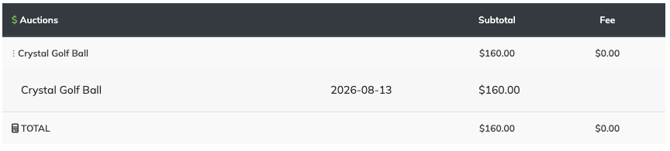
Paid Auction Items appear in their own Auctions section under Event Finances. For the complete tournament financial-reporting workflow, see Managing Event Finances.
Each paid item appears as its own line item, allowing Auction revenue to be included alongside the tournament's other revenue categories.
Only Paid Auction Items are included.
- Credit-card payment → added automatically.
- Mark as PAID → added to Event Finances.
- Mark as UNPAID → removed from Event Finances.
- Unpaid winner → not included.
Important: The Auctions section of Event Finances is the financial summary of paid Auction Items. It does not create corresponding entries in Transaction History.
Correct or Refund an Auction Payment
Auction credit-card refunds are not currently processed through Event Caddy. For the general refund and transaction-voiding model, see Refunding and Voiding Transactions.
If a winning bid paid through Stripe needs to be refunded:
- Process the refund from the organizer's Stripe account.
- Return to Finances & Commerce > Online Auction > Reporting.
- Locate the Auction winner.
- Change the item to UNPAID.
This keeps the Auction Winners Report and Event Finances aligned with the refund completed through Stripe.
Frequently Asked Questions
Does Event Caddy automatically choose the Auction winner?
Yes. When the Auction Item's Bidding End time is reached, Event Caddy automatically makes the highest valid bidder the winner and sends the winner a text message.
Does the organizer have to send the winner notification?
No. Winner notification is automatic.
Do I need Stripe to run an Auction?
No. Stripe is required only if you want Auction winners to pay their winning bids by credit card through Event Caddy.
You can collect Auction payments outside Event Caddy and manually mark winners Paid.
Can Auction winners pay with PayPal?
No. PayPal is not currently supported for Auction winning-bid payments.
Can a winner pay for several winning Auction Items at once?
No. Each winning Auction Item must be paid separately.
Can I charge a winner's credit card for them?
Yes. When Stripe is working and Auction payments are enabled, use Purchase for bidder to process the winning bid on the bidder's behalf.
What happens when I manually mark an Auction winner Paid?
The winning Auction Item changes to Paid and is added to the Auctions section of Event Finances.
No payment method is recorded when you manually change the status.
Does manually marking an item Paid charge the Auction fee?
No. The 2.5% Auction fee, capped at $50 per item, applies only to Auction credit-card payments processed through Event Caddy.
Does Auction revenue appear in Transaction History?
No. Auction payments never appear in Transaction History.
Review individual winners and payment status under Online Auction > Reporting. Paid Auction Items appear separately in the Auctions section of Event Finances.
What is sent when I email an unpaid winner?
An unpaid winner receives an unpaid invoice.
Once the item is Paid, Event Caddy provides a paid receipt instead.
How do I refund a credit-card Auction payment?
Process the refund directly through Stripe, then return to the Auction Winners Report and mark the winning item Unpaid.
What happens if I turn off Auction payments?
Winners no longer have a Pay Now option. Their winner notification directs them to contact the organizer about payment.
Collect the payment separately and use Mark as PAID when it has been received.
Related Articles
- Setting Up and Managing an Auction
- Accessing and Bidding in an Auction
- Auctions Overview
- Connecting Stripe and PayPal
- Understanding Fees & Rates in Event Caddy
- Managing Event Finances
- Refunding and Voiding Transactions