
The Registration Confirmation Email is the automatic email Event Caddy sends to players after they register for your tournament.
You can customize this email with tournament details, instructions, contact information, and other information players should receive immediately after registration.
The email is configured under:
Player Management > Registration Options > Registration Email
Important: The Registration Confirmation Email is different from a Player Registration Email under Communication Tools. The Registration Confirmation Email is automatically sent after a player registers. A Player Registration Email is a promotional email used to encourage contacts who have not yet registered to sign up.
Table of Contents
- Who receives the Registration Confirmation Email?
- Customize the Registration Confirmation Email
- What to include in the email
- Use Available Helpers
- Registration Confirmation Email vs. Player Registration Email
- Disable the Registration Confirmation Email
- Prevent the email from going to one specific player
- Frequently Asked Questions
Who receives the Registration Confirmation Email?
Adding an email address to a Guest Player or correcting an existing player’s details does not send or resend this confirmation.
The same template applies across the tournament. Eligible players receive the email immediately after registration when the template has content.
Event Caddy automatically sends the Registration Confirmation Email to players with a valid email address when they are registered through:
- a Registration Package; or
- an Online Store product that includes players.
For a multi-player registration, each player whose email address is provided receives their own Registration Confirmation Email.
For example, if a Foursome registration includes valid email addresses for all four golfers, all four players receive the email.
If an additional player is entered as Guest Player or does not have an email address provided, that player does not receive the email.
Players manually added by an organizer through Player Management > Player Listing > Register New Player do not receive the automatic Registration Confirmation Email.
Customize the Registration Confirmation Email
- From the left-hand menu, go to Player Management > Registration Options.
- Select Registration Email.
- Review the Subject and Sender's Name fields. Enter the subject and sender name you want players to see.
- Edit the email body to include the information you want players to receive after registering.
- Copy any Available Helpers you need from the list above the editor and paste them into the email body.
- Review your completed email.
- Click Save.
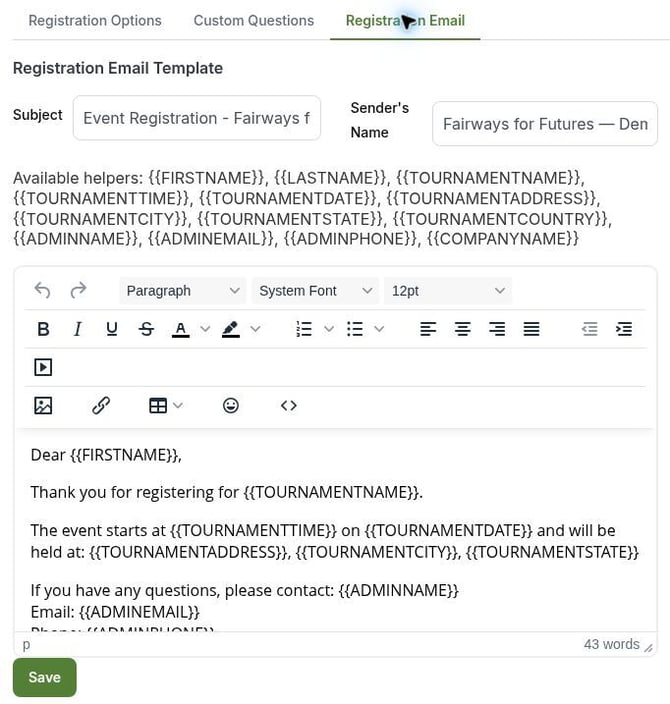
You can customize as much or as little of the existing email as needed.
What to include in the email
The Registration Confirmation Email is a good place to give registered golfers the information they need next.
Consider including:
- a thank-you for registering;
- tournament date and location;
- arrival or check-in time;
- golf course information;
- breakfast, lunch, or banquet details;
- dress code or course requirements;
- tournament-day instructions;
- organizer contact information;
- links to important tournament resources; or
- anything else every registered player should know.
Avoid information that changes frequently unless you are prepared to update the email before additional players register.
This is one tournament-wide template, so include package benefits only if they apply to every recipient. Put package-specific inclusions in the relevant Registration Package or Store Product description.
Use Available Helpers
The Registration Email editor lists Available Helpers above the email body. Copy the exact helper, including both pairs of curly braces, and paste it where the corresponding information should appear.
Helpers can populate information such as:
- player name;
- tournament name;
- tournament date; and
- other tournament or player details available in the editor.
Using helpers lets you personalize one email template without manually entering information for each player.
For example, use {{FIRSTNAME}} for the player’s first name, {{TOURNAMENTNAME}} for the tournament name, and {{TOURNAMENTDATE}} for the date. Use the helper list in your editor for the other supported fields.
Important: Available Helpers are case-sensitive and work in the email body only. Do not put helpers in the Subject. Copy them exactly as listed in the editor.
Registration Confirmation Email vs. Player Registration Email
These two emails have different purposes.
- Registration Confirmation Email
- Sent after a player registers
- Automatic
- Intended for registered players
- Configured under Player Management > Registration Options > Registration Email
- Sent to eligible players registered through Registration Packages or Store Products with players
- Player Registration Email
- Sent before registration
- Sent through Communication Tools
- Intended to encourage contacts to register
- Managed under Communication Tools > Email
- Contacts who have registered are excluded from promotional sends and reminders.
If you want to invite prospective golfers to register, use the Player Registration Email tools under Communications instead.
To send promotional registration emails or schedule reminders, see Sending Emails with Communication Tools.
Disable the Registration Confirmation Email
There is no separate on/off setting for the Registration Confirmation Email.
For eligible website registrations, Event Caddy automatically attempts to send the email.
If you do not want the Registration Confirmation Email sent:
- Go to Player Management > Registration Options > Registration Email.
- Delete all content from the email body.
- Save the empty email body.
With no email body to send, the Registration Confirmation Email will not be sent.
If you want to use the Registration Confirmation Email again later, you will need to add content back to the email body.
Prevent the email from going to one specific player
The Registration Confirmation Email is automatic and does not have a per-player opt-out during normal online registration.
If you need to complete an online registration without sending the confirmation to the player's actual email address, you can enter an organizer-controlled email address during registration and update the player's email later under:
Player Management > Player Listing
The confirmation will go to the alternate address used at registration. Updating the player’s email afterward does not resend it.
Alternatively, Event Caddy PRO and ELITE organizers can manually add the player using Player Management > Player Listing > Register New Player. Players added manually this way do not receive the automatic Registration Confirmation Email.
For the player edit and manual registration steps, see Managing Players and Registrations.
Frequently Asked Questions
Is the Registration Confirmation Email sent automatically?
Yes. It is automatically sent to eligible players after they are registered through a Registration Package or an Online Store product that includes players.
Does every player in a Foursome receive the email?
Each player with a valid email address provided receives the Registration Confirmation Email. If all four golfers have email addresses entered, all four receive the email. A Guest Player or another additional player without an email address does not receive it.
Do players registered through the Online Store receive the email?
Yes. If an Online Store product includes players, those players receive the same Registration Confirmation Email as players registered through a Registration Package, provided a valid email address is available for them.
Does a manually registered player receive the email?
No. Players added by an organizer through Player Management > Player Listing > Register New Player do not receive the automatic Registration Confirmation Email.
Can I create different Registration Confirmation Emails for different Registration Packages?
No. The Registration Confirmation Email is a tournament-wide email used for registered players regardless of which Registration Package or Online Store product added them.
Can I turn the Registration Confirmation Email off?
There is no separate disable setting. To prevent the email from being sent, remove all content from the Registration Email body and save it. With no email body available, the message will not be sent.
What's the difference between this and a Player Registration Email?
The Registration Confirmation Email is sent automatically after a player registers. A Player Registration Email under Communication Tools is a promotional email sent to contacts to encourage them to register. For promotional email setup, see Sending Emails with Communication Tools.