
Custom Questions let you collect additional information from golfers during registration.
You can use them to collect information such as:
- handicap;
- shirt size;
- dietary restrictions;
- allergies;
- emergency contact information;
- player address; or
- other tournament-specific details.
Custom Questions are created once for the tournament rather than configured separately for individual Registration Packages.
Important: Custom Questions are global. The same questions are presented to players registering through any Registration Package and to players included with Online Store products as well as manually added players.
Create a Custom Question

- From the left-hand menu, go to Player Management > Registration Options > Questions.
- Click Add a Custom Question in the top-right corner.
- Enter the question you want players to answer.
- Select the appropriate question type.
- If applicable, choose whether the question must be answered.
- Click Save.
- Repeat these steps for each additional Custom Question you want to collect.
Choose a question type
EventCaddy provides three Custom Question types.
| Question type | How it works |
|---|---|
| Text | Lets the player enter a free-form written response |
| Checkbox | Lets the player answer yes by selecting the checkbox or no by leaving it unchecked |
| Select | Lets the player choose from a predefined list of options |
Text questions
Use Text when the player needs to enter their own answer.
Examples include:
- allergies;
- emergency contact information;
- handicap;
- player address; or
- other open-ended information.
Checkbox questions
Use Checkbox for a yes/no choice.
The player selects the checkbox for yes or leaves it unchecked for no.
Select questions
Use Select when the player should choose from a predefined list.
For example, a shirt-size question could provide:
- Small
- Medium
- Large
- XL
- XXL
Using predefined options can make responses easier to review and report.
Make a question mandatory
For Text and Select questions, you can require the player to provide an answer by enabling:
Is this a mandatory question?
Mandatory questions must be completed before the player can continue.
This setting does not apply to Checkbox questions.
Change the order of your questions
Custom Questions can be reordered after they are created.
- Go to Player Management > Registration Options > Questions.
- Locate the question you want to move.
- Select and hold the two horizontal bars in the leftmost column.
- Drag the question to the desired position.
- Repeat as needed until the questions appear in your preferred order.
The order shown on this page controls the order in which the Custom Questions are presented during registration.
Understand where Custom Questions appear
Custom Questions are tournament-wide rather than package-specific.
They apply to every player added to the tournament, including players who are:
- registered through a Registration Package;
- included with an Online Store product; or
- manually added by an organizer through Player Management > Player Listing > Register New Player.
For example, if you create a Custom Question asking for shirt size, that question is not limited to a particular Foursome or Single Golfer package. The same question also applies to players added through other Registration Packages, Online Store products, and manual registration.
Because the same Custom Questions apply to every player, create questions that are appropriate for all of your tournament's golfers.
View Custom Question answers
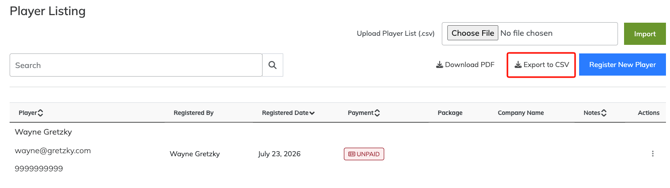
You can review player responses from:
Player Management > Player Listing
There are two ways to view the answers.
Export answers to CSV
For the quickest way to review answers for multiple players:
- Go to Player Management > Player Listing.
- Click Export to CSV in the top-right corner.
- Open the downloaded file.
The export includes the players' Custom Question answers along with other player information.
This is useful when you need to sort, filter, or review responses for the entire tournament.
View answers for an individual player
To review one player's answers:
- Go to Player Management > Player Listing.
- Locate the player.
- Select the three dots in the Actions column.
- Select Details.
- Review the player's information and Custom Question responses.
Collect a player's address
Player address information is not collected as standard player information during registration.
By default, address information collected during checkout belongs to the purchaser.
If you need the address of each player, create Custom Questions under:
Player Management > Registration Options > Questions
For example, you could create a separate 'Address' Text question for the player's:
- street address;
- city;
- province/state;
- postal/ZIP code; and
- country.
Remember that these Custom Questions will apply to all players registering through Registration Packages and Online Store products that include players.
Tips for creating useful Registration Questions
Keep your questions focused on information you actually need to organize or run the tournament.
Good Custom Questions are:
- easy for players to understand;
- relevant to all or most golfers;
- specific enough to produce useful answers; and
- configured as Select questions when a consistent set of responses would make reporting easier.
Avoid creating package-specific questions because Custom Questions apply across the tournament.
Frequently Asked Questions
Can I create different Custom Questions for different Registration Packages?
No.
Custom Questions are global for the tournament and are not assigned to individual Registration Packages.
Players registering through different Registration Packages receive the same Custom Questions.
Are Custom Questions asked when an Online Store product includes players?
Yes.
Players included with an Online Store product are asked the tournament's Custom Questions just like players registering through a Registration Package as well as manually added players.
Are Custom Questions shown when I manually register a player?
Yes.
When an organizer manually adds a player through Player Management > Player Listing > Register New Player, the tournament's Custom Questions are included in the manual registration process.
Can I make a Custom Question required?
Yes, for Text and Select questions.
Enable Is this a mandatory question? when creating or editing the question.This setting does not apply to Checkbox questions.
How can I view everyone's answers at once?
Go to Player Management > Player Listing and select Export to CSV.
The export includes Custom Question responses along with other player information.
How can I view one player's answers?
From Player Management > Player Listing, locate the player, select the three dots in the Actions column, and choose Details.
How can I collect player addresses?
Create Custom Questions for the address information you need.
By default, checkout collects the purchaser's address rather than an address for every player.