
The Donations & fundraising controls in the Inline Website Editor (Beta) let you customize how your donation experience and fundraising progress appear on the Tournament Website.
You can show or hide the Donate button, set your public Fundraising Goal, customize fundraising text and colors, and use additional PRO or ELITE fundraising display features.
Important: The Fundraising Goal is a public progress target. It is not a required donation amount or a price charged to donors.
Table of Contents
- Set Up Donations and Your Fundraising Goal
- Customize Fundraising Text
- Customize Fundraising Colors
- Use PRO and ELITE Fundraising Features
- Frequently Asked Questions
Set Up Donations and Your Fundraising Goal
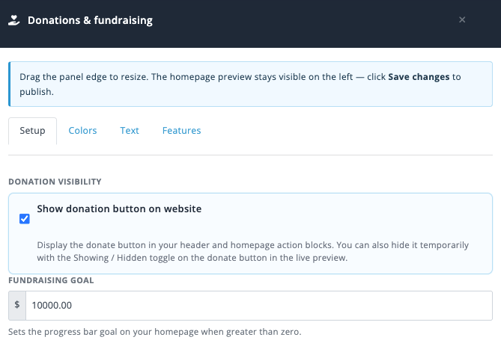
From the Inline Website Editor, select Enhancements > Donations & fundraising.
The Setup tab controls whether the Donate button appears and sets the Fundraising Goal used by the homepage fundraising display.
Show or Hide the Donate Button
Use Show donation button on website to control whether the Donate button appears in the website header and homepage action areas.
The website preview updates while you work. You can also use the Showing / Hidden control on the Donate button in the live preview to temporarily change its visibility.
Changing website visibility does not change your underlying payment configuration.
For instructions on changing the Donation button's label, supporting text, or color, see Customizing Your Homepage with the Inline Website Editor (Beta).
Set the Fundraising Goal
Enter the amount you want to raise in Fundraising Goal.
When the Fundraising Goal is greater than zero, Event Caddy uses it as the target for the homepage fundraising progress display.
The Fundraising Goal shown here is the same underlying value available under My Event > Event Setup & Settings. Updating it in either location updates the same tournament setting.
For example, if the Fundraising Goal is set to $10,000, the website can show how much has been raised toward that $10,000 target.
Select Save Changes at the top of the Inline Website Editor when you are ready to publish outstanding changes.
Customize Fundraising Text
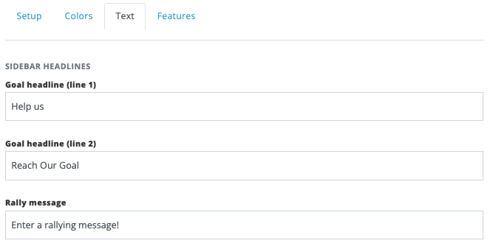
Open Donations & fundraising, then select the Text tab.
You can customize three pieces of text in the fundraising display:
| Setting | What it controls |
|---|---|
| Goal headline (line 1) | The first line of the fundraising headline shown in the sidebar. |
| Goal headline (line 2) | The second line of the fundraising headline. |
| Rally message | Supporting text displayed beneath the fundraising headline. |
For example, the two headline fields could display:
Help Us
Reach Our Goal
with a rally message below encouraging visitors to support the tournament.
The preview updates while you edit. Select Save Changes when you are ready to publish.
Customize Fundraising Colors
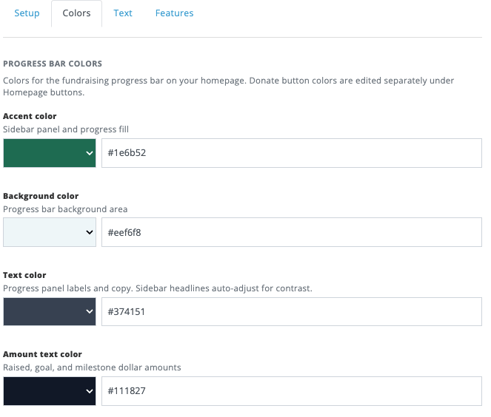
Select the Colors tab to customize the fundraising progress display.
These settings control the Fundraising Goal area rather than the Donate action button itself.
| Setting | What it controls |
|---|---|
| Accent color | The fundraising sidebar and progress-bar fill. |
| Background color | The background area of the progress bar. |
| Text color | Progress labels and supporting copy. Sidebar headlines automatically adjust for contrast. |
| Amount text color | Raised amount, Fundraising Goal, and milestone dollar amounts. |
You can select colors visually or enter HEX values.
Note: Donate button colors are configured separately under Edit > Action buttons. See Customizing Your Homepage with the Inline Website Editor (Beta).
Select Save Changes to publish your fundraising color changes.
Use PRO and ELITE Fundraising Features
The Features tab contains additional fundraising presentation options.
Show the Percentage Complete
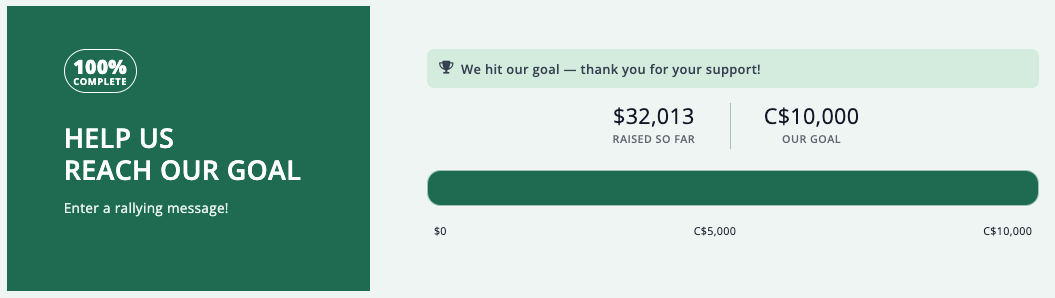
PRO and ELITE tournaments can enable Show large % complete badge.
This adds a prominent percentage badge to the fundraising sidebar so visitors can quickly see how close the tournament is to its Fundraising Goal.
For example, when the amount raised reaches the goal, the badge can display 100% complete.
Use ELITE Fundraising Visuals
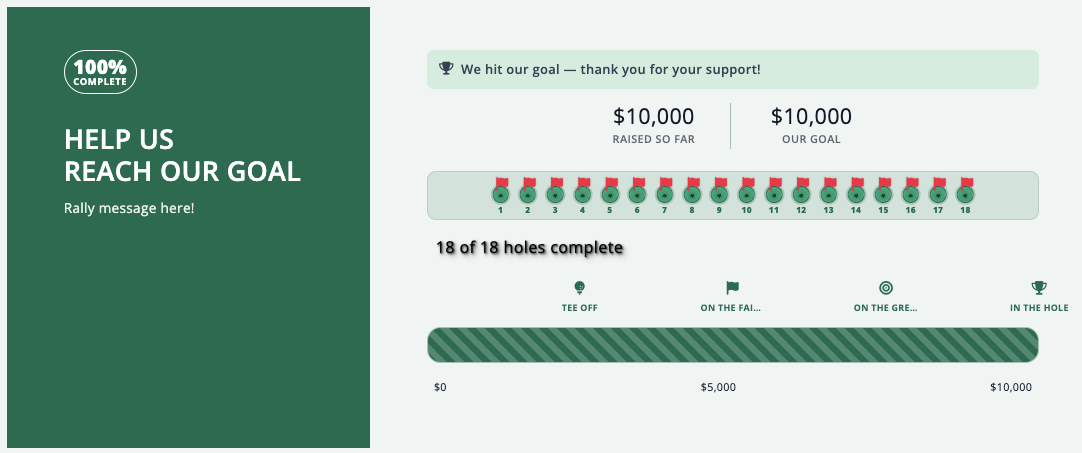
ELITE adds three additional fundraising display options:
| ELITE setting | What it does |
|---|---|
| Show golf milestone markers | Adds golf-themed milestones along the progress display as fundraising reaches key points toward the goal. |
| Animate progress bar | Animates the progress display when fundraising totals update. |
| 18-hole progress tracker | Maps progress toward the Fundraising Goal across 18 golf holes and shows how many holes have been completed based on fundraising progress. |
These features change how fundraising progress is presented on the Tournament Website. They do not change how donations are processed.
Important: You may see upgrade messaging that refers to additional fundraising features such as donor activity boards or supporter competition alerts. Those features are not currently released and are not available for organizer use.
Select Save Changes when you are ready to publish the feature settings.
Frequently Asked Questions
Is the Fundraising Goal the amount each person has to donate?
No.
The Fundraising Goal is the overall public target your tournament is trying to reach. It is used for the fundraising progress display and does not set a required donation amount.
Can I change the Fundraising Goal somewhere other than the Inline Website Editor?
Yes.
The same Fundraising Goal value is also available under My Event > Event Setup & Settings. Both locations update the same tournament setting.
Can I hide the Donate button without deleting my Fundraising Goal?
Yes.
Show donation button on website controls whether the Donate button is displayed. Your Fundraising Goal is a separate setting.
Can I change the Donate button color from Donations & fundraising?
No.
The Colors tab controls the Fundraising Goal display. The Donate action button is customized separately under Edit > Action buttons.
What does the large percentage badge show?
For PRO and ELITE tournaments, Show large % complete badge displays the percentage of the Fundraising Goal that has been reached.
What fundraising features are available with ELITE?
ELITE includes the PRO fundraising functionality plus:
- golf milestone markers
- an animated progress bar
- an 18-hole progress tracker
What does the 18-hole progress tracker do?
It represents progress toward the Fundraising Goal across 18 golf holes.
As fundraising increases, the tracker shows additional holes as completed toward the overall goal.
Are donor activity boards and supporter competition alerts available?
No.
Those features are not currently released, even if their names appear in upgrade messaging inside the editor.