
Once your Group Pairings are organized, Event Caddy uses those assignments to create several tournament-day tools automatically.
The Start List shows when or where each group starts. From there, you can print the Start List, open the Bag Drop Report, and manage Live Scoring access when Live Scoring is enabled. Cart Signage uses the same pairing information to create printable signs for golf carts.
Important: You do not create a separate Start List manually. It is generated automatically from your current Group Pairings.
For instructions on arranging golfers first, see Setting Up Group Pairings.
Table of Contents
- How Group Pairings Feed Tournament-Day Materials
- Review and Print the Start List
- Start List and Live Scoring
- Use the Bag Drop Report
- Create Cart Signage
- Update the Source Information Before Printing
- Frequently Asked Questions
How Group Pairings Feed Tournament-Day Materials
The information established in Group Pairings flows into several different outputs.
- Start List. Shows each group's starting assignment and can be printed for organizers, players, or course staff.
- Bag Drop Report. Provides a printable player-by-player list for bag drop, check-in, or other course operations.
- Cart Signage. Creates printable cart signs using the golfers and starting information from Group Pairings.
- Live Scoring access. When Live Scoring is enabled, Live Scoring Access Codes are generated for starting assignments and can be reviewed, resent, or regenerated through the Start List.
The information shown depends on the tournament's Schedule Format.
- For a Shotgun, starting assignments use starting holes.
- For Timed Starts, starting assignments use sequential start times.
Review and Print the Start List
Go to Player Management > Start List.
The Start List is generated from your current Group Pairings and updates as those pairings change.
For each group, the Start List shows the applicable starting information:
- Shotgun: the group's starting hole.
- Timed Starts: the group's start time.
To print the list:
- Open Player Management > Start List.
- Review the groups and starting assignments.
- Select Print Start List.
- Print or save the generated list as needed.
Review your Group Pairings before distributing the Start List. Changes made to Group Pairings will affect the resulting starting assignments.
Start List and Live Scoring
Screenshot reference. Use the image to locate the Start List controls. Player access emails go out 24 hours before the tournament, and Player Registration can stay open.
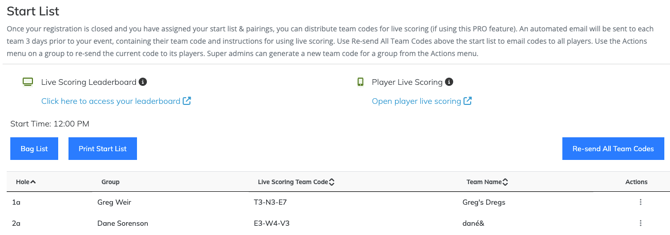
When Live Scoring is enabled, the Start List also becomes part of the handoff from Scheduling to tournament-day scoring.
Event Caddy generates a Live Scoring Access Code for each starting assignment when Live Scoring is enabled.
Important: A Live Scoring Access Code belongs to the starting assignment, such as a Shotgun starting hole or Timed Start position. It does not belong permanently to the group of players currently occupying that assignment.
The Start List can show Live Scoring information such as:
- the Live Scoring Access Code for the starting assignment; and
- the Live Scoring Team Name after one has been entered.
The organizer-facing Group Name used in Group Pairings is not the same as the Live Scoring Team Name. Players can choose the Live Scoring Team Name when first accessing their scorecard, and organizers can correct it later through the Live Scoring Leaderboard.
Automatic Live Scoring Access
When Live Scoring is enabled, assigned players with a valid email address receive their team’s unique Live Scoring link and Access Code by email 24 hours before the tournament. The email includes basic instructions and opens Live Scoring with the Access Code already loaded.
Complete and review Group Pairings before the player email. Make sure each group has at least one player with a valid email address. Player Registration can stay open.
If a group has no valid email address, give the group its Live Scoring Access Code directly.
Changing Group Pairings After Access Codes Are Sent
Each code opens a specific starting assignment. If you move a group after the initial email, the original link can still open the previous assignment.
- Update the players or groups in Player Management > Group Pairings.
- Open Player Management > Start List and find the affected starting assignment.
- Open Actions and select Generate new team code.
After the initial send, this action automatically emails the new code to that team’s players with valid email addresses.
Send or Resend Live Scoring Access Manually
Use the Start List if a team needs its current code again or misses the scheduled email because Live Scoring, pairings, or email addresses were set up late.
- Go to Player Management > Start List.
- Find the team’s starting assignment and open Actions.
- Select Re-send team code to players to email the team its current code. To resend the current codes to all eligible players, select Re-send All Team Codes on the Start List.
For Live Scoring setup, the seven-day organizer email, and the player email details, see Setting Up and Managing Live Scoring.
Use the Bag Drop Report
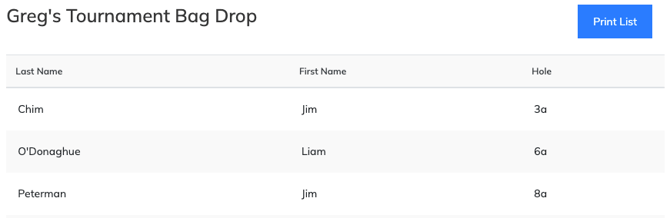
The Bag Drop Report is a printable player-by-player list based on your Group Pairings and starting information.
It can be used by course staff for tasks such as:
- bag drop;
- golfer check-in;
- organizing equipment; or
- confirming player starting information.
You can open the Bag Drop Report directly under Player Management > Bag Drop Report.
You can also select Bag List from the Start List page. Both routes open the same report.
To prepare the report:
- Confirm your Group Pairings.
- Go to Player Management > Bag Drop Report, or select Bag List from the Start List.
- Review the player information and starting assignments.
- Select Print List.
The Bag Drop Report is generated from the current pairing data, so review your Group Pairings first if anything appears incorrect.
Create Cart Signage
Cart Signage creates printable signs for your golf carts using the players and starting assignments from Group Pairings.
Go to Player Management > Cart Signage.
Event Caddy uses the current player order within each starting assignment to determine which golfers appear together on a cart sign.
For example:
- players 1 and 2 appear together on one cart sign;
- players 3 and 4 appear together on the next cart sign.
If the cart pairings need to change, rearrange the individual golfers within Group Pairings before generating the signs.
Changing the golfer order for Cart Signage does not require changing the original Player Registration records. Group Pairings controls the tournament-day arrangement.
What Appears on a Cart Sign
The starting information changes based on Schedule Format:
- Shotgun. Starting hole
- Timed Starts. Start time
The generated sign also includes the golfers assigned to that cart.
Add Logos or Images to Cart Signs
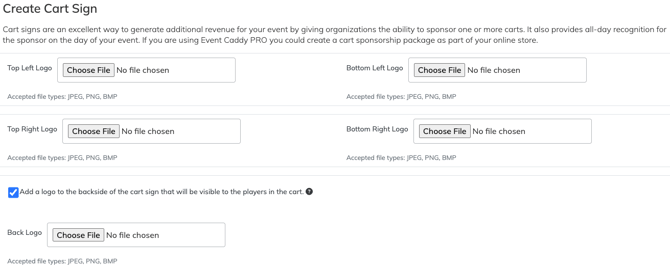
Before generating Cart Signage, organizers can add images or sponsor logos to the sign.
Available front positions include:
- Top Left Logo
- Top Right Logo
- Bottom Left Logo
- Bottom Right Logo
You can also add an optional image to the backside of the cart sign.
Supported image options should be selected from the current controls shown on the Cart Signage page.
To create the signs:
- Go to Player Management > Cart Signage.
- Add any optional logos or images.
- Select the option to add a backside image if needed.
- Select Create Cart sign.
- Review the generated signs.
- Print or save them for tournament day.
Cart signs can also be used as a sponsorship opportunity by displaying sponsor logos alongside golfer information.

Update the Source Information Before Printing
The Start List, Bag Drop Report, and Cart Signage all depend on your current Group Pairings.
If a starting assignment needs to change:
- Return to Player Management > Group Pairings.
- Move the affected golfer or group.
- Review the updated assignment.
- Return to the Start List, Bag Drop Report, or Cart Signage and generate the updated material.
- If Live Scoring access has already been emailed and the players or groups changed, use Generate new team code for the affected assignment.
Do not edit a player's registration record simply to change their tournament-day starting assignment.
For instructions on moving golfers and groups, see Setting Up Group Pairings.
Frequently Asked Questions
Do I need to create or finalize my Start List separately?
No. The Start List is generated automatically from your current Group Pairings. There is no separate Start List creation or finalization workflow.
Does Player Registration need to be closed before I can use the Start List or Live Scoring?
Player Registration can stay open. The Start List uses your current Group Pairings. For automatic Live Scoring access, assign players and verify their email addresses before the 24-hour send.
What happens if I change Group Pairings after Live Scoring Access Codes have been sent?
Open the affected assignment in Start List > Actions and select Generate new team code. After the initial send, generating a new code automatically emails the new code to that team’s players with valid email addresses.
What if a team misses the automatic Live Scoring email?
Open Start List > Actions > Re-send team code to players for the affected team. Check the team’s player email addresses first. You can also share the Access Code directly.
Can a group use Live Scoring without an email address?
Yes. Give the group its Live Scoring Access Code directly so they can open the scorecard.
Can players see the Start List automatically before the tournament?
Group Pairings and the Start List are not automatically published as a public player pairing list on the Tournament Website.
For Shotgun tournaments, players can confirm their starting hole after accessing Live Scoring. For Timed Starts, Live Scoring begins on Hole 1 and does not currently display the group's assigned start time.
Organizers can also distribute a printed Start List separately.
Can I change which golfers appear together on a cart sign?
Yes. Cart Signage uses the order of golfers in Group Pairings.
Rearrange the individual golfers within the starting assignment before generating the signs if different cart pairings are needed.
Is the Bag List different from the Bag Drop Report?
No. Selecting Bag List from the Start List opens the Bag Drop Report.