
Once your Group Pairings are organized, Event Caddy uses those assignments to create several tournament-day tools automatically.
The Start List shows when or where each group starts. From there, you can print the Start List, open the Bag Drop Report, and manage Live Scoring access when Live Scoring is enabled. Cart Signage uses the same pairing information to create printable signs for golf carts.
Important: You do not create a separate Start List manually. It is generated automatically from your current Group Pairings.
For instructions on arranging golfers first, see Setting Up Group Pairings.
How Group Pairings Feed Tournament-Day Materials
The information established in Group Pairings flows into several different outputs.
| Tool | What it is used for |
|---|---|
| Start List | Shows each group's starting assignment and can be printed for organizers, players, or course staff. |
| Bag Drop Report | Provides a printable player-by-player list for bag drop, check-in, or other course operations. |
| Cart Signage | Creates printable cart signs using the golfers and starting information from Group Pairings. |
| Live Scoring access | When Live Scoring is enabled, Live Scoring Access Codes are generated for starting assignments and can be reviewed, resent, or regenerated through the Start List. |
The information shown depends on the tournament's Schedule Format.
- For a Shotgun, starting assignments use starting holes.
- For Timed Starts, starting assignments use sequential start times.
Review and Print the Start List
Go to Player Management > Start List.
The Start List is generated from your current Group Pairings and updates as those pairings change.
For each group, the Start List shows the applicable starting information:
- Shotgun: the group's starting hole.
- Timed Starts: the group's start time.
To print the list:
- Open Player Management > Start List.
- Review the groups and starting assignments.
- Select Print Start List.
- Print or save the generated list as needed.
Review your Group Pairings before distributing the Start List. Changes made to Group Pairings will affect the resulting starting assignments.
Start List and Live Scoring
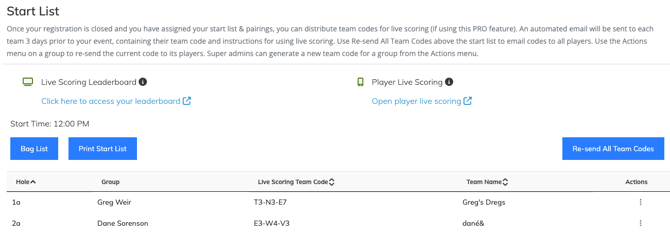
When Live Scoring is enabled, the Start List also becomes part of the handoff from Scheduling to tournament-day scoring.
Event Caddy generates a Live Scoring Access Code for each starting assignment when Live Scoring is enabled.
Important: A Live Scoring Access Code belongs to the starting assignment, such as a Shotgun starting hole or Timed Start position. It does not belong permanently to the group of players currently occupying that assignment.
The Start List can show Live Scoring information such as:
- the Live Scoring Access Code for the starting assignment; and
- the Live Scoring Team Name after one has been entered.
The organizer-facing Group Name used in Group Pairings is not the same as the Live Scoring Team Name. Players can choose the Live Scoring Team Name when first accessing their scorecard, and organizers can correct it later through the Live Scoring Leaderboard.
Automatic Live Scoring Access
When Live Scoring is enabled, Event Caddy automatically sends Live Scoring access information 3 days before the tournament to eligible players who are assigned through Group Pairings.
Player Registration does not need to be closed.
For each paired player:
- if an email address is available, Event Caddy sends the Live Scoring instructions by email;
- if an email address is not available but a phone number is available, Event Caddy can send the Live Scoring link by text; and
- if no email address or phone number is available, the group can still use Live Scoring if the organizer provides the Access Code another way.
The Live Scoring message includes:
- basic Live Scoring instructions;
- the group's current Live Scoring Access Code; and
- a link that opens Live Scoring with the Access Code already loaded.
Important: Event Caddy does not automatically send a catch-up message if Group Pairings, contact information, or Live Scoring are completed after the 3 day automatic distribution has already passed. Use the Start List to send the access information manually.
Changing Group Pairings After Access Codes Are Sent
Review Group Pairings before the 3 day automatic distribution whenever possible.
Because the Access Code belongs to the starting assignment, moving players after access information has already been sent can leave them with a link for their previous assignment.
For example, if a group originally occupies one starting hole and later moves to another, the previously emailed link may still open the scorecard associated with the original assignment.
If this happens:
- Update the players or groups in Group Pairings.
- Open Player Management > Start List.
- Find the affected starting assignment.
- Use the Actions menu to Regenerate Code when the old Access Code should no longer be used.
- Resend the updated Live Scoring information to the affected players.
This gives the players a new Access Code and updated scoring link for the correct assignment.
Send or Resend Live Scoring Access Manually
Use the Start List when:
- Live Scoring was enabled after the automatic 3 day distribution;
- Group Pairings were completed or changed later;
- a player did not receive the original message;
- players need the instructions again; or
- an Access Code has been regenerated.
From the Start List, you can resend the current Access Codes to eligible players. You can also use the Actions menu for an individual starting assignment when only one group's access information needs attention.
Access Codes can be resent whenever needed.
Note: Some current Start List controls may still use Access Code in the interface. In this Help Center, Live Scoring Access Code is the preferred term for the code used to enter Live Scoring.
Live Scoring is a separate Tournament Day feature. Scheduling owns Group Pairings, starting assignments, and the Start List; Live Scoring owns player access, scoring, Team Names, offline scoring, and Leaderboards.
For complete Live Scoring setup and Access Code information, see Setting Up and Managing Live Scoring.
Use the Bag Drop Report
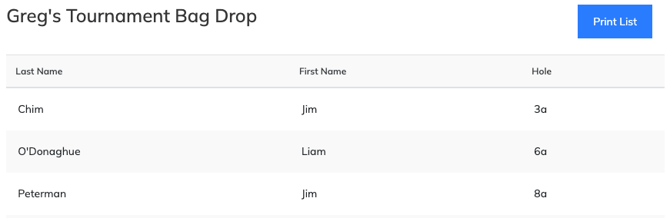
The Bag Drop Report is a printable player-by-player list based on your Group Pairings and starting information.
It can be used by course staff for tasks such as:
- bag drop;
- golfer check-in;
- organizing equipment; or
- confirming player starting information.
You can open the Bag Drop Report directly under Player Management > Bag Drop Report.
You can also select Bag List from the Start List page. Both routes open the same report.
To prepare the report:
- Confirm your Group Pairings.
- Go to Player Management > Bag Drop Report, or select Bag List from the Start List.
- Review the player information and starting assignments.
- Select Print List.
The Bag Drop Report is generated from the current pairing data, so review your Group Pairings first if anything appears incorrect.
Create Cart Signage
Cart Signage creates printable signs for your golf carts using the players and starting assignments from Group Pairings.
Go to Player Management > Cart Signage.
Event Caddy uses the current player order within each starting assignment to determine which golfers appear together on a cart sign.
For example:
- players 1 and 2 appear together on one cart sign;
- players 3 and 4 appear together on the next cart sign.
If the cart pairings need to change, rearrange the individual golfers within Group Pairings before generating the signs.
Changing the golfer order for Cart Signage does not require changing the original Player Registration records. Group Pairings controls the tournament-day arrangement.
What Appears on a Cart Sign
The starting information changes based on Schedule Format:
| Schedule Format | Cart sign starting information |
| Shotgun | Starting hole |
| Timed Starts | Start time |
The generated sign also includes the golfers assigned to that cart.
Add Logos or Images to Cart Signs
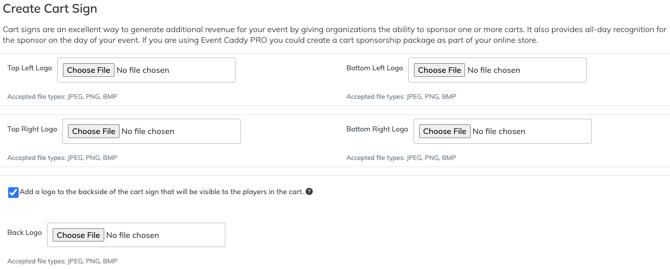
Before generating Cart Signage, organizers can add images or sponsor logos to the sign.
Available front positions include:
- Top Left Logo
- Top Right Logo
- Bottom Left Logo
- Bottom Right Logo
You can also add an optional image to the backside of the cart sign.
Supported image options should be selected from the current controls shown on the Cart Signage page.
To create the signs:
- Go to Player Management > Cart Signage.
- Add any optional logos or images.
- Select the option to add a backside image if needed.
- Select Create Cart sign.
- Review the generated signs.
- Print or save them for tournament day.
Cart signs can also be used as a sponsorship opportunity by displaying sponsor logos alongside golfer information.

Update the Source Information Before Printing
The Start List, Bag Drop Report, and Cart Signage all depend on your current Group Pairings.
If a starting assignment needs to change:
- Return to Player Management > Group Pairings.
- Move the affected golfer or group.
- Review the updated assignment.
- Return to the Start List, Bag Drop Report, or Cart Signage and generate the updated material.
- If Live Scoring access has already been distributed, review the affected Access Code and regenerate or resend it as needed.
Do not edit a player's registration record simply to change their tournament-day starting assignment.
For instructions on moving golfers and groups, see Setting Up Group Pairings.
Frequently Asked Questions
Do I need to create or finalize my Start List separately?
No. The Start List is generated automatically from your current Group Pairings. There is no separate Start List creation or finalization workflow.
Does Player Registration need to be closed before I can use the Start List or Live Scoring?
No. The Start List comes from Group Pairings and does not require Player Registration to be closed.
Player Registration also does not need to be closed for the automatic Live Scoring distribution. The players who need access should be correctly assigned through Group Pairings before the 3 day distribution whenever possible.
What happens if I change Group Pairings after Live Scoring Access Codes have been sent?
A Live Scoring Access Code belongs to the starting assignment rather than the players occupying it.
If players move after their access information has already been distributed, their previous link may still open the old starting assignment. Review the affected Access Code from the Start List, regenerate it when necessary, and resend the updated information.
What if the 3 day automatic Live Scoring message has already passed?
Event Caddy does not automatically send a catch-up message after the 3 day distribution point.
Use the Start List to manually send or resend the current Live Scoring access information.
Can a group use Live Scoring if none of the players has contact information?
Yes. Email addresses and phone numbers are used to distribute the Live Scoring access information, but they are not required for the scorecard itself.
The organizer can provide the group's Live Scoring Access Code manually.
Can players see the Start List automatically before the tournament?
Group Pairings and the Start List are not automatically published as a public player pairing list on the Tournament Website.
For Shotgun tournaments, players can confirm their starting hole after accessing Live Scoring. For Timed Starts, Live Scoring begins on Hole 1 and does not currently display the group's assigned start time.
Organizers can also distribute a printed Start List separately.
Can I change which golfers appear together on a cart sign?
Yes. Cart Signage uses the order of golfers in Group Pairings.
Rearrange the individual golfers within the starting assignment before generating the signs if different cart pairings are needed.
Is the Bag List different from the Bag Drop Report?
No. Selecting Bag List from the Start List opens the Bag Drop Report.