
You do not need to be a registered golfer to participate in an Event Caddy Auction. Registered players and Guest Bidders can browse Auction Items, verify their mobile number, place bids, and track items they have bid on.
The recommended way to enter the Auction is through the Auction link on the Tournament Website. Organizers may also share QR codes or direct links to the full Auction or individual Auction Items.
Browse the Auction
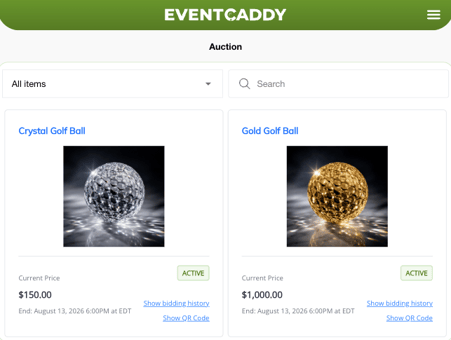
You can browse the Auction before signing in.
From the Auction page, you can:
- filter Auction Items by Category;
- search for an item;
- see each item's current price and status;
- open an Auction Item for more details;
- see when bidding opens and closes;
- view the number of bids;
- view bidding history; and
- open or share an item's QR code.
Authentication is required only when you want to place a bid or access your personal My Bids information.
Note: Auction bidding history is public and displays bidder names and bid amounts.
Open an Auction Item
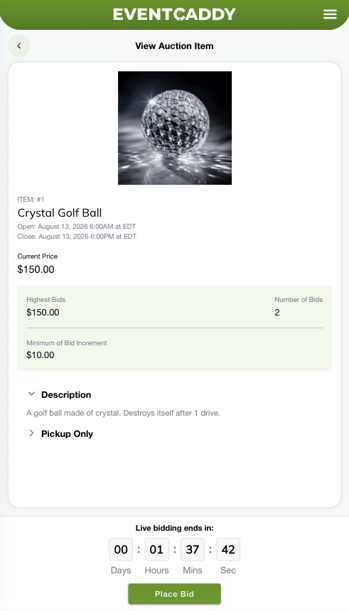
Select an Auction Item to view its bidding page.
Depending on the item, the page can show:
- item name and number;
- Bidding Starts and Bidding Ends times;
- current price;
- highest bid;
- number of bids;
- minimum bid increment;
- photos;
- description;
- additional item details; and
- a countdown until bidding closes.
If bidding is currently open, select Place Bid to begin.
If bidding has not started yet, you can view the item but cannot place a bid.
After bidding closes, the item remains visible and is shown as CLOSED.
Sign In to Place a Bid
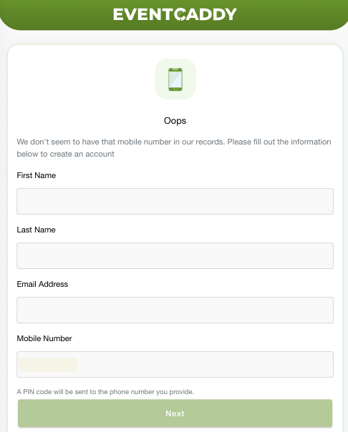
When you select Place Bid without already being authenticated, Event Caddy asks for your mobile phone number.
The next steps depend on whether that phone number is already associated with a participant in the tournament.
If Event Caddy recognizes your mobile number
- Enter your Phone Number and select Next.
- Review the name and email address shown.
- If the information belongs to you, select Yes this is me!
- Event Caddy sends a PIN to your mobile phone.
- Enter the PIN and select Sign In.
- Select Auction from the Event Caddy mobile screen.
- Return to the Auction Item and select Place Bid.
If the displayed information does not belong to you, select Nope, not me and follow the prompts instead.
If you are a Guest Bidder
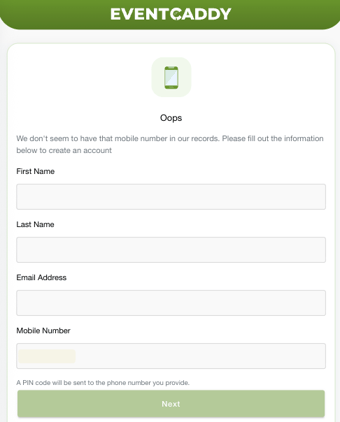
A Guest Bidder is someone participating in the Auction who is not already recognized as a registered player for that tournament.
- Enter your mobile phone number and select Next.
- If Event Caddy does not find the number, enter your:
- First Name;
- Last Name; and
- Email Address.
- Confirm the Mobile Number shown.
- Continue to have a PIN sent to your phone.
- Enter the PIN and select Sign In.
- Select Auction.
- Return to the Auction Item and select Place Bid.
Guest Bidder information is created for that tournament only. It does not carry over automatically to another Event Caddy tournament.
Important: Use a mobile number that can receive text messages. International numbers should include the country code at the beginning. If you are unsure whether your number will work, contact Event Caddy Support before bidding.
Place a Bid
After you are signed in:
- Open the Auction Item you want to bid on.
- Select Place Bid.
- Enter your Bid Amount.
- Select Place Bid to submit it.
- Wait for the confirmation that your bid was successfully placed.
If your bid becomes the current highest bid, the Auction will show You have the highest bid for that item.
Important: A submitted bid is final from the bidder's side. Bidders cannot edit, cancel, or retract their own bids. Contact the tournament organizer if a bid needs to be corrected.
How Bid Amounts Work
The first bidder can bid the item's Starting Price.
After the first bid, the next bid must increase the current price by at least the item's minimum bid increment.
For example:
- Starting Price: $100
- Minimum bid increment: $10
- First valid bid: $100
- Next minimum bid: $110
You can bid more than the minimum. With a current bid of $100 and a $10 minimum increment, $115 is also a valid bid.
If the organizer has not enabled a custom minimum bid amount, the minimum increase defaults to $1.
What Happens If You Are Outbid
If another bidder places a higher valid bid, Event Caddy automatically sends you a text message letting you know that you have been outbid.
The message includes a link back to the Auction Item so you can review the current price and place another bid if bidding is still open.
Outbid notifications are sent when another bidder takes the highest-bid position.
Use My Bids to Track Your Auction Items
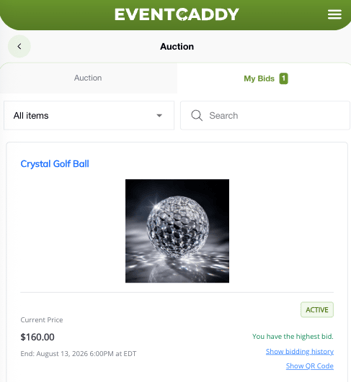
After signing in, select My Bids from the Auction.
My Bids shows every Auction Item you have placed a bid on during that tournament, including items where another bidder later outbid you.
Depending on the item's current status, you may see messages such as:
- You have the highest bid.
- You have won this item.
My Bids also provides the payment option for eligible winning items after bidding closes.
What Happens When Bidding Ends
When an Auction Item reaches its Bidding Ends time, Event Caddy automatically determines the highest valid bidder as the winner.
No organizer action is required to select the winner.
The winner:
- sees You have won this item in the Auction;
- receives an automatic text message letting them know they won; and
- can return to My Bids for payment instructions when online Auction payments are available.
Payment methods and winner-payment instructions are covered separately in Managing Auction Winners, Payments, and Reporting.
Frequently Asked Questions
Do I need to be a registered golfer to bid?
No. Someone who is not already registered for the tournament can create tournament-specific Guest Bidder access using their name, email address, mobile number, and PIN verification.
Do I need to sign in just to look at Auction Items?
No. You can browse, search, filter, open Auction Items, view current prices, see bidding history, and view QR codes without signing in.
You need to authenticate when you want to place a bid or access My Bids.
What information appears in bidding history?
Public bidding history displays the bidder's name and bid amount.
Can I change or remove my bid?
No. Bidders cannot edit, cancel, or retract their own bids.
Contact the tournament organizer if a bid was entered incorrectly. The organizer can review the request and, when appropriate, edit or delete the bid.
What happens if someone outbids me?
Event Caddy automatically sends you a text message when another bidder becomes the highest bidder. The message includes a link back to the Auction Item so you can bid again if the item is still open.
Can I bid more than the minimum required amount?
Yes. Your bid only needs to meet or exceed the minimum valid next bid. You can enter a larger amount if you choose.
Where can I see everything I have bid on?
Sign in and select My Bids.
My Bids includes every Auction Item you have placed a bid on in that tournament, even if you were later outbid.
How will I know if I won?
When bidding closes, Event Caddy automatically determines the highest bidder as the winner and sends the winner a text message.
The Auction will also show You have won this item.
Does my Guest Bidder login work for other tournaments?
No. Guest Bidder information is tournament-specific. You may need to create or verify bidder access again for another tournament.
Can I use an international mobile number?
International numbers should work when the country code is included at the beginning of the number.
If you are unsure whether your mobile number will work, contact Event Caddy Support before bidding.
Can I access the Auction through Event Caddy Mobile?
Auction access remains available through the authenticated Event Caddy Mobile experience. After signing in, select Auction.
For normal bidder access, use the Auction link on the Tournament Website or an Auction link/QR code shared by the organizer.