
Event Caddy keeps a tournament-specific list of email contacts that you can use when sending emails through Communication Tools.
You can add contacts manually, import registered players, upload an external contact list, organize contacts into categories, or reuse contacts from previous tournaments.
Important: Email contacts and Email Contact Categories are currently separate from the Contact Groups used for Text Messaging. Managing an email contact or category does not manage your text messaging groups.
Open Your Email Contact Tools
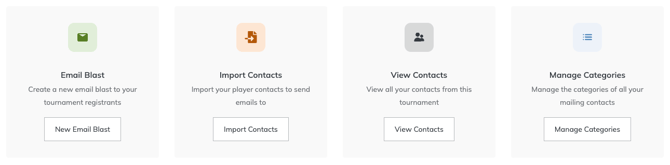
Go to:
Communication Tools > Email
The Email Marketing Wizard provides three contact-management options:
- Import Contacts — add contacts from your Player List or an external file.
- View Contacts — view and manage the email contacts currently available for the tournament.
- Manage Categories — organize email contacts into reusable categories.
View and Manage Email Contacts
To view the contacts available for email communication:
- Go to Communication Tools > Email.
- Select View Contacts.
- Use the contacts screen to manage your tournament's email contacts.
From this screen, you can:
- select Add New Recipient to manually add a contact;
- select Import Contacts to import a group of contacts;
- select the Edit icon to update an existing contact;
- select the trash icon beside a contact to remove that contact; or
- select Delete All to remove all email contacts.
Import Email Contacts
Event Caddy provides two ways to import contacts:
| Import option | When to use it |
|---|---|
| Import From Player List | Add players who have already registered for the current tournament to your email contacts. |
| File Upload | Add contacts from an external list, including past players, prospective players, sponsors, volunteers, or other people you have permission to contact. |
To begin an import:
- Go to Communication Tools > Email.
- Select Import Contacts.
- Choose Import From Player List or File Upload.
Import Contacts From the Player List
Use Import From Player List when players have already registered for the tournament and you want to add them to your email contact list.
- Select Import From Player List.
- Event Caddy imports the current players and returns you to the email contacts screen.
- Confirm that the contacts you need are now available.
If registration is still open, repeat the Player List import before sending an email when you need to include players who registered after your previous import.
Import Contacts From a File
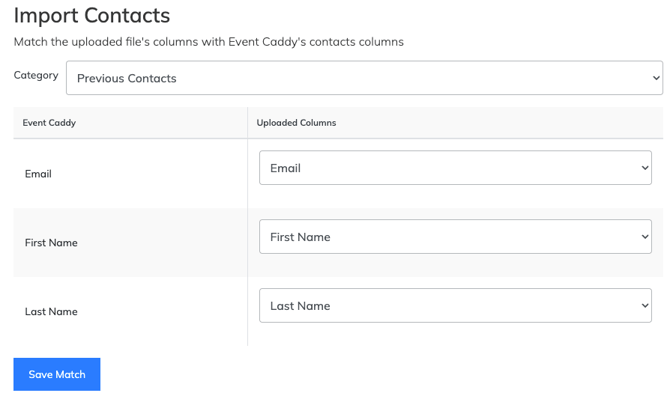
You can upload an external contact list using one of these file formats:
- CSV
- XLS
- XLSX
- ODS
Prepare the file with these columns in separate fields and in this order:
- First Name
- Last Name
An import template is available from the import screen if you want to use Event Caddy's expected format.
To upload the file:
- Select File Upload.
- Select Choose file and choose the contact file from your computer.
- Confirm that you have permission to send communications to the individuals in the file.
- Select Create Import.
- On the next screen, optionally choose an Email Contact Category for the imported contacts.
- Match each value in the Event Caddy column with the corresponding field in the Uploaded column.
- Select Save Match.
When the import is complete, Event Caddy returns you to the email contacts list.
Organize Contacts With Email Contact Categories
Email Contact Categories let you create reusable groups of email contacts so you do not have to manually select the same audience every time you send an email.
For example, you might create categories for:
- prospective players;
- sponsors;
- volunteers;
- donors; or
- committee members.
To create a category:
- Go to Communication Tools > Email.
- Select Manage Categories.
- Select Add Category.
- Enter a name for the category.
- Select the contacts you want to include.
- Select Create Group.
Although the feature is referred to as an Email Contact Category, some controls in the current interface use the word Group.
Manage Existing Email Contact Categories
Return to Communication Tools > Email > Manage Categories to manage categories you have already created.
From this screen, you can:
- select the Edit icon to update a category;
- select the + icon to manually add a contact;
- select the download icon to export the category's contacts to a CSV file; or
- select the trash icon to delete the category.
Reuse Contacts From a Previous Tournament
You do not need to rebuild your email contact list from scratch for every tournament.
From My Tournaments, you can export contacts from previous tournaments and then import the resulting CSV file into your new tournament.
Export Contacts From One Previous Tournament
- Go to My Tournaments.
- Find the tournament whose contacts you want to reuse.
- Select the three dots on the right side of the tournament.
- Select Export Contacts.
- Save the downloaded CSV file.
- Open your new tournament and import the file through Communication Tools > Email > Import Contacts.
Export Contacts From All Previous Tournaments
From My Tournaments, select Export Past Tournament Contacts to download contacts from your previous tournaments into a CSV file.
You can then import that file into the email contacts for your new tournament.
Export Your Current Player List for Use as Contacts
If you need a CSV file containing the players currently registered for a tournament:
- Go to Player Management > Player Listing.
- Select Export to CSV.
The exported player list can also be used as a contact file for importing.
If your goal is simply to add the current tournament's registered players to Email Contacts, using Import From Player List under Communication Tools > Email > Import Contacts is the more direct option but will get added without a category.
Frequently Asked Questions
Are Email Contact Categories the same as Text Message Contact Groups?
No.
Email Contact Categories and Text Message Contact Groups are currently separate. Email contacts and categories are managed under Communication Tools > Email, while text messaging uses its own Contact Groups under Communication Tools > Text Message.
Do newly registered players automatically appear in my imported email contacts?
If you use Import From Player List, repeat the import while registration remains open when you need to bring newly registered players into your email contacts.
Can I reuse contacts from last year's tournament?
Yes.
Export the contacts from the previous tournament through My Tournaments, then import the resulting file into the new tournament through Communication Tools > Email > Import Contacts.
You can also use Export Past Tournament Contacts to export contacts from previous tournaments together.
Can I import contacts who are not registered players?
Yes.
Use File Upload to import external contacts such as prospective players, sponsors, volunteers, donors, or other people you have permission to contact.