
Event Caddy Auctions let tournament organizers create Auction Items, share them with players and guests, accept bids from mobile devices, automatically determine winners, and track winning-bid payments and revenue.
Auctions require Event Caddy PRO or ELITE and are managed from Finances & Commerce > Online Auction in the Admin Dashboard.
How Event Caddy Auctions Work
An Event Caddy Auction has four main stages:
- Set up the Auction and Auction Items. Configure your Auction Settings, create Categories and Auction Items, set bidding dates and prices, add photos, and choose how items will be shared.
- Give bidders access to the Auction. Bidders can enter through the Auction link on the Tournament Website, an Auction QR code, or a direct Auction Item link.
- Collect bids. Registered players and Guest Bidders can authenticate with their mobile number, place bids, track their activity under My Bids, and receive automatic outbid notifications.
- Manage winners and payments. When an Auction Item closes, Event Caddy automatically determines the highest bidder, sends the winner a text message, and gives the organizer tools to collect or record payment and review Auction reporting.
Each stage has its own detailed guide:
- Setting Up and Managing an Auction explains organizer setup, Auction Items, Categories, bidding times, QR codes, and bid corrections.
- Accessing and Bidding in an Auction explains the bidder experience, Guest Bidder access, mobile verification, placing bids, My Bids, and notifications.
- Managing Auction Winners, Payments, and Reporting explains automatic winners, Stripe payments, manual payments, invoices and receipts, Auction reporting, and Event Finances.
Auction Settings and Auction Items
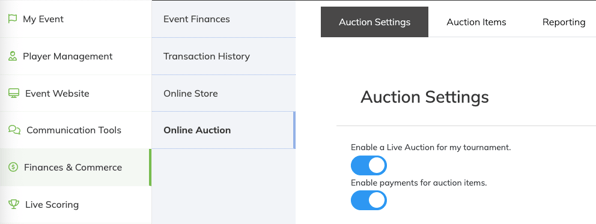
Organizers manage Auctions from Finances & Commerce > Online Auction, which contains:
- Auction Settings
- Auction Items
- Reporting
Auction Settings control information such as the Auction Time Zone, Auction Contact, whether credit-card payments are available, and whether an Auction link appears in the Tournament Website menu.
Auction Items contain the individual items bidders compete for. Every Auction Item has its own bidding start and end time, Starting Price, Category, description, and other item information.
Important: Event Caddy does not currently have one start or end time for the entire Auction. Bidding is controlled separately for each Auction Item.
For complete setup instructions, see Setting Up and Managing an Auction.
Auction Website Visibility and Bidding Are Separate
The setting Enable a Live Auction for my tournament. controls whether Auction appears in the Tournament Website menu.
It does not turn bidding on or off.
If the Tournament Website Auction link is disabled:
- the Auction menu link disappears from the Tournament Website;
- direct Auction links and QR codes still work; and
- bidders can still place bids when an Auction Item's bidding period is open.
Individual Bidding Starts and Bidding Ends settings determine when an Auction Item can accept bids.
How Bidders Access the Auction
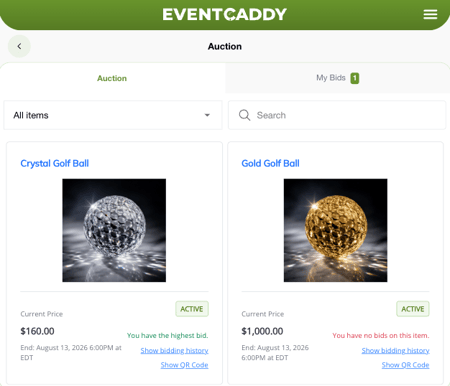
The recommended bidder route is the Auction link on the Tournament Website.
Organizers can also share:
- the main Auction QR code;
- a direct Auction link;
- individual Auction Item QR codes; or
- direct links to specific Auction Items.
Bidders can browse the Auction before signing in. They can search and filter items, open Auction Items, review current prices, and view bidding history.
Authentication is required when the bidder wants to place a bid or access My Bids.
Players and Guest Bidders
A bidder does not need to be registered as a player in the tournament.
When someone attempts to bid, Event Caddy uses their mobile phone number to identify or create their Auction access.
- An existing participant may be recognized from their tournament information.
- Someone who is not already recognized can create Guest Bidder access by providing their name and email address and verifying their mobile number with a PIN.
Guest Bidder access belongs only to that tournament. It does not automatically carry over to another Event Caddy tournament.
Note: A Guest Bidder is an Auction participant who is not already recognized for the tournament. This is different from a Guest Player, which is a Player Registration placeholder for an additional golfer whose information is not yet known.
For the complete bidder workflow, see Accessing and Bidding in an Auction.
How Bidding Works
Each Auction Item has a Starting Price.
The first bidder can bid that Starting Price. Afterward, each new bid must increase the current price by at least the required minimum increment.
Bidders can enter more than the minimum amount, but they cannot edit, cancel, or retract a bid after submitting it.
If a bid needs to be corrected, the bidder must contact the tournament organizer. Organizers can review Auction Item Bid History and edit or delete a bid when appropriate.
When another bidder becomes the highest bidder, Event Caddy automatically sends the previous highest bidder an outbid text with a link back to the Auction Item.
How Winners Are Determined
Each Auction Item has one winner.
When the item's Bidding Ends time is reached, Event Caddy automatically:
- identifies the highest valid bidder;
- makes that bidder the winner; and
- sends the winner a text notification.
The organizer does not need to manually select a winner.
Winning items are then available through Online Auction > Reporting, where organizers can review the Auction Winners Report and manage payment status.
Auction Payments
Auction winners can be paid in two ways.
Credit-card payments
To accept winning-bid payments by credit card through Event Caddy:
- Stripe must be connected and working; and
- Enable payments for auction items. must be enabled.
Winning bidders can then pay each item individually through My Bids > Pay Now.
PayPal is not currently supported for Auction winning-bid payments.
Payments collected outside Event Caddy
Organizers can also collect payment outside Event Caddy and manually mark the winning item PAID.
When bidder-facing Auction payments are disabled, winners are instructed to contact the tournament organizer about payment instead of seeing Pay Now.
For payment setup, invoices, receipts, Auction fees, and payment corrections, see Managing Auction Winners, Payments, and Reporting.
Auction Reporting and Event Finances
The Auction Winners Report is the organizer's primary record of winning Auction Items.
It includes winner and bid information, payment status, actions for individual winning items, and CSV export.
Paid Auction Items also appear in their own Auctions section of Event Finances.
Important: Auction payments do not appear in Transaction History. Individual Auction winners and Paid/Unpaid status are managed through Online Auction > Reporting.
Event Caddy Mobile and Auctions
Auction access is still available through the authenticated Event Caddy mobile experience.
After signing in, a bidder can select Auction to view the tournament's Auction Items.
However, the recommended bidder route is the Auction link from the Tournament Website or an Auction link/QR code shared by the organizer.
Event Caddy Mobile provides an access point only. Auction setup, items, bidding, winners, payments, and reporting are all managed as part of the Auctions feature.
Frequently Asked Questions
What Event Caddy plans include Auctions?
Auctions require Event Caddy PRO or ELITE.
Where do organizers manage the Auction?
From the Admin Dashboard, go to Finances & Commerce > Online Auction.
The Auction area includes Auction Settings, Auction Items, and Reporting.
Does enabling the Live Auction start bidding?
No.
Enable a Live Auction for my tournament. controls whether the Auction link appears in the Tournament Website menu.
Each Auction Item's Bidding Starts and Bidding Ends settings control when bidding is available.
Do bidders have to be registered players?
No.
Someone who is not already recognized for the tournament can create Guest Bidder access using their name, email address, mobile number, and PIN verification.
Do bidders need to sign in before viewing the Auction?
No. Bidders can browse Auction Items before authenticating.
They are asked to authenticate when they want to place a bid or access My Bids.
Does the organizer manually choose Auction winners?
No. Event Caddy automatically makes the highest valid bidder the winner when an Auction Item reaches its Bidding End time.
Does the organizer need Stripe to use Auctions?
No. Stripe is required only when winning bidders will pay by credit card through Event Caddy.
Organizers can collect winning-bid payments outside Event Caddy and manually mark the items Paid.
Can Auction winners pay with PayPal?
No. PayPal is not currently supported for Auction winning-bid payments.
Do Auction payments appear in Transaction History?
No.
Auction winners and payment status are managed from Online Auction > Reporting. Paid Auction Items appear separately under Auctions in Event Finances.