
Event Caddy Auctions let you create individual Auction Items, control when bidding opens and closes, share Auction access through your Tournament Website or QR codes, and manage bidding from the Admin Dashboard.
Each Auction Item has its own bidding schedule. There is currently no tournament-wide Auction start or end time, so configure your Auction Settings first and then set the bidding period for each item.
Before You Begin
Auctions require Event Caddy PRO or ELITE.
Before creating Auction Items:
- Decide which time zone your Auction will use.
- If you want winners to pay by credit card through Event Caddy, make sure your tournament has a working Stripe connection.
- Gather the item names, descriptions, starting prices, photos, bidding dates, and any additional details you want bidders to see.
Important: Set the Auction Time Zone before creating your Auction Items whenever possible. Changing the Auction Time Zone later can affect the Bidding Starts and Bidding Ends times already assigned to your items.
Open Your Auction Settings
- From the Admin Dashboard, go to Finances & Commerce > Online Auction.
- Select Auction Settings.
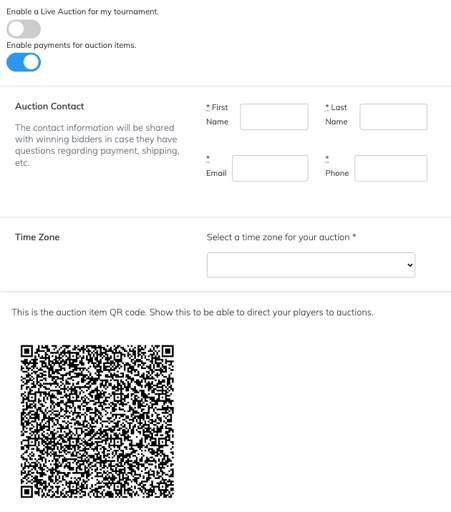
- Configure the settings for your Auction.
- Select Save Settings when finished.
Auction Settings Explained
| Setting | What it does |
|---|---|
| Enable a Live Auction for my tournament. | Adds Auction to the Tournament Website menu. Turning this setting off removes the menu link, but it does not disable the Auction itself. Direct Auction links and QR codes can still be used. |
| Enable payments for auction items. | Allows winning bidders to pay their winning bids by credit card when Stripe is connected and working. |
| Auction Contact | Sets the first name, last name, email address, and phone number shared with winning bidders if they have questions about payment, shipping, pickup, or other item details. |
| Time Zone | Controls the time zone used for Auction Item bidding dates and times. Configure this before adding items whenever possible. |
| Auction QR code | Opens the Auction page containing the tournament's Auction Items. You can display or distribute this QR code as another way for bidders to access the Auction. |
Important: Turning on Enable a Live Auction for my tournament. controls the Tournament Website menu link only. It does not open or close bidding. Bidding availability is controlled separately by the Bidding Starts and Bidding Ends settings on each Auction Item.
If Enable payments for auction items. is turned on without a working Stripe connection, the setting may appear enabled even though bidders cannot successfully pay by credit card. Verify your Stripe connection before relying on Auction payments.
Create Auction Item Categories
Every Auction Item must have a Category.
You can create categories before adding your items or create a new one while working on an Auction Item.
Create categories from the Auction Items page
- Go to Finances & Commerce > Online Auction.
- Select Auction Items.
- Select Manage Categories.
- Add the Category you want to use.
- Save the Category.
You can also select the blue + button beside Category while creating or editing an Auction Item to add a new Category.
Note: Auction Item Categories cannot currently be deleted by tournament organizers.
Bidders can use these Categories to filter the items displayed in the Auction.
Add an Auction Item
- Go to Finances & Commerce > Online Auction > Auction Items.
- Select Add Item.
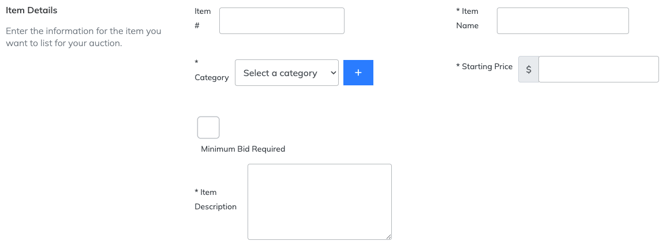
- Enter the item's details.
- Add photos and bidding information.
- Add any additional sections you want bidders to see.
- Save the Auction Item.
Auction Item Settings Explained
Item Details
| Setting | What it does |
|---|---|
| Item # | Optional organizer-defined item number. Event Caddy does not automatically generate this value if you leave it blank. |
| Item Name | The public name of the Auction Item. |
| Category | The required Auction Item Category used to organize and filter items. |
| Starting Price | The minimum amount for the first bid. A bidder can place the first bid at exactly the Starting Price. |
| Minimum Bid Required | Lets you require bids after the first bid to increase by at least the amount you specify. |
| Minimum dollar amount for each bid | The minimum amount the next bid must exceed the current price by when Minimum Bid Required is enabled. |
| Item Description | The main description bidders see when viewing the Auction Item. |
If Minimum Bid Required is not enabled, the minimum increase defaults to $1.
For example, if an item has:
- a Starting Price of $100; and
- a minimum bid increment of $10,
the first bidder can bid $100. The next bid must be at least $110.
Bidders can also enter a larger amount. They do not have to bid in exact multiples of the increment. If the current bid is $100 with a $10 minimum increase, a bid of $115 is valid.
Photos
Each Auction Item can include up to 8 photos.
Supported image formats are:
- JPG
- PNG
Each photo can be up to 10 MB.
You can drag and drop files into the upload area or select Upload Image.
Bidding Information
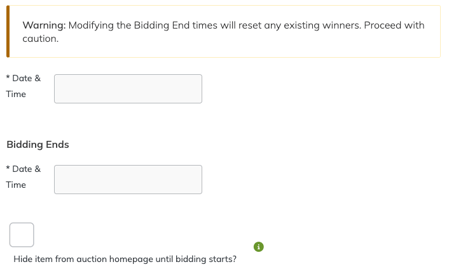
Each Auction Item has its own:
- Bidding Starts date and time
- Bidding Ends date and time
There is currently no Auction-wide start or end time.
Before the Bidding Starts time, the item cannot accept bids.
The Hide item from auction homepage until bidding starts? setting controls whether bidders can see the item in the normal Auction list before bidding opens.
- If it is not selected, the item can appear publicly before bidding begins, but bidding is not yet available.
- If it is selected, the item does not appear in the normal Auction list until bidding starts.
- A bidder with a direct link or individual item QR code can still open the item before its start time.
After bidding ends, the item remains publicly visible and is shown as CLOSED.
Warning: Changing the Bidding Ends time after a winner has already been established resets the existing winner. If the item is reopened, Event Caddy recalculates the current bidding result as bidding continues.
Additional Information
Use Additional Information when an Auction Item needs details beyond the main description, such as:
- terms and conditions;
- restrictions;
- expiration information;
- shipping details;
- pickup instructions; or
- other item-specific information.
Each additional section contains a Section Heading and Section Text.
Select Add Section to add another section or Remove Section to remove one.
Reorder Auction Items
The order of Auction Items in the Admin Dashboard controls the order bidders see them in the public Auction.
To change the order, drag an Auction Item using the handle beside the item and move it to the desired position.
Share Auction Items with QR Codes
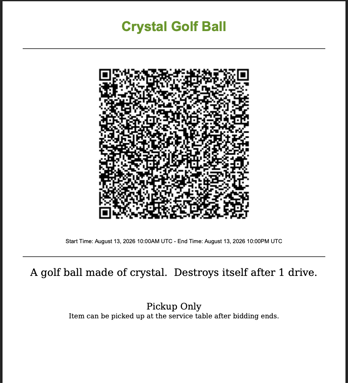
Event Caddy provides both an Auction-wide QR code and individual Auction Item QR codes.
Auction QR code
The QR code under Auction Settings opens the main Auction page containing all available Auction Items.
Use this when you want one QR code that sends bidders to the full Auction.
Individual Auction Item QR code
To get a QR code for a specific item:
- Go to Finances & Commerce > Online Auction > Auction Items.
- Open the Actions menu for the item.
- Select QR Code.
The QR code sends the bidder directly to that Auction Item.
Print Auction Item QR codes
From Auction Items, select Download PDF to create a printable PDF containing the individual Auction Items.
The PDF includes each item's:
- name;
- QR code; and
- description.
This can be useful for printed Auction displays so bidders can scan the code beside a physical item and open its bidding page directly.
Edit or Delete an Auction Item
Auction Items can be edited or deleted even after bidding has started or bids have been placed.
- Go to Finances & Commerce > Online Auction > Auction Items.
- Open the item's Actions menu.
- Select Edit or Delete.
Use extra care when changing an active item.
Editing bidding dates can affect the current winner, and deleting an item removes it from the Auction entirely. If an item is removed before bidding closes, no winner notification will be sent for that item.
Review and Correct Bids
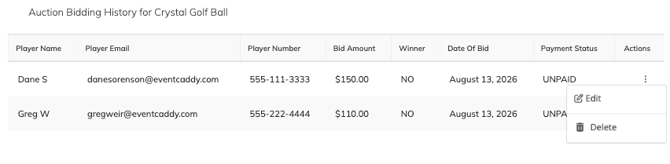
Organizers can review bids for an Auction Item from its Bid History.
- Go to Finances & Commerce > Online Auction > Auction Items.
- Open the item's Actions menu.
- Select Bid History.
- Review the bids placed for that item.
- Open the Actions menu beside a bid when a correction is required.
Organizers can:
- Edit the bid amount; or
- Delete the bid.
Editing a bid changes the bid amount only. Event Caddy recalculates the current highest bidder or winner after a bid is changed or deleted.
Important: Bidders cannot edit, cancel, or retract their own bids. If a bidder makes a mistake, they need to contact the tournament organizer. The organizer can then review the request and edit or delete the bid when appropriate.
If you need help importing a large number of Auction Items, contact Event Caddy Support. Auction Item CSV import is not currently a normal tournament-organizer workflow.
Frequently Asked Questions
Does enabling my Auction start bidding?
No. Enable a Live Auction for my tournament. only controls whether the Auction link appears in the Tournament Website menu.
Each Auction Item's Bidding Starts and Bidding Ends settings control when bidding is available.
Can bidders reach my Auction if I remove it from the Tournament Website menu?
Yes. Turning off Enable a Live Auction for my tournament. removes the menu link, but direct Auction links and QR codes continue to work.
If an item's bidding period is open, a bidder using one of those direct access methods can still place a bid after authenticating.
Can I set one start and end time for my entire Auction?
Not currently. Start and end times are configured separately for each Auction Item.
Can I change my Auction Time Zone later?
You can, but changing the Time Zone after Auction Items have been created can alter their configured bidding times. Set the Auction Time Zone before creating items whenever possible, then review all item start and end times if the Time Zone is changed.
Can I hide an item until bidding begins?
Yes. Select Hide item from auction homepage until bidding starts?
The item will not appear in the normal Auction list until its start time, although someone with the item's direct link or QR code can still open it.
Can I delete an Auction Item Category?
Not currently. Organizers can create and select Auction Item Categories, but they cannot delete them.
Can I import Auction Items from a CSV file?
Tournament organizers cannot currently perform Auction Item CSV imports themselves. Contact Event Caddy Support if you need help importing Auction Items.
Can a bidder remove a bid after placing it?
No. Bidders cannot edit, cancel, or retract their own bids.
If a bidder needs a bid corrected, they must contact the tournament organizer. The organizer can edit the bid amount or delete the bid through Bid History.
What happens if I extend bidding after an item already has a winner?
Changing the item's Bidding End time resets the existing winner. Event Caddy recalculates the bidding result as bidding continues and determines the winner again when the item closes.