
Event Caddy Live Scoring lets your group enter scores from a phone or other mobile device while you play and follow tournament results on the Leaderboard.
Your group uses a Live Scoring Access Code to open its scorecard. You do not need to create an Event Caddy account or log in with your phone number to use Live Scoring.
Important: Choose one person in your group to act as the scorekeeper whenever possible. More than one device can access the same scorecard, and competing edits may overwrite one another.
Before You Begin
For the smoothest tournament-day experience:
- Choose one player in your group to enter the scores.
- Keep a paper scorecard as a backup.
- Make sure you are using the Access Code or personalized link for your group.
- Wait until tournament day before entering scores.
Event Caddy may send your Live Scoring instructions before tournament day so that you have the information ready. Although the scorecard can technically be opened early, we recommend waiting until your round begins before entering scores.
Accessing Live Scoring
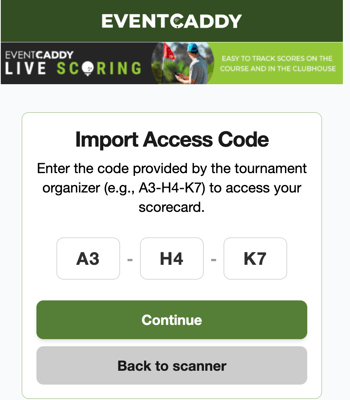
Players can access Live Scoring using a personalized link or by entering a Live Scoring Access Code.
Using the Link Sent by Event Caddy
When your tournament is ready for Live Scoring, eligible players are sent instructions approximately 3 days before the tournament.
If your player record has an email address, the instructions are normally sent by email. If an email address is not available but a phone number is available, you may receive the link by text instead.
The message includes:
- basic Live Scoring instructions;
- your Live Scoring Access Code; and
- an Open Live Scoring link.
Select Open Live Scoring to open the scoring site with your Access Code already loaded.
Entering Your Access Code Manually
You can also open Live Scoring from the Live Scoring button on your tournament's website.
- Select Live Scoring on the Tournament Website.
- Enter the Live Scoring Access Code provided for your group.
- Select Continue.
The Access Code identifies the starting assignment whose scorecard you are opening.
If your tournament organizer provides a Live Scoring QR code, you can also use the scanner instead of typing the Access Code.
Important: Your Access Code or personalized scoring link is intended for your group. Do not share it with players in another group.
First-Time Setup
The first time you open Live Scoring on a device, Event Caddy provides a short introduction to the scoring experience.
The guide explains:
- how to enter scores;
- why your Access Code or link should not be shared with another group;
- your starting hole when applicable; and
- how to get help during the round.
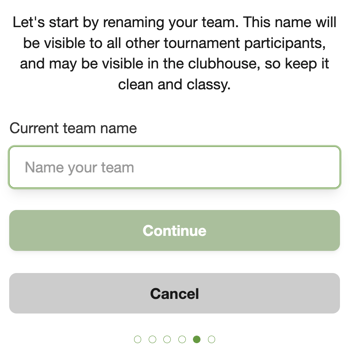
You will also be prompted to review or rename your Live Scoring Team Name.
The Live Scoring Team Name is the name displayed to other players on the Leaderboard. It is different from any organizer-facing Group Name used while arranging Group Pairings.
After the first-time setup is complete, players do not normally edit the Team Name from the scorecard. If a Team Name needs to be corrected later, contact the tournament organizer.
Confirming Where to Start
For a Shotgun tournament, Live Scoring uses the starting assignment provided by the tournament's Group Pairings. Confirm that the starting hole shown in Live Scoring matches where your group has been told to begin.
For Timed Starts, scoring begins on Hole 1.
If the starting assignment in Live Scoring does not match the instructions provided by the organizer, contact the organizer before entering scores.
Entering Scores
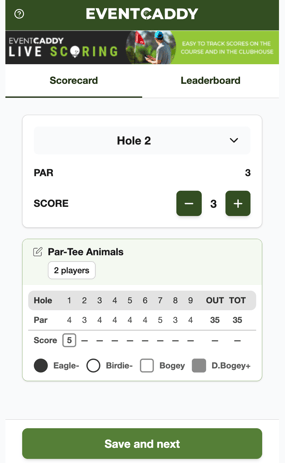
Current Event Caddy Live Scoring records one score per hole for the team.
For a Scramble tournament, enter the team's total strokes for the hole.
- Open the Scorecard tab.
- Confirm the correct hole.
- Use the + or − controls to enter the team's score for that hole.
- Select Save and next to save the score and continue.
- Repeat after each hole.
The scorecard displays the course Par along with the scores your team has entered.
If the tournament is using one player per starting assignment for individual scoring, enter that player's score in the same way.
Tip: Keep a paper scorecard during the round even when using Live Scoring. It provides a useful backup if a score needs to be checked later.
Editing a Previous Score
Players can return to a previously played hole and correct its score.
- Open the Scorecard tab.
- Use the hole selector to choose the hole you want to correct.
- Adjust the score with the + or − controls.
- Save the updated score.
The corrected score will be reflected in your team's scorecard and Leaderboard after the change synchronizes.
Scoring Without an Internet Connection
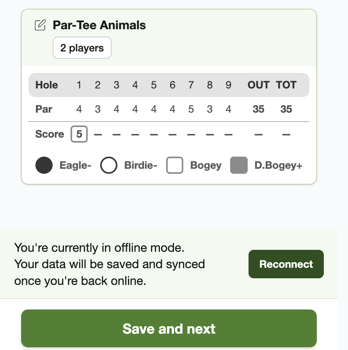
Live Scoring supports offline score entry when your mobile connection becomes unavailable during the round.
If Live Scoring detects that you are offline, a message appears explaining that your data will be saved and synchronized after your connection returns.
While offline:
- continue entering scores normally;
- your scores are stored on the device;
- the live Leaderboard will not receive new updates until you reconnect.
When internet access returns, Live Scoring synchronizes the stored scoring data.
If you close your browser while offline, reopen Live Scoring after your connection returns so that the stored scores can be submitted.
Important: Offline scoring is another reason to keep a paper scorecard as a backup throughout the round.
Viewing the Leaderboard
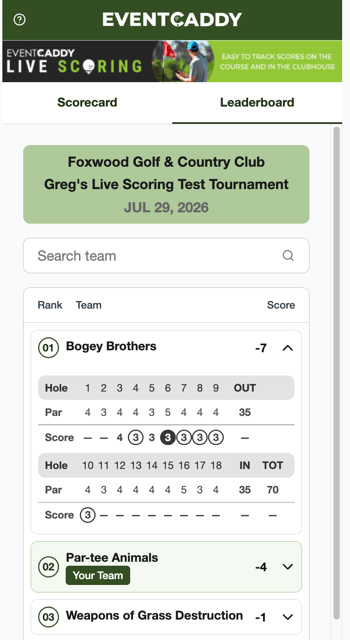
Select the Leaderboard tab at any time while Live Scoring is enabled to follow the tournament standings.
The Leaderboard shows:
- team ranking;
- Live Scoring Team Name;
- current score; and
- expandable scorecards showing hole-by-hole results.
You can search for a team and expand its entry to review its scorecard.
The Leaderboard requires an internet connection to receive current results. If you are scoring offline, continue entering your team's scores and check the Leaderboard again after your device reconnects.
For more information about tournament Leaderboards, see Viewing and Managing the Live Scoring Leaderboard.
Frequently Asked Questions
Do I need an Event Caddy account to use Live Scoring?
No. Live Scoring uses your group's Live Scoring Access Code or personalized scoring link. The phone-number login previously associated with Event Caddy Mobile is not required for the current Live Scoring experience.
What if I did not receive my Live Scoring email?
Ask your tournament organizer for your Live Scoring Access Code or to resend the Live Scoring instructions.
If your player record does not have an email address, the instructions may be sent by text when a phone number is available.
What if my Access Code or scoring link opens the wrong group?
Contact the tournament organizer before entering scores. Group Pairings may have changed after your original Access Code was distributed, and the organizer can provide updated access information.
Should everyone in my group enter scores?
We recommend choosing one scorekeeper. Multiple players can technically access the same scorecard, but simultaneous edits may overwrite one another.
Can I change a score after I have saved it?
Yes. Return to the appropriate hole on the Scorecard and update the score.
Can I use Live Scoring without cell service or Wi-Fi?
Yes. If your connection drops after you have accessed Live Scoring, you can continue entering scores in offline mode. The scores will synchronize when your device reconnects.
Can I change my Team Name later?
Players are prompted to review or rename the Live Scoring Team Name during first-time setup. After that onboarding is complete, the Team Name is not normally edited from the player scorecard. Contact the tournament organizer if it needs to be changed.
Can I see the Leaderboard while I am offline?
The existing Leaderboard may remain visible, but current results cannot update until an internet connection is available. Continue scoring and check the Leaderboard again after reconnecting.