
Product Categories organize related products in your Online Store.
Create your Product Categories before adding products so each product can be assigned to the appropriate group.
Plan your Product Categories
Product Categories should describe broad groups of products rather than individual products.
| Product Category | Product examples |
|---|---|
| Sponsorships | Gold Sponsor, Hole Sponsor, Cart Sponsor |
| Tournament Extras | Mulligan Package, Putting Contest Entry |
| Merchandise | Event Shirt, Hat, Golf Glove |
| Tickets | Dinner Ticket, Raffle Ticket, Guest Ticket |
For example, Sponsorships would be the Product Category. Gold Sponsor and Hole Sponsor would be individual products within that category.
Use clear category names that customers will understand when browsing the Online Store.
Create a Product Category
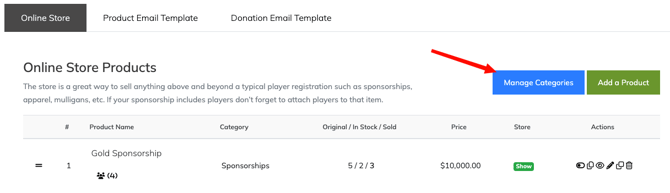
- Go to Finances & Commerce > Online Store.
- Select Manage Categories.
- Select New Product Category.
- Enter the category name.
- Select Create Product Category.
- Repeat these steps for each category you need.
After creating your categories, return to the Online Store Products page to begin adding products.
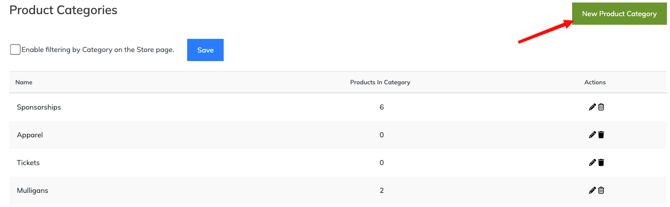
Enable category filtering on the Store page
You can allow visitors to filter the public Online Store by Product Category.
To enable category filtering:
- Go to Finances & Commerce > Online Store.
- Select Manage Categories.
- Select Enable filtering by Category on the Store page.
- Select Save.
When filtering is enabled, a Filter menu appears near the top of the public Store page.
Visitors can:
- view all products;
- select one Product Category;
- select multiple Product Categories; and
- save their selections to update the products shown.
The available filter choices are based on the Product Categories created for the tournament.
Link directly to filtered Store products
When Product Category filtering is enabled, the selected categories are included in the Store page URL.
This allows you to open or share a link that displays products from specific categories.
For example, you could share a filtered Store link that displays:
- sponsorships only;
- merchandise only;
- tickets and tournament extras; or
- any other selected combination of Product Categories.
This can be useful in emails, social media posts, Sponsor communications, or other promotional content where you want to direct visitors to a particular group of products.
Important: Test the filtered link before sharing it to confirm that the intended categories and products appear.
Manage existing Product Categories
The Product Categories page also shows how many products are assigned to each category.
| Column | What it shows |
|---|---|
| Name | The Product Category name |
| Products In Category | The number of Online Store products assigned to the category |
| Actions | Controls for editing or deleting the category |
Use the Edit icon to rename an existing Product Category.
Before deleting a category, review the number shown under Products In Category and confirm that any assigned products have been moved to another appropriate category.
Assign a category to a product
When creating an Online Store product:
- Go to Finances & Commerce > Online Store.
- Select Add a Product.
- Complete the Product Details section.
- Select the appropriate Product Category.
- Complete the remaining product settings.
- Select Create Product.
To change the category assigned to an existing product, edit the product, select a different Product Category, and save your changes.
For full product setup instructions, see Creating Online Store Products.
Product Categories vs. product names
A Product Category organizes several related products. The product name identifies the specific item being purchased.
| Product Category | Product name |
|---|---|
| Sponsorships | Gold Sponsor |
| Sponsorships | Hole Sponsor |
| Merchandise | Event T-Shirt |
| Tickets | Dinner Ticket |
Avoid creating a separate Product Category for every individual product unless those products genuinely need separate groupings in the Online Store.
For example, instead of creating Product Categories named Gold Sponsor, Silver Sponsor, and Bronze Sponsor, you can create one Product Category named Sponsorships and use those names for the individual products.
Product Categories vs. Sponsor Categories
Product Categories and Sponsor Categories are separate.
| Category type | What it organizes | Managed under |
|---|---|---|
| Product Category | Products sold through the Online Store | Finances & Commerce > Online Store |
| Sponsor Category | Sponsors displayed on the Tournament Website | Event Website > Sponsors |
For example:
- Product Category: Sponsorships
- Online Store product: Gold Sponsor
- Sponsor Category created from that product: Gold Sponsor
Important: When a sponsorship purchaser uploads a logo during checkout, the automated Sponsor Category is based on the Online Store product name, not its Product Category.
If you manually create Sponsor Categories, use the exact same names as the corresponding Online Store products to help prevent duplicate Sponsor Categories.
Keep your category structure simple
Create only the categories needed to help customers understand and browse your products.
A simpler category structure is usually easier to maintain than several narrowly defined categories.
For example, this structure:
- Sponsorships
- Tournament Extras
- Merchandise
- Tickets
will usually be clearer than creating a different Product Category for every sponsorship level, contest, or merchandise item.
You can add additional categories later when your Online Store offerings expand.
Frequently Asked Questions
Do I need to create Product Categories before adding products?
Yes. Create the categories you need before adding products so they are available in the Product Category list during product setup.
How many Product Categories can I create?
You can create as many categories as your Online Store requires.
Keep the structure focused so customers can browse the store easily.
Should each sponsorship package have its own Product Category?
Usually, no.
Create a Product Category such as Sponsorships, then create individual products such as Gold Sponsor, Silver Sponsor, and Hole Sponsor within that category.
Are Product Categories displayed in the public Online Store?
Product Categories can be used as filters on the public Store page.
Go to Finances & Commerce > Online Store > Manage Categories, select Enable filtering by Category on the Store page, and save your changes.
Visitors can then use the Filter menu to display products from one or more selected categories.
Is a Product Category the same as a Sponsor Category?
No.
Product Categories organize items for sale. Sponsor Categories organize Sponsors displayed for recognition on the Tournament Website.
Can I move a product to another Product Category?
Yes.
Edit the product, choose the new Product Category, and save your changes.
Related articles
- Online Store Overview
- Creating Online Store Products
- Managing Online Store Products
- Selling Sponsorships Through the Online Store
- Selling Sponsorships vs. Displaying Sponsors