
Event Caddy PRO includes text messaging tools for sending short, time-sensitive updates to players and other tournament contacts.
You can use the text messaging area to create Contact Groups, select recipients, compose a message of up to 160 characters, and send it immediately. Text messaging uses credits based on the number of phone numbers receiving each message.
Before You Begin
Text messaging is available with Event Caddy PRO.
Each PRO tournament includes 500 text message credits.
Important: Text Message Contact Groups are separate from the contacts and Email Contact Categories managed under Communication Tools > Email. Adding someone to an email contact list or category does not add them to a Text Message Contact Group.
Understand Text Message Credits
One credit allows you to send one text message to one phone number.
For example:
| Example | Credits used |
|---|---|
| Send one message to 1 recipient | 1 credit |
| Send one message to 25 recipients | 25 credits |
| Send one message to 100 recipients | 100 credits |
| Send another message to those same 100 recipients | Another 100 credits |
If you start with 500 credits and send one message to 100 phone numbers, you will have 400 credits remaining.
Your available credit balance is shown in the text messaging area under Communication Tools > Text Message > Send Text Message.
Credits belong to the individual tournament where they are included or purchased. They cannot be shared between tournaments.
Create and Manage Text Message Contact Groups
Go to:
Communication Tools > Text Message
Text Message Contact Groups let you organize recipients so you can quickly select the same audience when sending a message.
Event Caddy provides two default Contact Groups:
- Paid Players
- Unpaid Players
You can use these groups as they are or create your own custom Contact Groups.
Create a Custom Contact Group
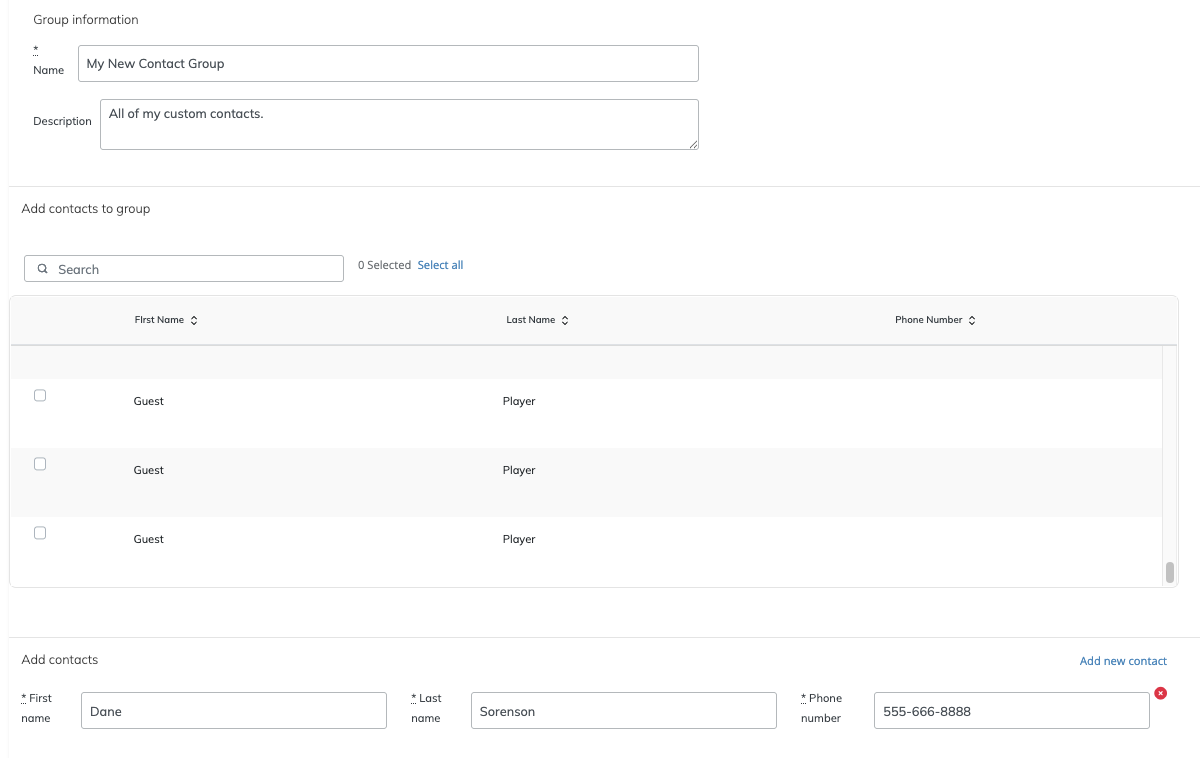
- Go to Communication Tools > Text Message.
- Open Contact Groups.
- Select New Contact Group.
- Enter a name and, if needed, a description for the group.
- Select any registered players you want to include.
- Registered players appear here regardless of whether they have paid.
- To include someone who is not a registered player, select Add new contact and enter their contact information.
- Repeat this for any additional external contacts you want to add.
- Select Create Group when you are finished.
Custom groups can be useful for audiences such as:
- volunteers;
- committee members;
- tournament staff;
- sponsors; or
- other groups that need tournament updates by text.
Send a Text Message
Event Caddy text messages are send-now only. They cannot currently be scheduled for a future date or time.
To send a message:
- Go to Communication Tools > Text Message.
- Select Send Text Message.
- Add your recipients.
- Select an entire Contact Group; or
- search for and add individual contacts.
- Select Next.
- Review the selected recipients.
- Remove any recipients who should not receive the message.
- Select Next.
- Enter your message.
Text messages can contain a maximum of 160 characters. The character counter above the message field shows how many characters you have used.
- Select Send Text Message.
- Review the final confirmation.
- If the message and recipients are correct, select Send Text Message again to send it.
Because text messages are not scheduled, the message is sent when you complete the final confirmation.
Review both the message and recipient list carefully before the final send. There is no future scheduled send to edit after confirming it.
Buy More Text Message Credits
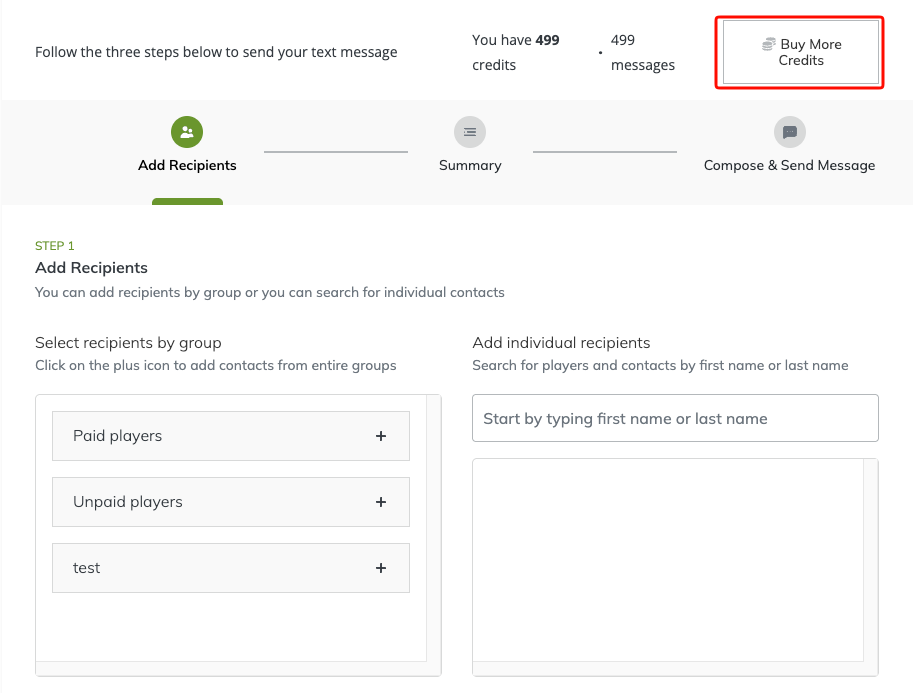
If your tournament needs more than the 500 credits included with PRO, you can purchase additional credits for $0.10 per credit.
For example, 300 additional credits cost $30.
To purchase credits:
- Go to Communication Tools > Text Message.
- Select Send Text Message.
- Select Buy More Credits.
- Use the purchase control to choose how many additional credits you want.
- Review the displayed purchase price.
- Select Buy Credits.
- Enter your credit card information.
- Select Buy Credits to continue.
- Review the transaction details.
- Select Buy Credits to complete the purchase.
- Close the confirmation window.
Your available text message credit balance updates automatically after the purchase is completed.
Additional credits are added only to the tournament where they are purchased. They are not a shared account-wide balance.
Frequently Asked Questions
How many text message credits does Event Caddy PRO include?
Each Event Caddy PRO tournament includes 500 text message credits.
You can purchase additional credits if the tournament needs more.
How are text message credits calculated?
One recipient uses one credit each time you send a text message.
For example, sending one message to 100 phone numbers uses 100 credits. Sending a second message to the same 100 phone numbers uses another 100 credits.
How much do additional text message credits cost?
Additional credits cost $0.10 each.
For example, 300 additional credits cost $30.
Can I use unused credits for another tournament?
No.
Text message credits are tied to the tournament where they were included or purchased.
Can I schedule a text message to send later?
No.
Text messages are currently send-now only. The message is sent when you complete the final send confirmation.
What is the maximum length of a text message?
A text message can contain up to 160 characters.
The text messaging wizard displays a character counter while you compose the message.
Are Text Message Contact Groups the same as Email Contact Categories?
No.
Text Message Contact Groups are managed under Communication Tools > Text Message. Email contacts and Email Contact Categories are managed separately under Communication Tools > Email.