
Registration Packages are the options golfers select when registering for your tournament.
A Registration Package determines how many player spots are included, what the registration costs, what the package includes, and whether it is available publicly or only through a private link.
Common Registration Packages include:
- Single Golfer
- Twosome
- Foursome
- Early Bird Single Golfer
- Early Bird Foursome
- VIP or invitation-only registration
Before you create a Registration Package
Registration Packages are specifically for registrations that include at least one player.
If someone should not occupy a player spot in your tournament, use an Online Store product instead. This includes things such as:
- volunteers;
- dinner-only attendees;
- waitlists;
- merchandise;
- raffle tickets;
- mulligans; or
- sponsorships.
A Sponsorship Product can include complimentary player registrations without becoming a Registration Package.
Creating a Registration Package does not by itself make tournament registration available. Your tournament must also have at least one Payment Option enabled and available player capacity. See Opening and Closing Player Registration for the full registration-availability checklist.
Create a Registration Package
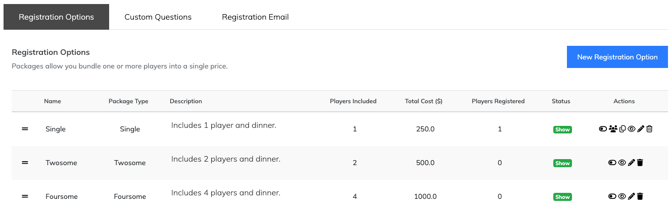
- From the left-hand menu, go to Player Management > Registration Options.
- Click New Registration Option in the top-right corner.
- Select a package type using the icons at the top of the page.
- Review the # of Players field. EventCaddy automatically sets the number based on the package type you selected, but you can adjust the player count if needed.
- Enter a Package Name, such as Single Golfer, Twosome, or Foursome.
- Enter the Package Cost.
- Choose whether the Registration Package should appear publicly on your Tournament Website.
- For multi-player packages, choose whether additional player email addresses and/or phone numbers should be required.
- Enter a Package Description explaining what the registration includes.
- Click Create Registration Package.
- Repeat these steps for each Registration Package you want to offer.
Registration Package settings explained
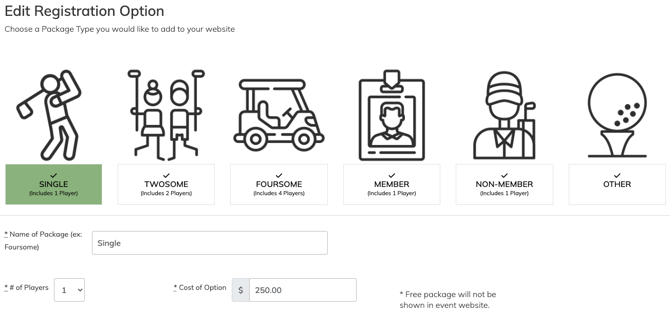
Package type and number of players
The package type determines the initial number of player spots included.
For example, selecting Foursome sets the package to four players.
You can manually adjust the # of Players field if you need a different group size.
Every Registration Package must include at least one player.
Package Name
Use a name that makes the registration choice clear to golfers.
Examples include:
- Single Golfer
- Twosome
- Foursome
- Early Bird Foursome
- VIP Foursome
If you create multiple packages with different prices or availability, include enough information in the name for organizers and golfers to tell them apart.
Package Cost
Enter the total cost of the Registration Package.
For example, if a Foursome costs $600 in total, enter the package cost as $600 rather than the price per golfer.
EventCaddy PRO allows Registration Packages with a cost of $0.
On the FREE version of EventCaddy, the minimum Registration Package price is $1.
By default, $0 items—including $0 Registration Packages and $0 Online Store products—are hidden from the public Tournament Website. To have a $0 item displayed publicly, contact EventCaddy Support using the chat icon in the bottom-right corner or email support@eventcaddy.com.
Public or private visibility
Registration Packages can be displayed publicly on the Tournament Website or kept private.
To create a private package, enable:
Do not show this package on website. Will use custom link to send privately to prospective players
A private package does not appear with the public registration choices. Instead, golfers access it using its unique registration link.
Private Registration Packages are useful for:
- discounted registration;
- VIP registration;
- invitation-only registration;
- sponsor-related player invitations; or
- other special rates that should only be available to selected golfers.
For the complete private-link workflow, see Inviting Players with Private, Free, or Discounted Registration Links.
Player contact information
For every player registration, the first player's first name, last name, email address, and phone number are required.
This applies whether the player is registered through a Registration Package or through an Online Store product that includes players.
For Registration Packages containing multiple players, you can also require contact information for the additional players by enabling:
- Set email as a mandatory input for all players
- Set phone number as a mandatory input for all players
For registrations containing two or more players, Guest Player is always available for the additional players. If the purchaser does not yet know another player's information, they can select Guest Player and update that player's details later.
Guest Player remains available even when email addresses or phone numbers are required for all players. This applies to both Registration Packages and Online Store products that include multiple players.
Package Description
Use the Package Description to explain what golfers receive when they purchase the package.
For example:
Includes golf for four players, shared golf carts, breakfast, lunch, and banquet dinner.
Package Descriptions can contain up to 2,000 characters.
Manage existing Registration Packages
Registration Packages can be updated as your registration needs change.
From Player Management > Registration Options, locate the package you want to manage and edit its settings.
Common changes include:
- updating the Package Name or description;
- hiding or displaying a Registration Package;
- replacing an expired offer with a newly created package; or
- switching from Early Bird packages to regular-priced packages.
Important: Do not change the price of a Registration Package after it has been purchased. Changing the price after registrations have been completed can cause financial reporting and transaction count issues.
If you need to offer a different price later, create a new Registration Package instead.
Offer Early Bird pricing
The simplest way to offer Early Bird pricing is to create separate discounted Registration Packages rather than changing the price of the same package later.
For example:
- Single Golfer – Early Bird
- Single Golfer – Regular
- Foursome – Early Bird
- Foursome – Regular
To set this up:
- Create your Early Bird Registration Packages at the discounted prices.
- Create the corresponding regular-priced Registration Packages.
- Keep the Early Bird packages visible while the regular packages remain hidden.
- When Early Bird pricing ends, edit your Registration Packages.
- Hide the Early Bird packages.
- Make the regular-priced packages visible.
This preserves the original Registration Package and price associated with completed registrations.
Important: Do not change the price of an existing Registration Package after it has been purchased. When pricing changes, create or use a separate Registration Package at the new price.
Use private packages for special pricing
If only selected golfers should receive a special price, you do not need to make that package public.
Create a separate Registration Package at the appropriate price, hide it from the public Tournament Website, and share its private registration link only with the intended golfers.
This is useful for:
- discounted registrations;
- complimentary registrations;
- VIP golfers;
- sponsor-related player registrations; or
- invitation-only offers.
For step-by-step instructions, see Inviting Players with Private, Free, or Discounted Registration Links.
Frequently Asked Questions
Can I create a Registration Package with any number of players?
Yes. Selecting a package type sets an initial player count, and you can adjust the # of Players field as needed.
Every Registration Package must contain at least one player.
Can I create a free Registration Package?
Yes, with EventCaddy PRO.
PRO tournaments can create Registration Packages with a cost of $0. On the FREE version, the minimum Registration Package price is $1.
By default, $0 items are hidden from the public Tournament Website. Contact EventCaddy Support if a $0 Registration Package needs to appear publicly.
Can I hide a Registration Package from the public?
Yes.
Enable Do not show this package on website. Will use custom link to send privately to prospective players to keep the package off the public registration page.
Golfers with the package's private registration link can still access it.
Can I use a Registration Package to register volunteers?
Only if the volunteer should occupy a player spot in your tournament.
For volunteers or other attendees who should not count toward your player capacity, use an Online Store product instead.
Can a Registration Package include several golfers?
Yes. Registration Packages can contain multiple players, such as a Twosome or Foursome.
For additional players, you can choose whether their email addresses and phone numbers must be entered during registration.
Can I offer Early Bird pricing?
Yes. Create separate Early Bird and regular-priced Registration Packages. When Early Bird pricing ends, hide the discounted packages and make the regular-priced packages visible.
Do not change the price of a Registration Package that has already been purchased.
Can I offer a package only to certain golfers?
Yes.
Create the Registration Package, keep it hidden from the public Tournament Website, and share its private registration link only with the intended golfers.