
After golfers begin registering, you can manage their player records from Player Management > Player Listing.
Player Listing lets organizers find registered players, update their information, replace Guest Player placeholders, review how players were registered, and—on Event Caddy PRO—manually add players.
Purchasers can also update player information for golfers included in their registration through Manage Order on the Tournament Website.
Manage players from Player Listing
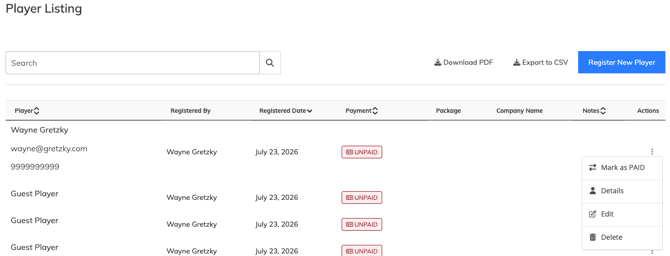
Go to:
Player Management > Player Listing
Use Player Listing when you need to find or update an individual golfer.
To edit a player:
- Go to Player Management > Player Listing.
- Use Search to locate the player.
- Select the three dots beside the player.
- Select Edit.
- Update the player's information.
- Save your changes.
Email and phone number are required when editing a player's information.
Find and update Guest Players
For registrations containing two or more players, the purchaser can select Guest Player when they do not yet know another golfer's information.
Guest Player is available for additional players in both:
- Registration Packages; and
- Online Store products that include multiple players.
It remains available even when email addresses or phone numbers are required for all players.
The purchaser can therefore complete the registration first and provide the missing golfer information later.
Find Guest Players quickly
To find Guest Player records:
- Go to Player Management > Player Listing.
- Use Search at the top of the page.
- Search for Guest.
- Review the Registered By column to identify which purchaser or registration each Guest Player belongs to.
- Select the three dots beside the appropriate Guest Player.
- Select Edit.
- Replace the Guest Player information with the golfer's information.
- Save your changes.
Searching for Guest makes it easier to identify incomplete player records without reviewing the entire Player Listing.
Let purchasers update their players
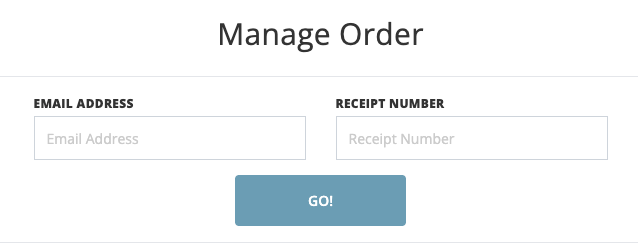
Purchasers can update the golfers included in their registration without contacting the tournament organizer.
From the Tournament Website, they can use:
Manage Order
To access an order, they need:
- the receipt number; and
- the email address used for the transaction.
Once they access the order, they can update player information including:
- first and last name;
- email address;
- phone number; and
- Custom Question answers.
This is especially useful when someone purchases a Twosome, Foursome, Sponsorship Product, or another multi-player option before knowing every golfer who will attend.
Changes to player information also update the corresponding player records in Event Caddy.
Changes automatically update Group Pairings
If players have already been organized under Group Pairings, you do not need to recreate the groups simply because a player's name changes.
Changes made to player names automatically carry through to the tournament's draw/schedule.
Group setup itself is managed separately under Scheduling.
Manually register a player
Manual player registration is available with Event Caddy PRO.
To manually add a player:
- Go to Player Management > Player Listing.
- Click Register New Player.
- Enter the player's information.
- Complete the tournament's Custom Questions.
- Save the player.
Manually registered players count toward your tournament's player total and Max Players capacity.
Players added through Register New Player do not receive the automatic Registration Confirmation Email.
Custom Questions still apply during manual registration. The organizer completing the registration will be shown the tournament's Custom Questions for the player.
Important: Manually registering a player through Register New Player creates the player record but does not create a transaction, receipt, or invoice.
If you need the registration to have an associated financial record or invoice, the player must complete the registration through the Tournament Website instead.
Add several complimentary players
Event Caddy PRO also allows you to create $0 Registration Packages.
If you want several golfers to complete their own registration information rather than adding each player manually, you can create an appropriate $0 Registration Package and share its private registration link.
This can be useful when:
- registering a complimentary Foursome;
- inviting VIP golfers;
- providing sponsor-related player registrations; or
- allowing players to enter their own contact information and Custom Question answers.
For the full private-link workflow, see Inviting Players with Private, Free, or Discounted Registration Links.
On the FREE version of Event Caddy, the minimum Registration Package price is $1 and Register New Player is not available.
Player records vs. transactions
Player records and financial transactions are related, but they are not the same thing.
| Player Management | Finances |
|---|---|
| Player names and contact information | Purchases and payment records |
| Guest Players | Receipts and invoices |
| Manual player registration | Refunds |
| Custom Question answers | Voiding transactions |
| Player Listing | Payment-method changes |
Use Player Listing when you are correcting or maintaining golfer information.
Use the Finances tools when you need to change the financial transaction associated with a registration.
Important: Do not change the price of a Registration Package after it has been purchased. Changing the price after completed registrations can cause financial reporting and transaction count issues.
Before changing a player's registration purchase
Editing a golfer's player record is different from changing what was originally purchased.
For example, correcting a player's:
- name;
- email address; or
- phone number
is player management.
Changing the purchased Registration Package, payment, refund, or transaction itself is a financial workflow and should be handled through the appropriate Event Caddy finance tools.
Do not change the price of an existing Registration Package to correct an individual registration.
Frequently Asked Questions
How do I update a player's information?
Go to Player Management > Player Listing, locate the player, select the three dots beside their record, and choose Edit.
How do I find all of my Guest Players?
Go to Player Management > Player Listing and search for Guest.
Use the Registered By column to determine which purchaser or registration each Guest Player belongs to.
Can the purchaser update their own players?
Yes.
Purchasers can use Manage Order on the Tournament Website with their receipt number and transaction email address to update player names, email addresses, phone numbers, and Custom Question answers for golfers included in their registration.
What happens if I update a player after creating Group Pairings?
Player-name changes automatically update in the tournament's draw/schedule.
You do not need to recreate Group Pairings simply because a player's name was corrected.
Can I manually register a player?
Yes. Manual registration is available with Event Caddy PRO. Go to Player Management > Player Listing > Register New Player.
Does manually registering a player create an invoice?
No.
Using Player Management > Player Listing > Register New Player creates a player record but does not create a transaction, receipt, or invoice.
If an invoice or financial record is required, register the player through the Tournament Website instead.
Are Custom Questions included when I manually register someone?
Yes.
The tournament's Custom Questions are shown when an organizer uses Register New Player.
Does a manually registered player receive the Registration Confirmation Email?
No.
The automatic Registration Confirmation Email is not sent when a player is manually added through Player Listing > Register New Player.
How can I add players manually on the FREE version?
Manual backend registration is not available on the FREE version.
The closest option is to create a Registration Package, which must have a minimum price of $1 on FREE tournaments, and register the golfer through the Tournament Website.
Can I change the price of the Registration Package after someone registers?
No.
Do not change the price of a Registration Package after it has been purchased. Doing so can cause financial reporting and transaction count issues.
If the purchase or payment itself needs to be corrected, use the appropriate transaction or refund workflow instead.
Related Articles
- Player Registration Overview
- Creating and Managing Registration Packages
- Inviting Players with Private, Free, or Discounted Registration Links
- Creating Registration Questions and Viewing Answers
- Customizing the Registration Confirmation Email
- Setting Up Group Pairings
- Refunding and Voiding Transactions
- Managing Transaction History and Receipts