
Transaction History is Event Caddy's record of individual orders completed through your Tournament Website.
Use it to review purchaser information, payment status, receipt numbers, order amounts, invoices and receipts, notes, and transaction exports. It is different from Event Finances, which summarizes tournament revenue and expenses rather than showing each individual order.
What Appears in Transaction History
Transaction History includes orders created through normal Tournament Website checkout, including:
- Registration Package purchases
- Online Store purchases
- Sponsorship Product purchases
- donations made through the dedicated Donate workflow
- transactions paid by Stripe
- transactions paid by PayPal
- Cash and Cheque transactions
- renamed manual payment methods such as e-Transfer or ACH
The following do not create normal Transaction History entries:
- manually entered Other Revenue or Other Expenses in Event Finances
- players added manually through Player Management > Player Listing > Register New Player
- Auction winning-bid payments
Important: Auction payments are managed through the Auction workflow and Auction Winners Report. They do not appear in Transaction History.
View Transaction History
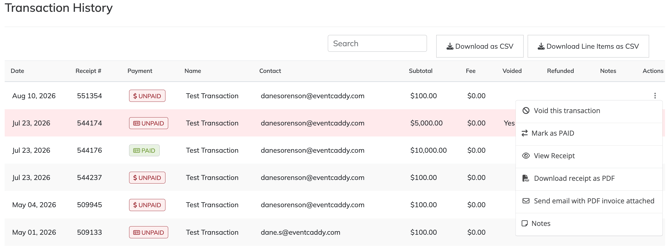
- From the Admin Dashboard, go to Finances & Commerce > Transaction History.
- Use Search to find a transaction by the information shown in the table.
- Review the order's receipt number, purchaser, contact information, payment status, subtotal, fees, notes, and other transaction details.
- Open the Actions menu beside a transaction when you need to view its document, change its payment status, add notes, or manage the transaction.
The available actions can vary depending on the transaction's current status.
Paid and Unpaid Transactions
Online payments successfully completed through Stripe or PayPal are marked Paid automatically.
Cash, Cheque, and renamed manual payment methods are created as Unpaid because Event Caddy does not receive or verify those funds.
After you receive a manual payment:
- Go to Finances & Commerce > Transaction History.
- Find the transaction.
- Open its Actions menu.
- Select Mark as PAID.
If a transaction needs to be returned to an unpaid status, use Mark as UNPAID.
Changing between Paid and Unpaid updates the transaction's payment status and purchaser document. It does not remove the underlying order.
Note: For normal Registration, Online Store, and Donation transactions, changing Paid/Unpaid status does not determine whether the revenue is included in Event Finances. Auctions use a different payment model in which only Paid Auction Items are included.
Invoices and Receipts
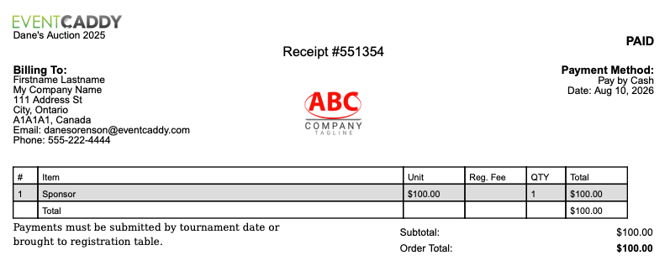
Event Caddy uses the transaction's payment status to distinguish between an invoice and a receipt:
- Unpaid transaction = invoice
- Paid transaction = receipt
Some current interface controls may still use Invoice or Receipt wording more generally, but customer-facing documentation should use the terms based on payment status.
From a transaction's Actions menu, organizers can:
- View Receipt
- Download receipt as PDF
- Send email with PDF receipt attached
The HTML and PDF versions include the transaction details and any additional receipt/invoice text configured under My Event > Event Setup & Settings.
Add Notes to a Transaction
Transaction Notes can be used to record internal information related to an order.
- Open Finances & Commerce > Transaction History.
- Find the transaction.
- Open the Actions menu.
- Select Notes.
- Add or update the relevant information.
Use notes for internal transaction context rather than as a replacement for purchaser payment instructions.
Export Transaction History
Transaction History includes two CSV export options.
Download as CSV
Select Download as CSV to export transaction-level data.
This export is useful when you need one overall record for each order, including payment and financial information associated with the transaction.
Download Line Items as CSV
Select Download Line Items as CSV when you need the contents of each order broken down into its individual line items.
This is useful when an order contains multiple Registration Packages, Store Products, players, or other purchased items and you need more detail than the transaction-level export provides.
For product-specific purchaser reporting, use the reporting tools owned by the Online Store rather than relying only on Transaction History.
Void a Transaction
Voiding is used when the Event Caddy order itself needs to be undone.
For example, voiding a transaction can:
- remove players created by the purchase;
- restore affected Online Store product quantity; and
- reverse the underlying purchase from Event Caddy records.
To void an order:
- Go to Finances & Commerce > Transaction History.
- Find the transaction.
- Open the Actions menu.
- Select Void this transaction.
A voided transaction remains visible in Transaction History so there is still a record of what occurred.
If a transaction was voided by mistake, open its Actions menu and select Restore this transaction.
Important: Voiding an Event Caddy transaction does not refund money collected through Stripe or PayPal. Refund the payment through the appropriate Payment Gateway separately before voiding the Event Caddy order when a purchaser is receiving their money back.
If a Sponsorship Product created a Sponsor record, voiding the Store transaction does not automatically remove or hide that Sponsor. Review the Sponsor separately under Event Website > Sponsors.
Purchaser Access Through Manage Order
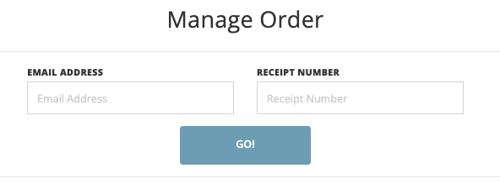
Purchasers can access an existing order from the Tournament Website using Manage Order.
They enter:
- the email address used for the transaction; and
- the receipt number.
After signing in to the order, the purchaser can review information associated with the transaction, including available Receipts, Players, and Products.
If the transaction is still Unpaid, the purchaser can pay the outstanding order by credit card through Stripe when Stripe is connected. PayPal is not currently offered for payment through Manage Order.
Player information changes made through Manage Order—including player names, email addresses, phone numbers, and Custom Question answers—remain part of the Player Registration workflow.
Transaction History vs. Event Finances
Transaction History and Event Finances serve different purposes.
| Tool | Use it for |
|---|---|
| Transaction History | Individual orders, payment status, purchaser details, invoices/receipts, exports, notes, and transaction actions |
| Event Finances | Tournament-wide revenue, expenses, estimated processing fees, manual revenue/expense entries, and financial totals |
A transaction can therefore appear in Transaction History while also contributing to one of the revenue sections in Event Finances.
Frequently Asked Questions
Why is a Cash or Cheque order showing as Unpaid?
Event Caddy cannot confirm that money collected outside the platform has actually been received.
Cash, Cheque, and renamed manual payment methods therefore remain Unpaid until an organizer marks the transaction Paid.
Does marking an order Unpaid remove it from Event Finances?
No. For normal Registration, Online Store, and Donation transactions, Paid/Unpaid status does not control whether the order contributes to Event Finances.
Voiding the underlying order is different because the purchase itself is being reversed.
Auction Items are an exception: only Auction Items marked Paid are included in Event Finances.
Can I delete a transaction?
Organizers manage incorrect or cancelled orders by voiding them.
Deleting orders is not a normal organizer workflow. Please contact Event Caddy Support if you need an invoice/receipt deleted.
Can I undo a void?
Yes. A voided transaction remains in Transaction History and can be restored using Restore this transaction.
Does voiding a transaction refund the purchaser?
No.
Stripe and PayPal refunds are handled separately through the Payment Gateway. Voiding only changes the Event Caddy order and its related records.
Can purchasers view their own receipt?
Yes. Purchasers can use Manage Order on the Tournament Website with the transaction email address and receipt number to access the order and available receipt information.
Can a purchaser pay an Unpaid order later?
Yes. If Stripe is connected, an eligible Unpaid order can be opened through Manage Order and paid by credit card.
PayPal is not currently available through Manage Order.
Why don't my Auction payments appear here?
Auctions have their own winner, payment-status, and reporting workflow.
Auction winning-bid payments do not appear in Transaction History. Paid Auction Items instead contribute to the Auctions section of Event Finances.
Related Articles
- Choosing and Configuring Payment Options
- Connecting Stripe and PayPal
- Managing Players and Registrations
- Managing Auction Winners, Payments, and Reporting
- Managing Event Finances
- Refunding and Voiding Transactions
- Understanding Fees & Rates in Event Caddy