
Refunding a payment and voiding a transaction are two separate actions.
- Refunding returns money to the purchaser through Stripe or PayPal.
- Voiding reverses the order inside Event Caddy so the related players, products, quantities, and financial records are corrected.
For a cancelled order that was paid online, you will normally need to refund the payment first and then void the Event Caddy transaction.
Important: Voiding a transaction in Event Caddy does not return money to the purchaser. Likewise, refunding money in Stripe or PayPal does not automatically undo the Event Caddy order.
Before You Begin
Confirm how the original transaction was paid.
- Stripe / Pay by Credit Card: Refund through Stripe.
- PayPal: Refund through PayPal.
- Cash, Cheque, or another manual payment method: Return the funds outside Event Caddy using the appropriate method, then void the Event Caddy transaction if the order needs to be reversed.
Event Caddy does not currently process Stripe or PayPal refunds directly from Transaction History.
Refund a Stripe Payment
- Sign in to the Stripe account connected to the tournament.
- Find the payment you need to refund.
- Use Stripe's refund option to return the payment to the purchaser.
- Complete the refund according to Stripe's prompts.
- Return to Event Caddy after the refund has been submitted.
- If the original order should also be cancelled, void the transaction under Finances & Commerce > Transaction History.
Stripe controls the refund itself, including refund processing times and how funds are returned to the original payment method.
Refund a PayPal Payment
- Sign in to the PayPal account connected to the tournament.
- Find the payment you need to refund.
- Use PayPal's refund option and follow PayPal's prompts to return the payment.
- Return to Event Caddy after the refund has been submitted.
- If the original order should also be cancelled, void the transaction under Finances & Commerce > Transaction History.
PayPal controls the refund itself and determines the timing for returning funds to the purchaser.
Void the Event Caddy Transaction
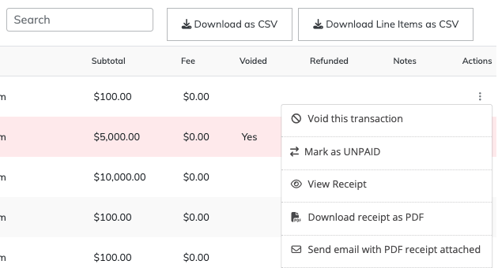
After refunding a cancelled Stripe or PayPal purchase, void the related Event Caddy transaction so the order is also reversed inside Event Caddy.
- Go to Finances & Commerce > Transaction History.
- Find the transaction.
- Open the Actions menu.
- Select Void this transaction.
Voiding reverses the Event Caddy purchase. Depending on what was included in the transaction, this can:
- remove players created by the purchase;
- restore Online Store product quantity;
- remove the transaction's contribution from Event Finances and player counts; and
- otherwise undo the Event Caddy order.
The voided transaction remains visible in Transaction History for reference.
Important: If a Sponsorship Product created a Sponsor record, voiding the purchase does not automatically remove or hide that Sponsor. Review the Sponsor separately under Event Website > Sponsors.
Restore a Voided Transaction
If a transaction was voided by mistake:
- Go to Finances & Commerce > Transaction History.
- Find the voided transaction.
- Open its Actions menu.
- Select Restore this transaction.
Restoring reverses the Event Caddy void.
It does not charge the purchaser again or reverse a refund that was already completed through Stripe or PayPal. If money has already been refunded, make sure the payment and Event Caddy order remain consistent before restoring the transaction.
Correct an Order Instead of Partially Refunding It
Stripe and PayPal may technically allow partial refunds, but Event Caddy cannot partially adjust the items or dollar amount of an existing transaction to match that refund.
For most corrections, Event Caddy recommends:
- Refund the original payment in full through Stripe or PayPal.
- Void the original transaction in Event Caddy.
- Have the purchaser return to the Tournament Website and complete the corrected order through checkout.
This keeps the payment, player records, Store quantities, and financial reporting aligned with the actual order.
If the transaction is unusually large, processor fees are significant, or a partial-refund situation makes a full refund and new checkout impractical, contact Event Caddy Support before changing the Event Caddy transaction. The best approach can vary by situation.
Auction Refunds Work Differently
Auction payments do not appear in Transaction History and are not voided through this workflow.
For an Auction payment:
- Refund the credit-card payment through Stripe.
- Return to the Auction management workflow.
- Change the Auction Item back to Unpaid.
Changing the Auction Item to Unpaid removes that item from the Auctions section of Event Finances.
See Managing Auction Winners, Payments, and Reporting for the complete Auction-specific workflow.
Frequently Asked Questions
Does voiding a transaction refund the purchaser?
No.
Voiding only reverses the Event Caddy order. A Stripe or PayPal payment must be refunded separately through the Payment Gateway.
Does refunding a payment automatically void the Event Caddy order?
No.
With the current generally available payment system, refunds completed through Stripe or PayPal do not automatically update or void the corresponding Event Caddy transaction.
Why should I void a transaction after a full refund?
Voiding keeps Event Caddy consistent with what actually happened financially.
It can remove players created by the purchase, restore Store quantity, and remove the order from the tournament's financial and player totals.
Can I partially refund an order?
Stripe and PayPal may permit partial refunds, but Event Caddy cannot partially modify an existing transaction to match the changed amount or items.
For most corrections, refund the original transaction in full, void it, and have the purchaser complete the corrected order again.
Contact Event Caddy Support first if the amount is large or processor fees make that approach impractical.
Can I delete a transaction?
Deleting orders is not a normal organizer workflow.
Organizers should use Void this transaction when an Event Caddy order needs to be reversed.
Can I undo a void?
Yes. Use Restore this transaction from the transaction's Actions menu.
Remember that restoring an Event Caddy transaction does not reverse any refund already issued through Stripe or PayPal.
What if the purchaser paid by Cash, Cheque, or a custom manual payment method?
Return any money directly to the purchaser using the appropriate offline method.
If the Event Caddy order also needs to be reversed, void the transaction through Transaction History.
Will voiding a Sponsorship Product remove the Sponsor from my website?
No.
If the purchase created a Sponsor record, review that Sponsor separately under Event Website > Sponsors after voiding the transaction.
Related Articles
- Managing Transaction History and Receipts
- Connecting Stripe and PayPal
- Choosing and Configuring Payment Options
- Managing Auction Winners, Payments, and Reporting